
FarmLoop Stage 2 assembly, Prusa Core One
Please read through the entire guide before beginning the installation. Ensure you have all prerequisites ready to avoid interruptions during assembly.
This guide covers installing FarmLoop Stage 2 on the Prusa Core One / One+.
Prerequisites
Section titled “Prerequisites”- Prusa Core One / One+ with latest firmware installed
- FarmLoop Stage 2 kit - door-opener actuator, bender actuator and holders, pusher assembly, wire harness, limit switch, FarmBoard PCB, custom build plate, and mounting hardware
- FarmLoop Pro subscription, sign up at app.3d-farmers.com - not required if you already have a SimplyPrint Print Farm subscription (see SimplyPrint integration)
- A clean, flat work surface large enough to lay every part out
Components used in this guide:
- Door-opener button, rubber ring, and metal ring
- Door-opener linear actuator
- Bender linear actuator, bender bracket, bender shoe, and double-sided tape

- 2 bender holders, joined with an M4 bolt and nut
- Printed door hinge replacement, metal axle, and door bracket, secured with 2 BT3 bolts and nuts
- Printed touchscreen back cover
- Limit switch and switch holder
- 2 longer bolts (for mounting the printer handle)
- Pusher assembly
- 4 rubber feet and 3 tilted feet
- Wire harness and cable bracket
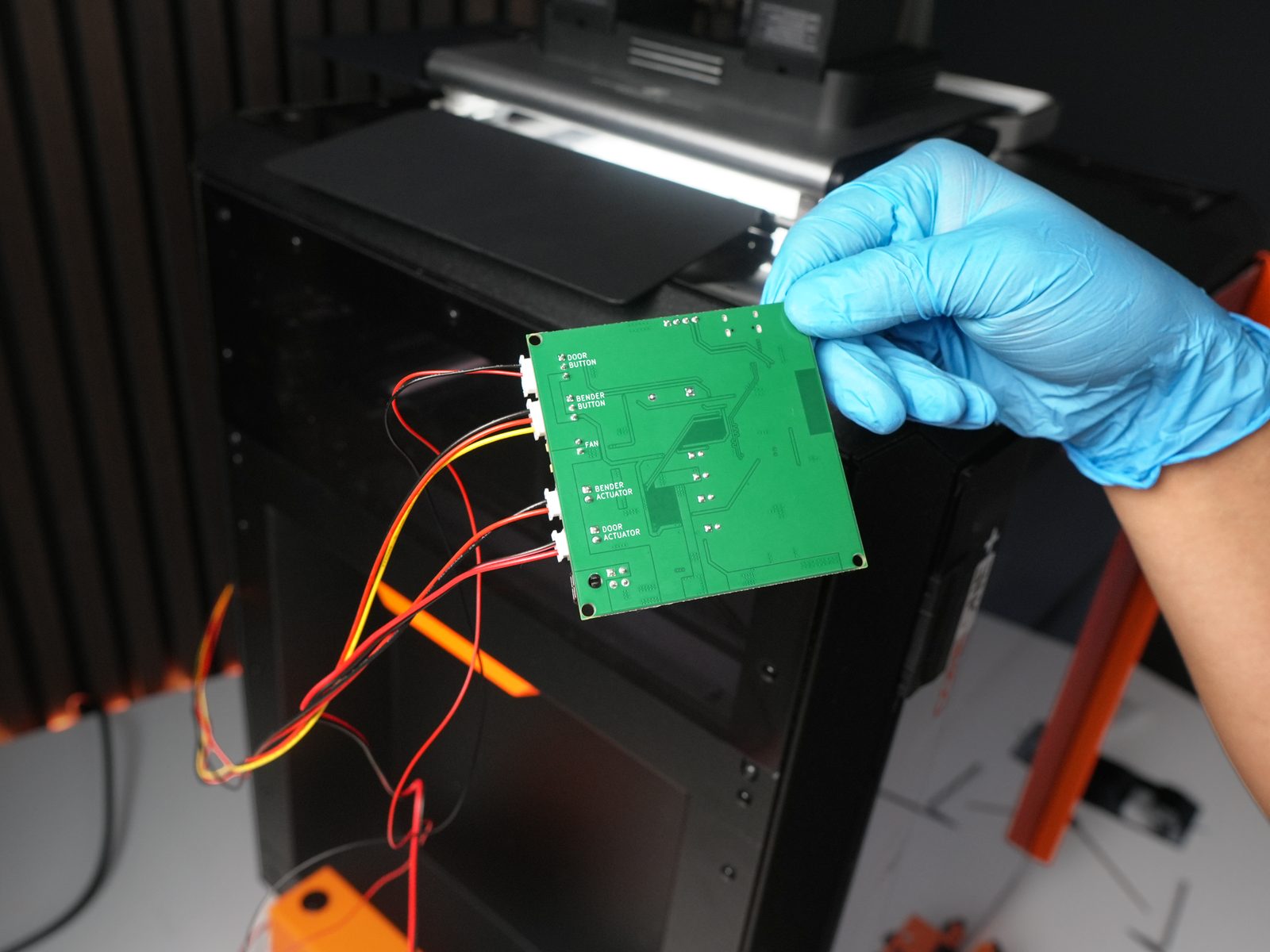
- FarmBoard PCB and PCB holder, secured with M3 bolts
- Door handle and quick-release pin, secured with an M3 bolt/nut and an M4 bolt/nut
- Custom build plate and plate clip
Hardware assembly
Section titled “Hardware assembly”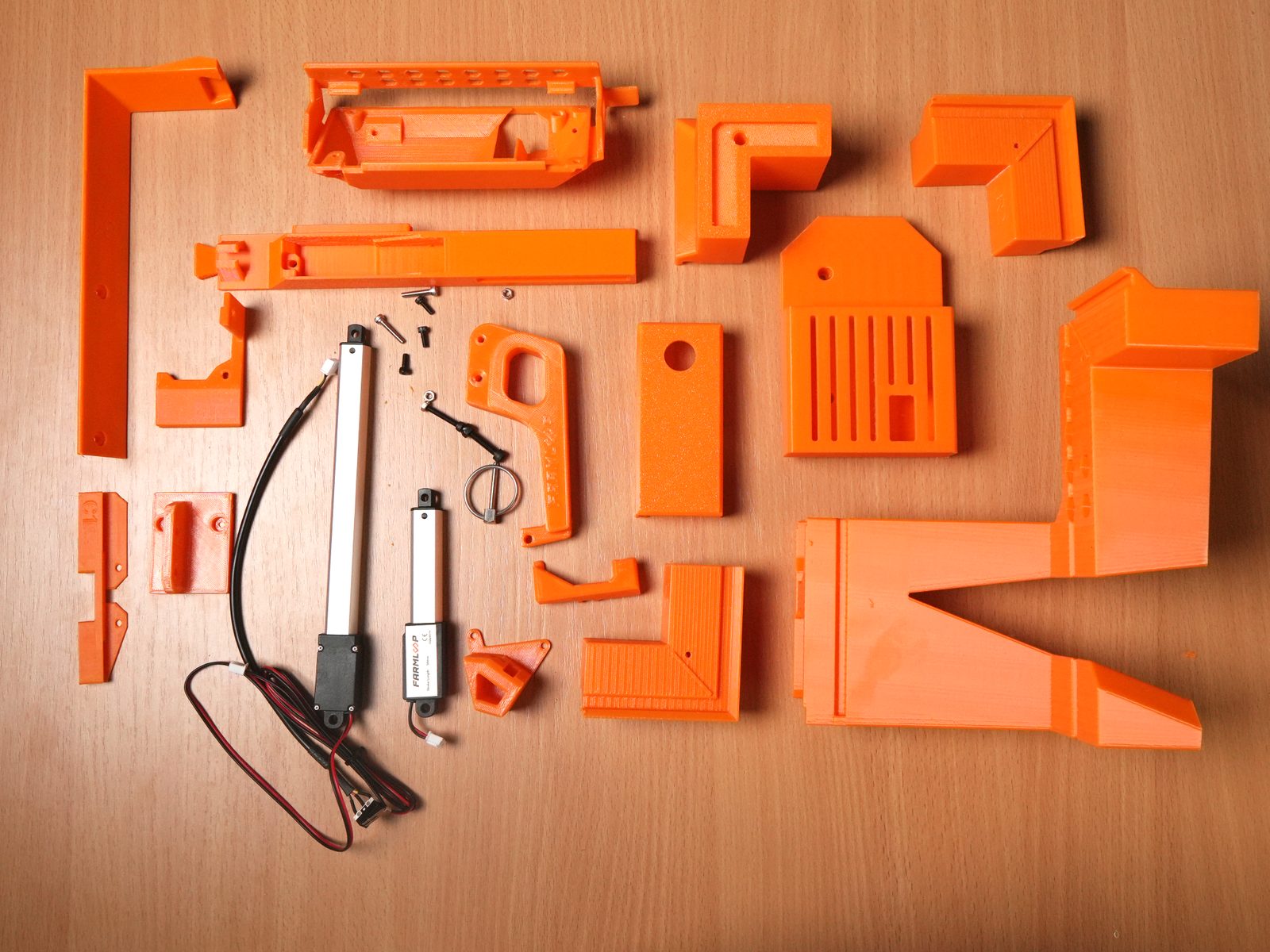
Check whether everything is present, as shown above.
1. Assemble the door opener
Section titled “1. Assemble the door opener”- Attach the wire to the terminals before pressing the button into place - it’s much easier to reach now than after the button is seated in the hole.
- Press the button into the designated hole in the lid.
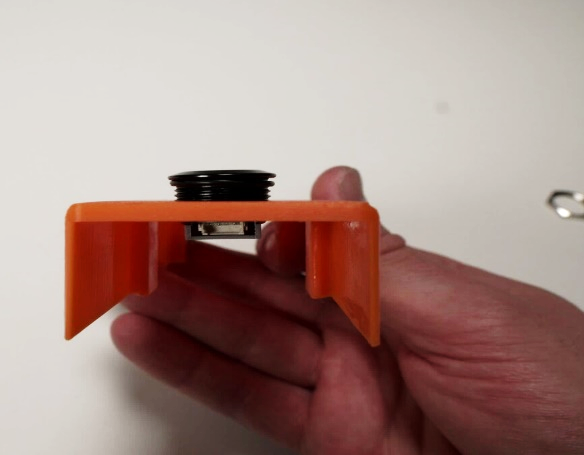
- Fix the button using the rubber ring and metal ring.
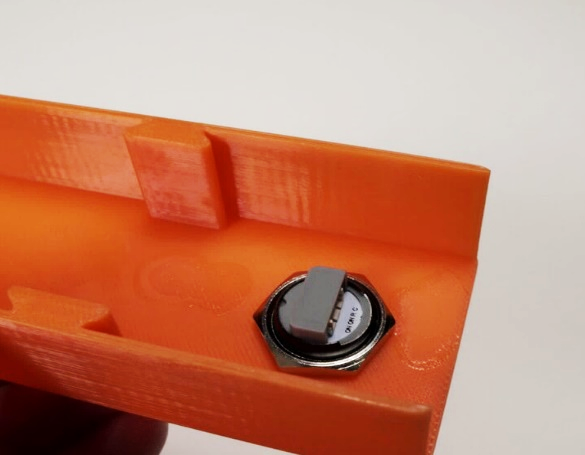
- Slide the actuator into the bottom part until fully seated.

- Align the lid with the base and press them together until they click/lock into place.
2. Set up the benders
Section titled “2. Set up the benders”- Slide the actuator into the bracket.

- Attach the bender shoe using the M4 bolt and nut.

- Put the double-sided tape on the designated location.
- Assemble the two bender holders together.
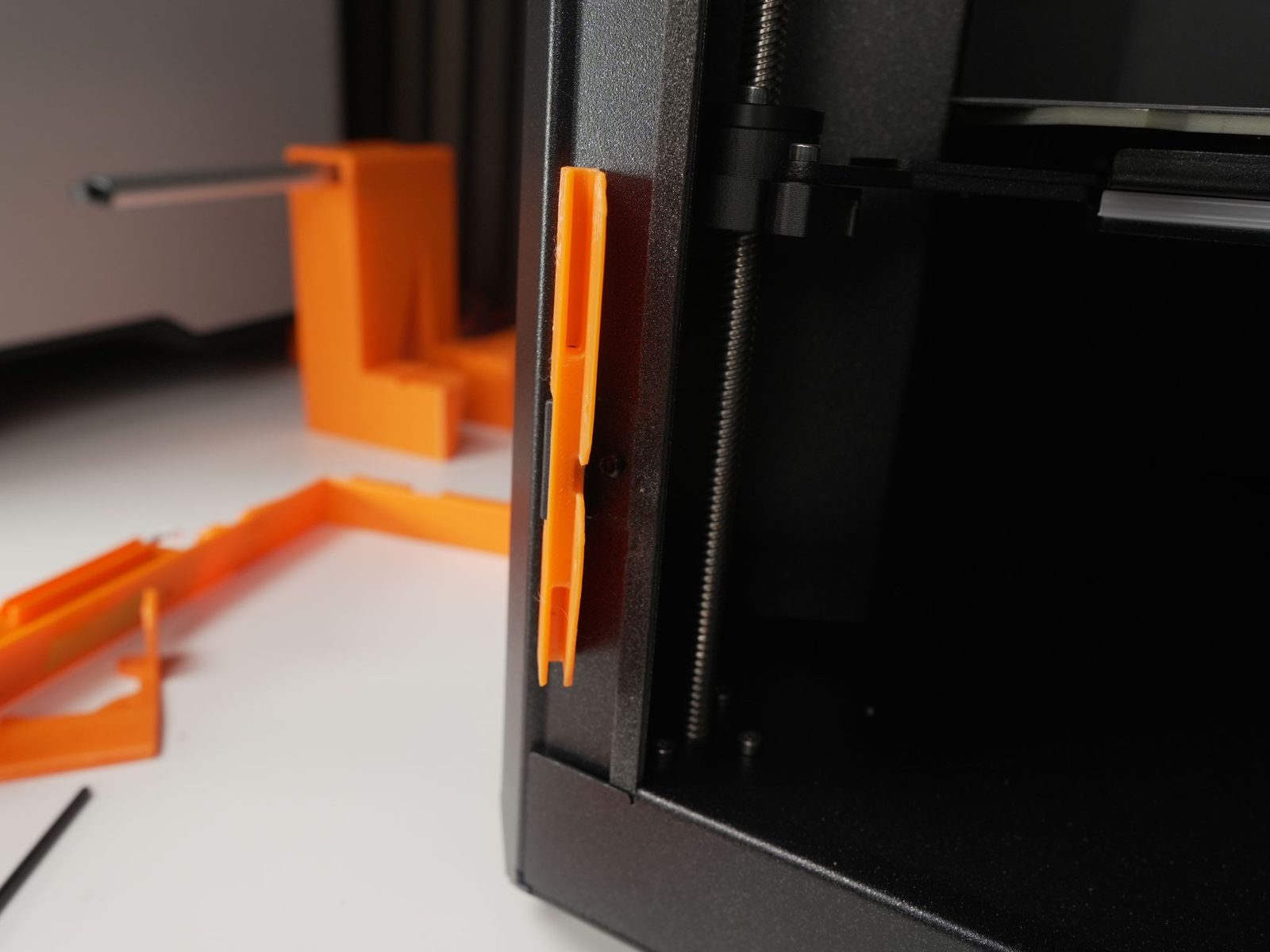
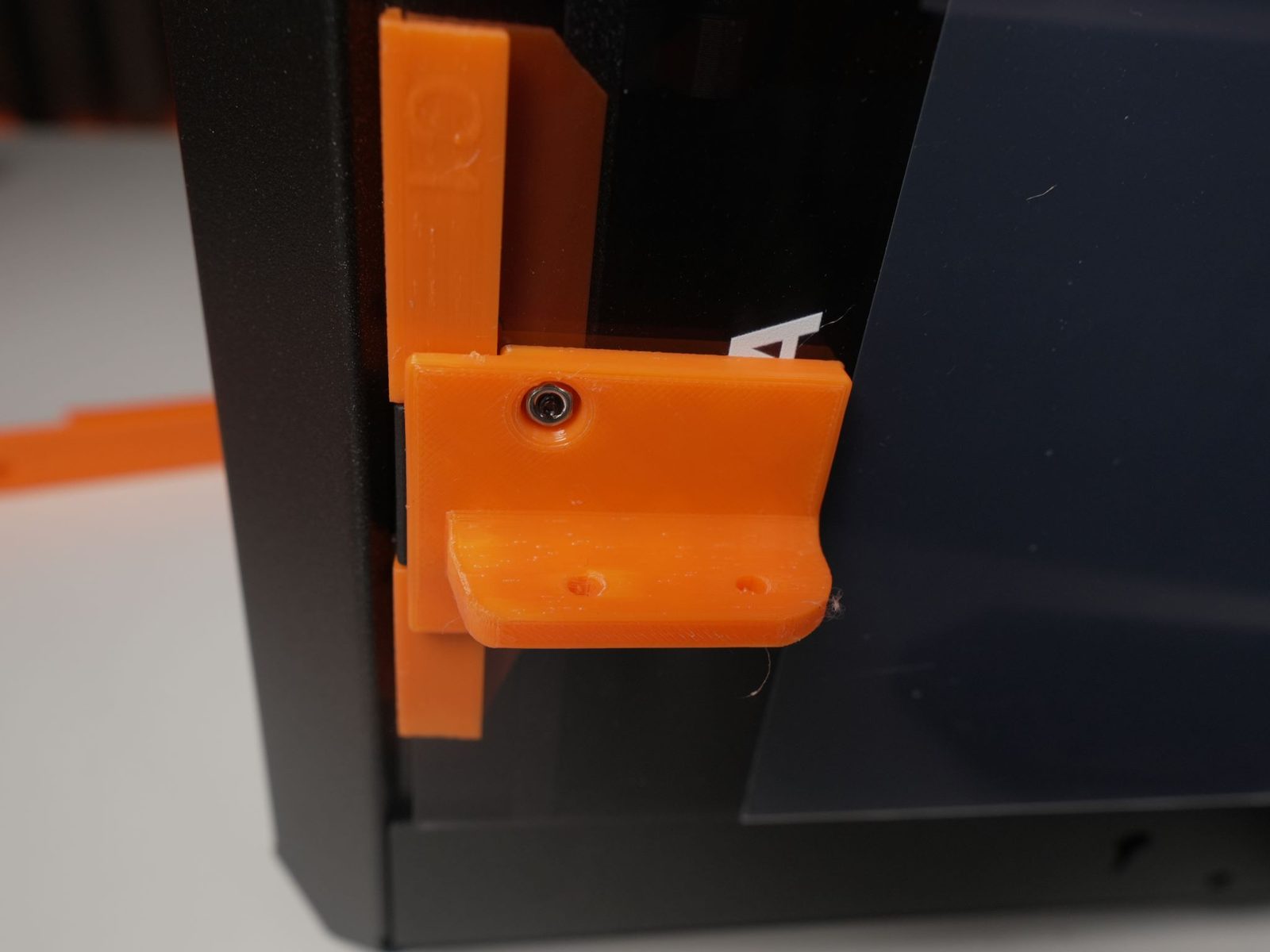
3. Prepare the door hinge
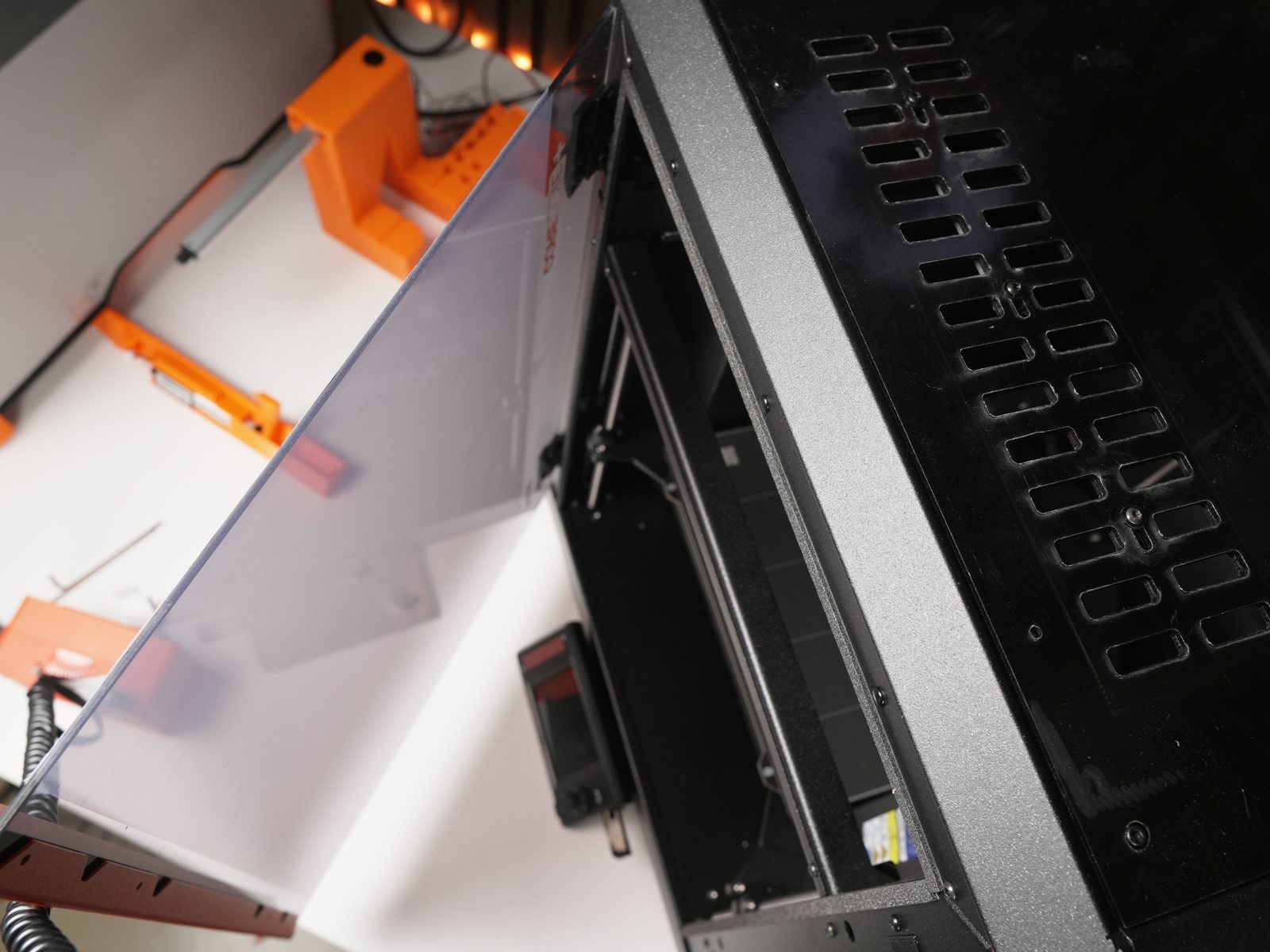

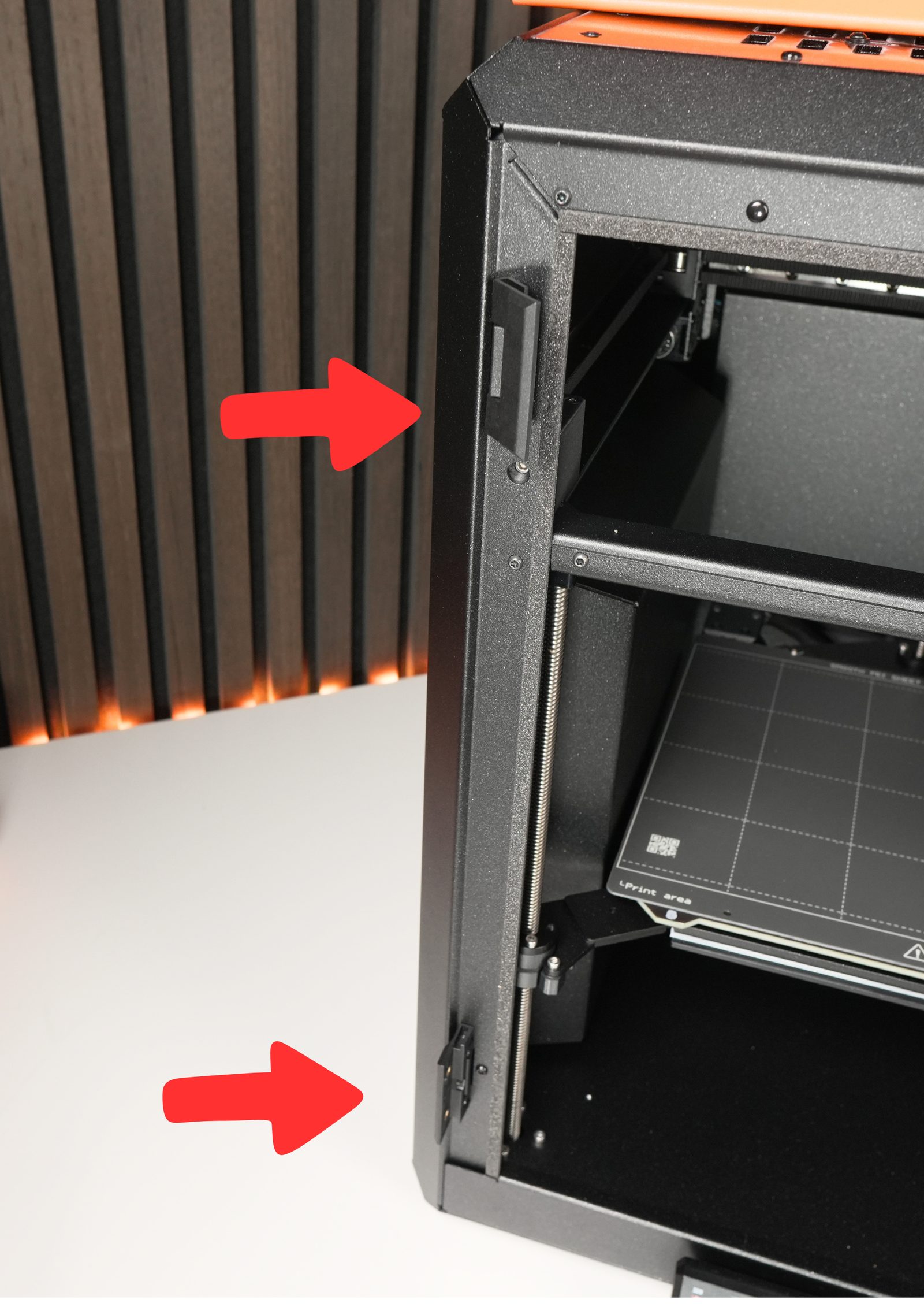


Section titled “3. Prepare the door hinge”- Open the door at around 45 degrees.
- Remove the 4 original bolts and remove the plastic door.
- Rotate the bottom hinge to 90 degrees.
- Remove the metal axle and the hinge.
- Replace the hinge with the printed part.
- Put the metal axle back in and rotate the bottom hinge back to 45 degrees.
- Put the door back and secure the top hinge using the original bolts.
- Connect the door bracket to the bottom hinge using 2 BT3 bolts and nuts.

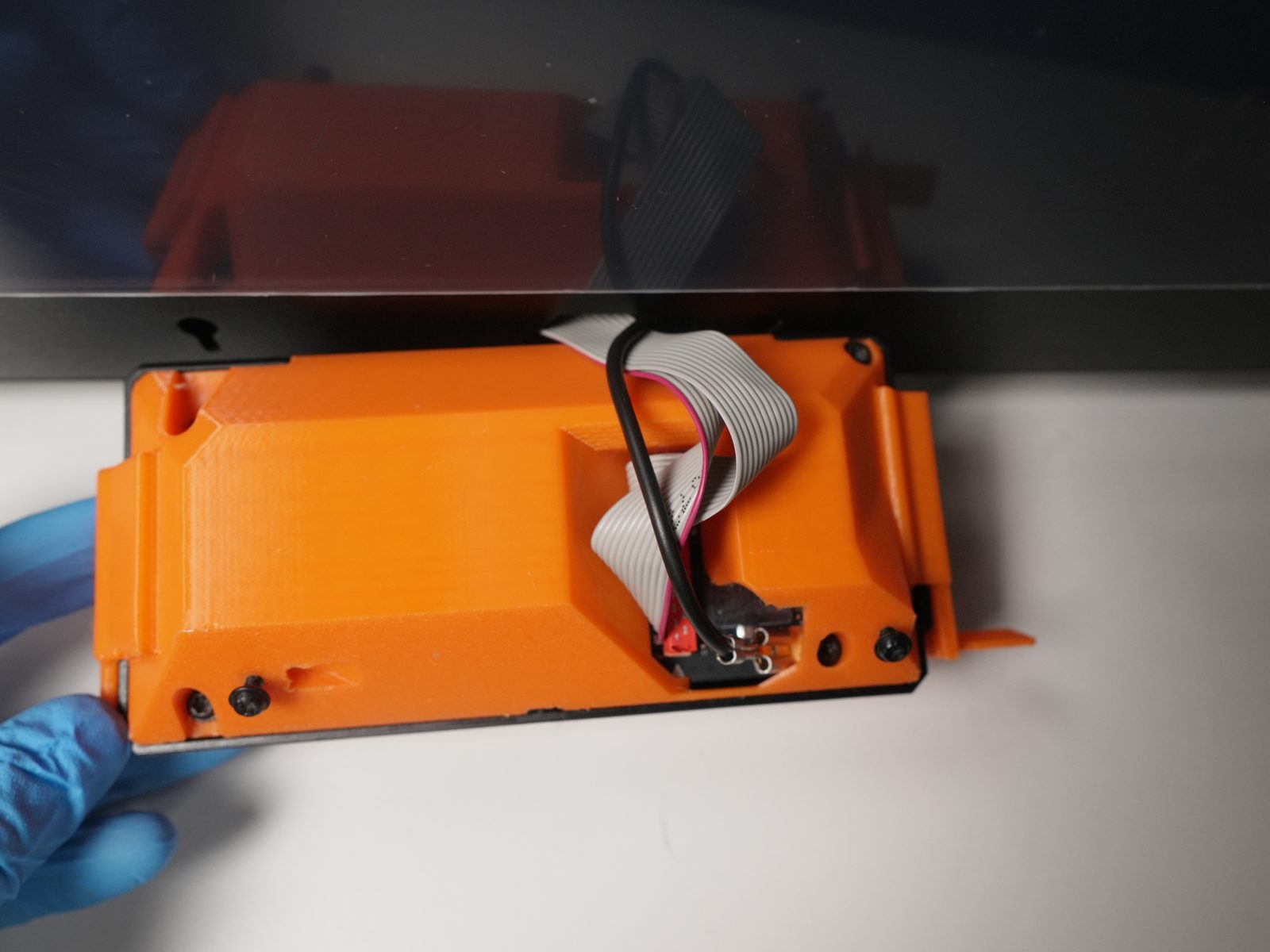
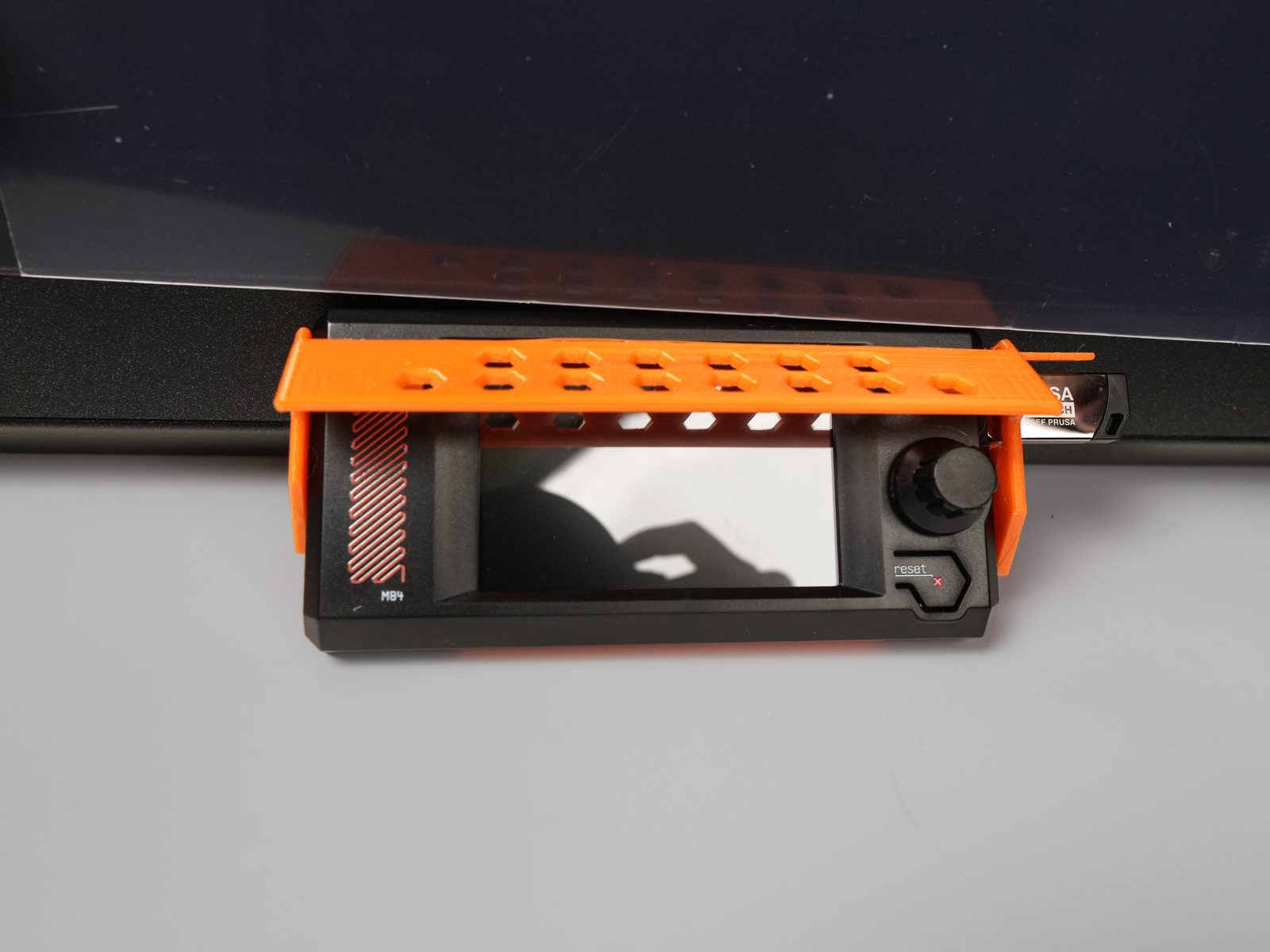
4. Prepare the touchscreen
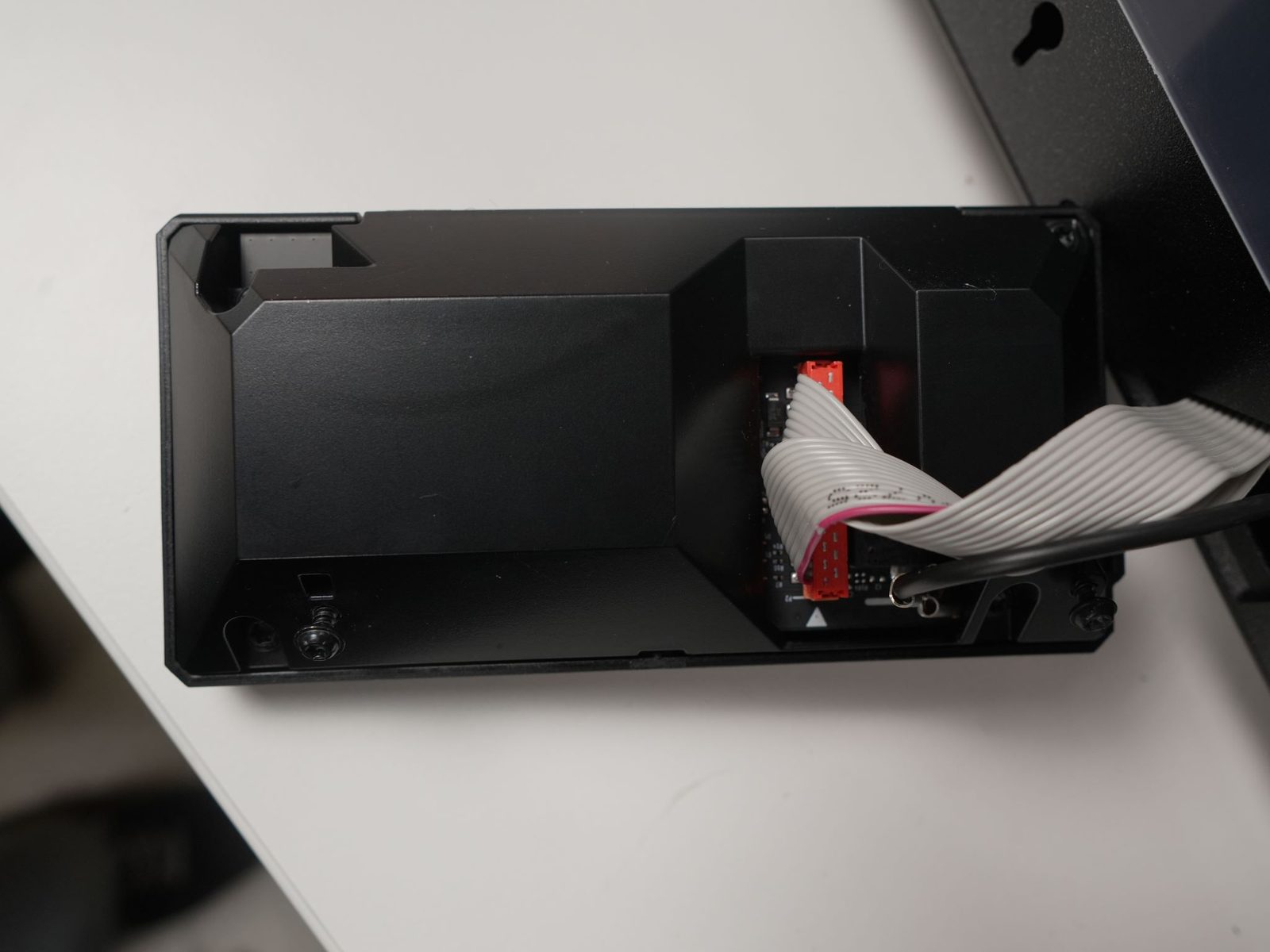

Section titled “4. Prepare the touchscreen”- Detach the screen from the printer.
- Unscrew the 4 bolts at the 4 corners.
- Detach the cable.
- Replace the back cover with the printed part.
- Reconnect the cable.
- Attach the screen back to the printer.
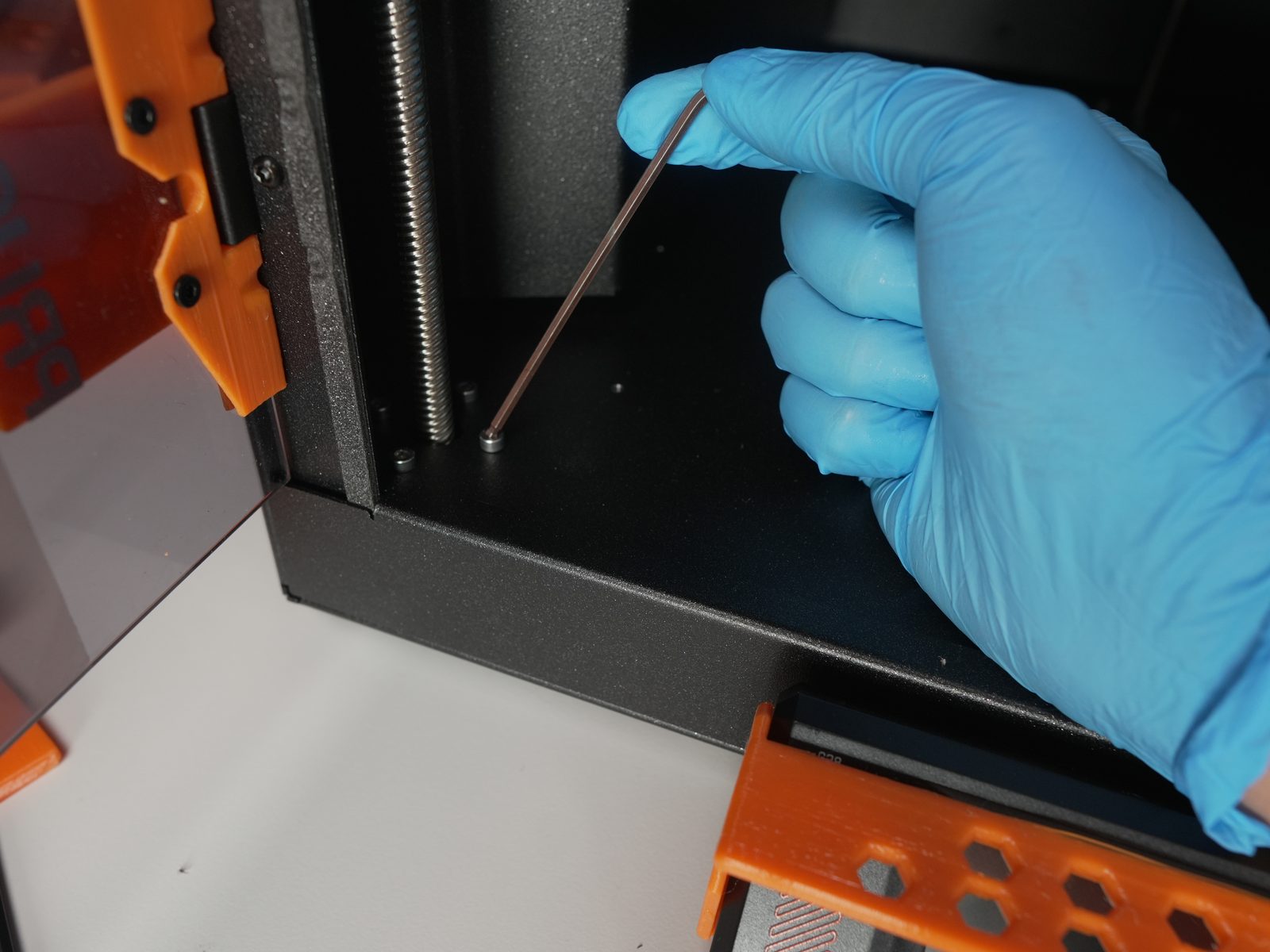
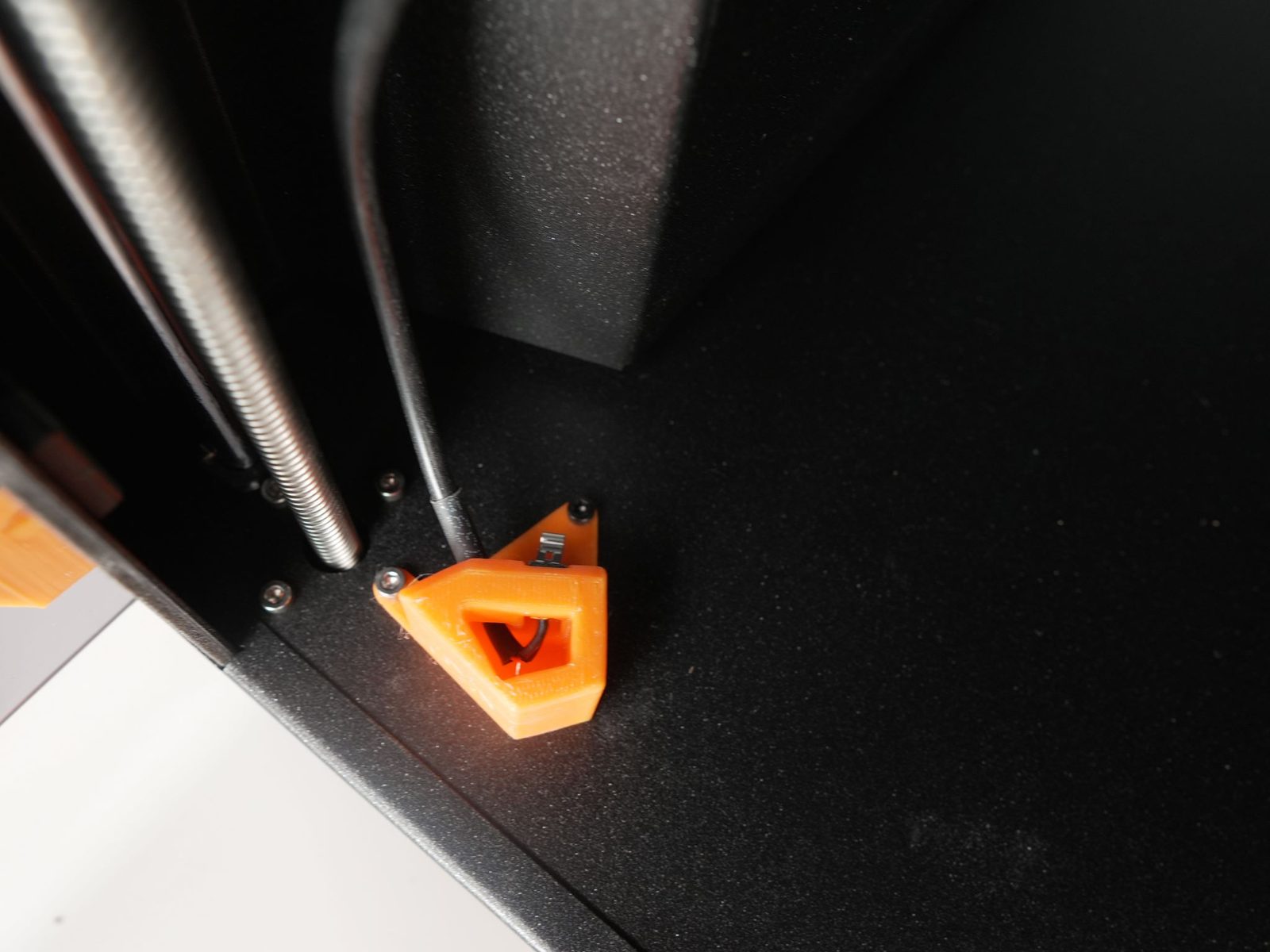
5. Prepare the switch holder
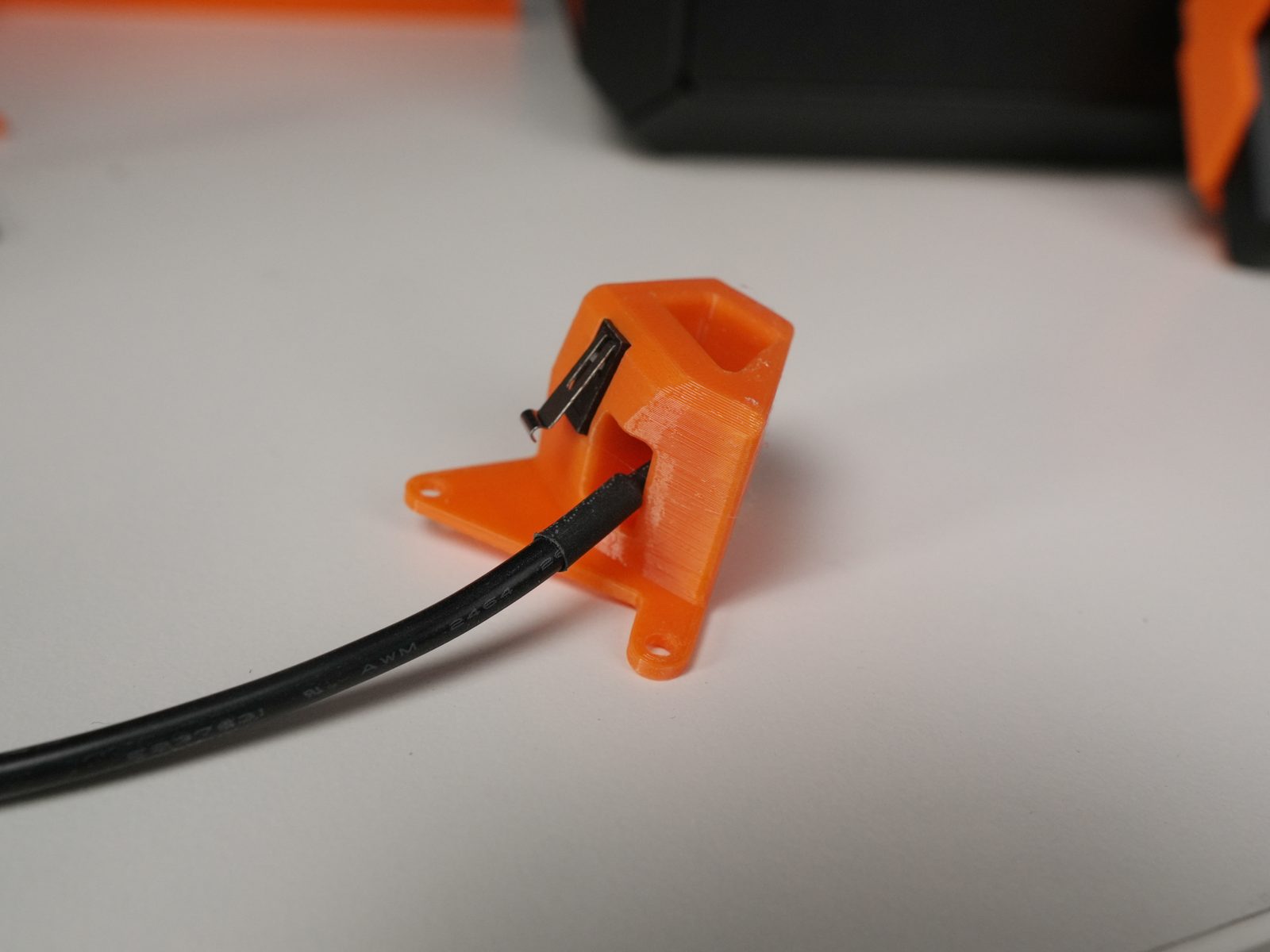
Section titled “5. Prepare the switch holder”- Press the limit switch into the holder.
- Guide the cable out through the opening.
- Remove the bolt on the bottom near the left threaded rod.
- Secure the holder using the original bolt plus one extra bolt from the kit.
6. Prepare the side panel

Section titled “6. Prepare the side panel”- Unscrew the printer handle on the left.
- Replace those bolts with the 2 longer ones provided in the kit.
- Secure the handle onto the printer using the new bolts.
7. Assemble the pusher

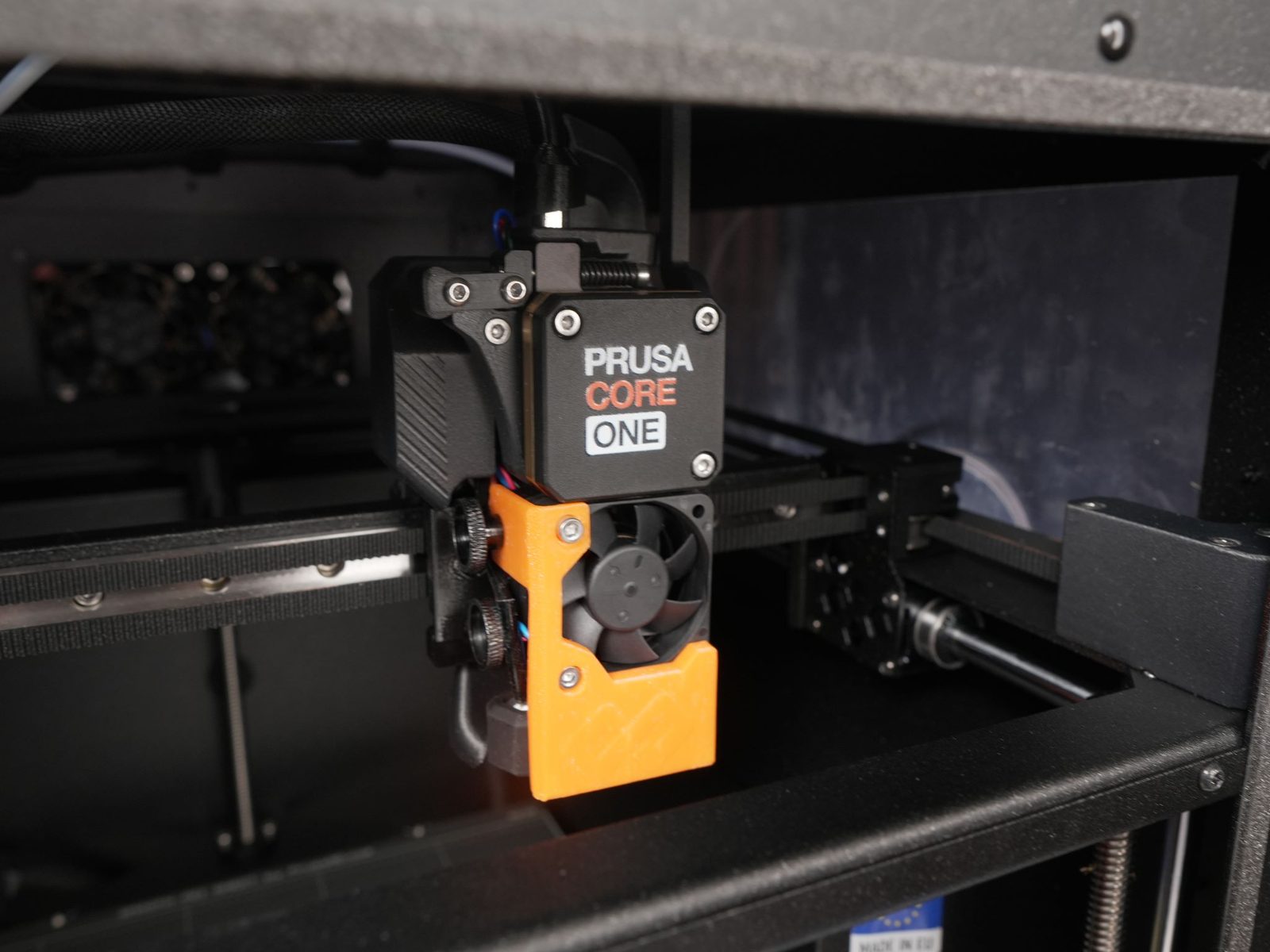
Section titled “7. Assemble the pusher”- Unscrew the 2 bolts for the print-head fan.
- Remove the top thumb screw on the left side.
- Attach the pusher using the original bolts and screws - partially tighten each screw first, then gradually tighten all three until secure.
8. Prepare the 3D printer
Section titled “8. Prepare the 3D printer”- Rotate the printer so the bottom is facing the front.
- Remove the 4 rubber feet and attach them to the printed parts.
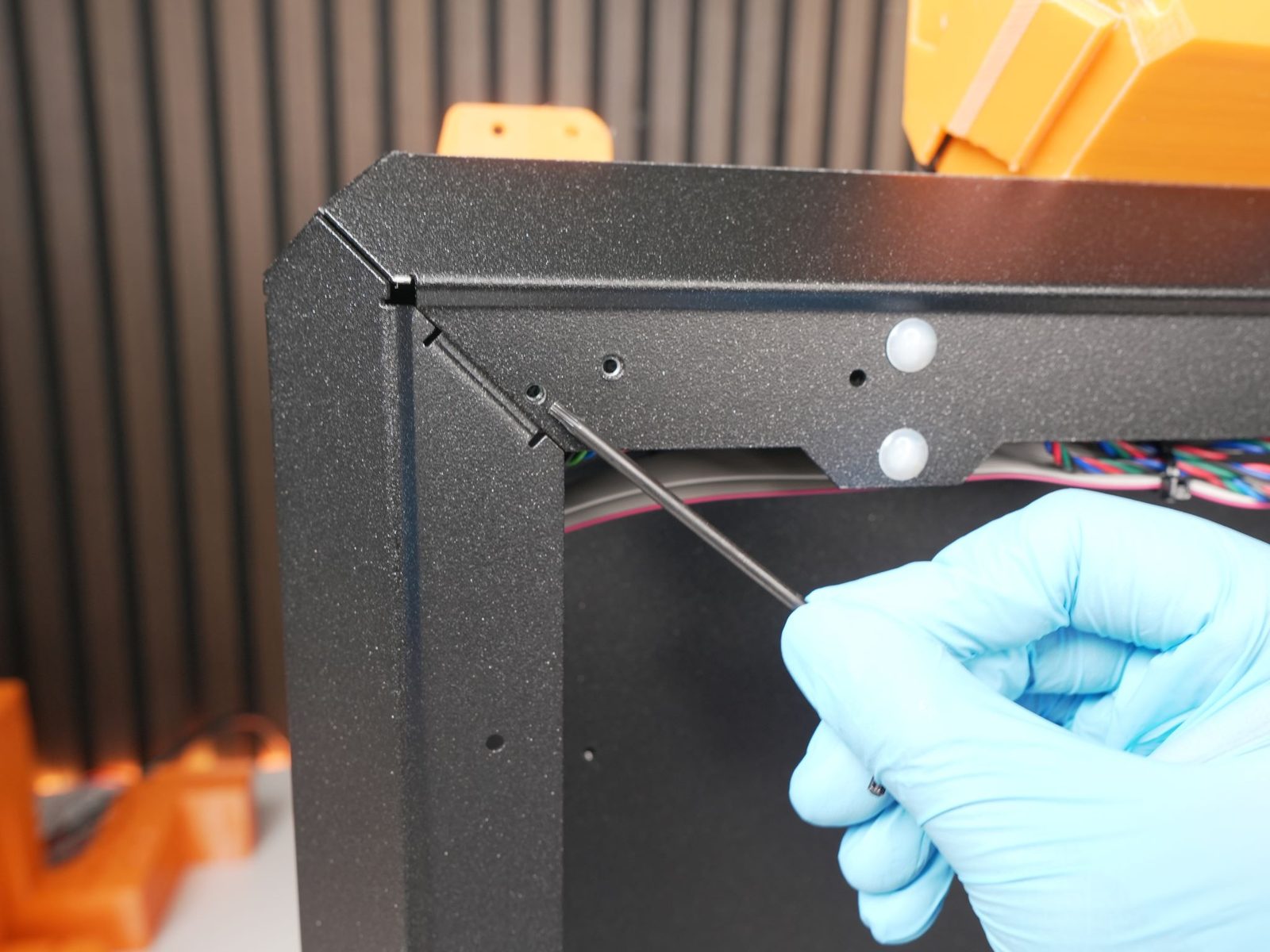
- Remove 4 bolts and screw 3 tilted feet on.
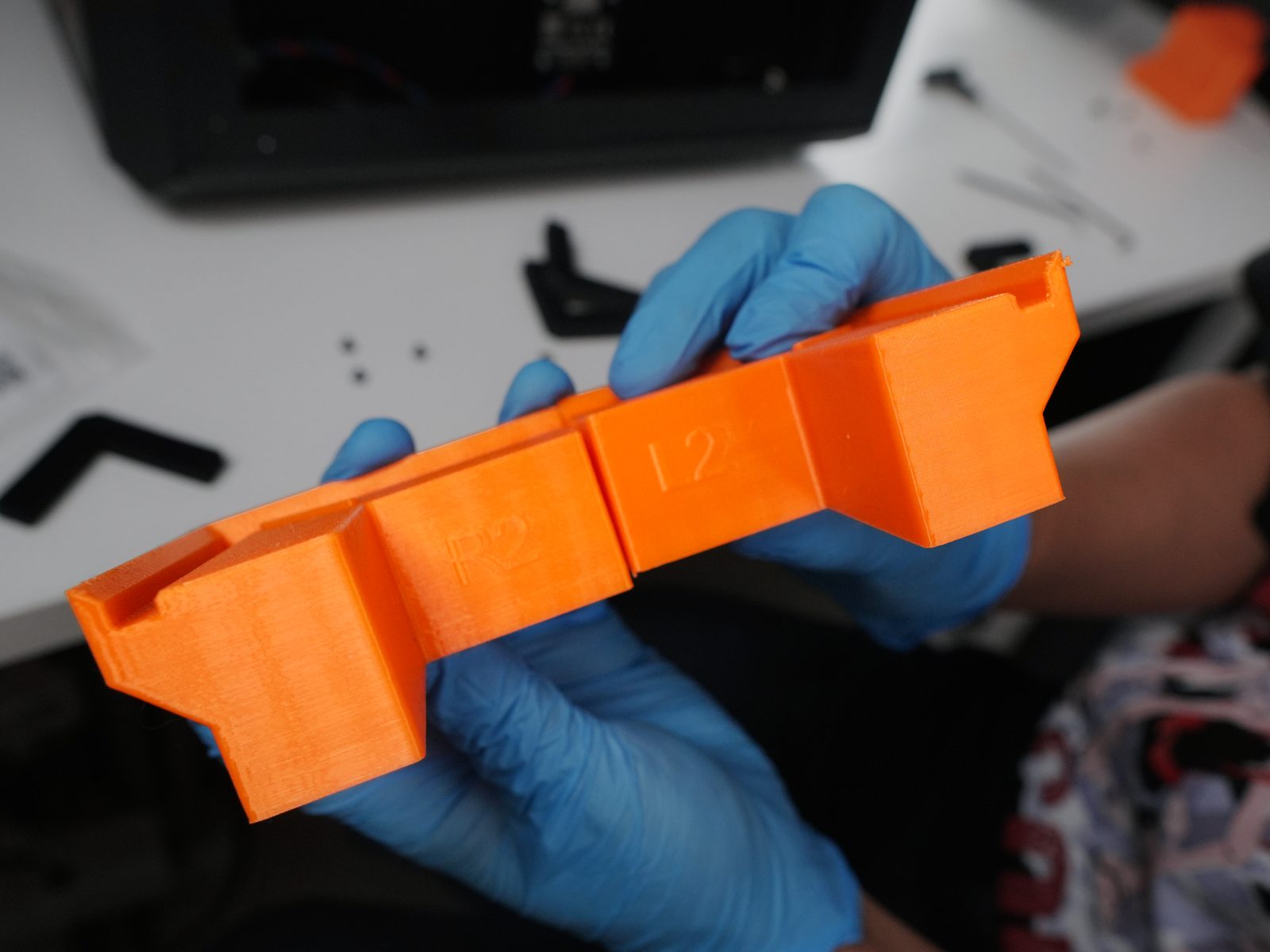
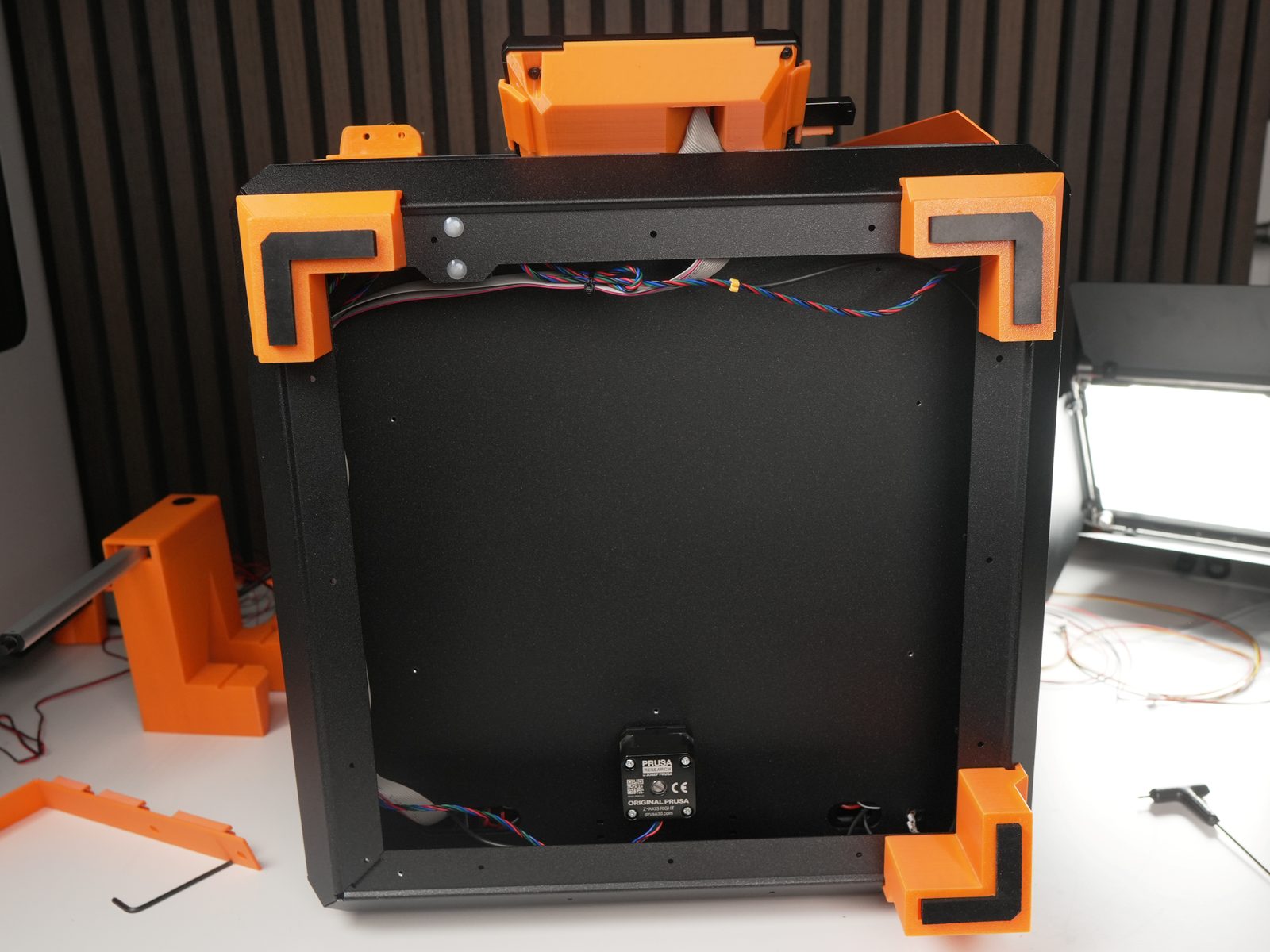
- Rotate the printer back.
- Lift the printer slightly to put the actuator-holder foot in the correct position.
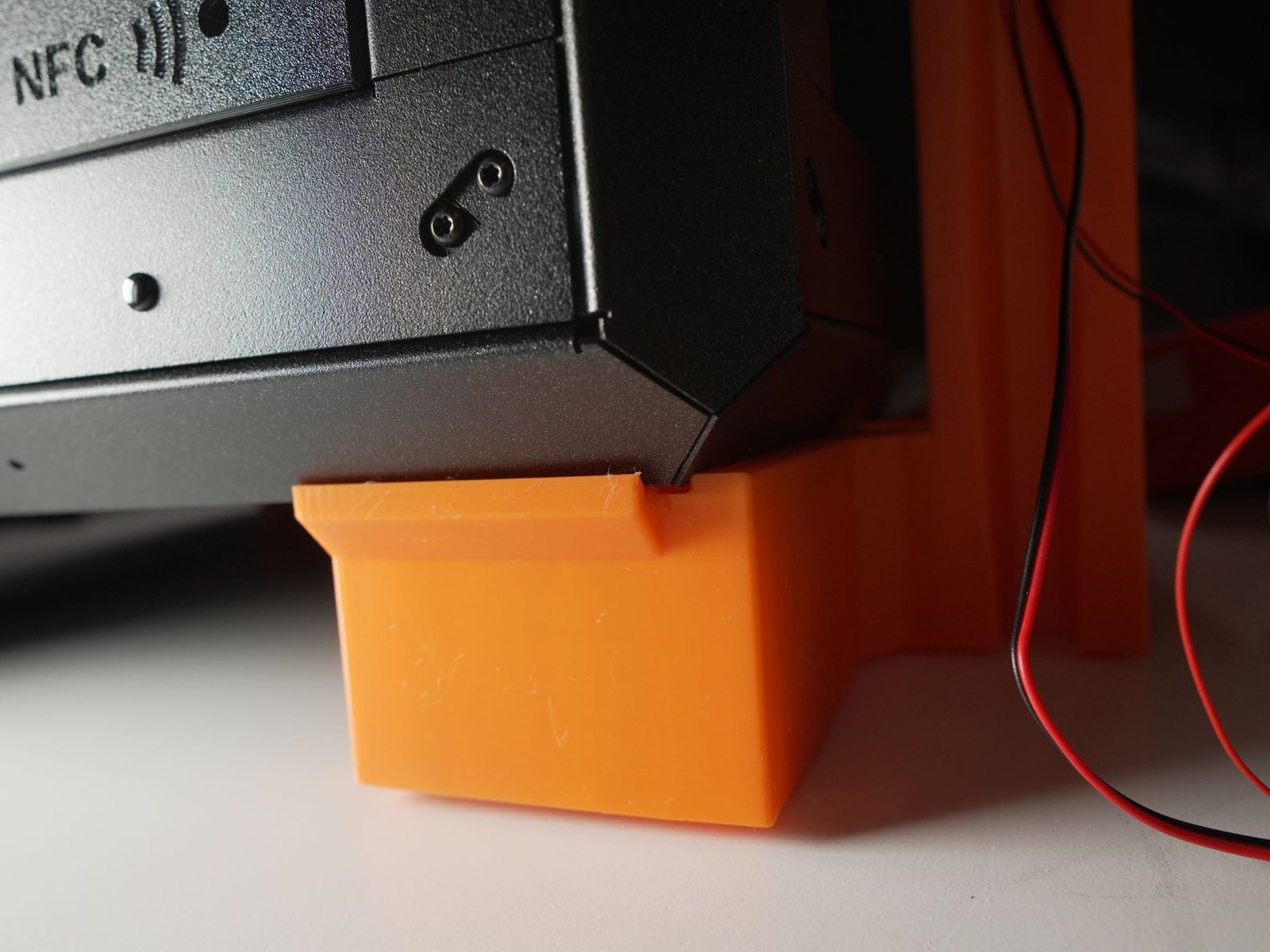
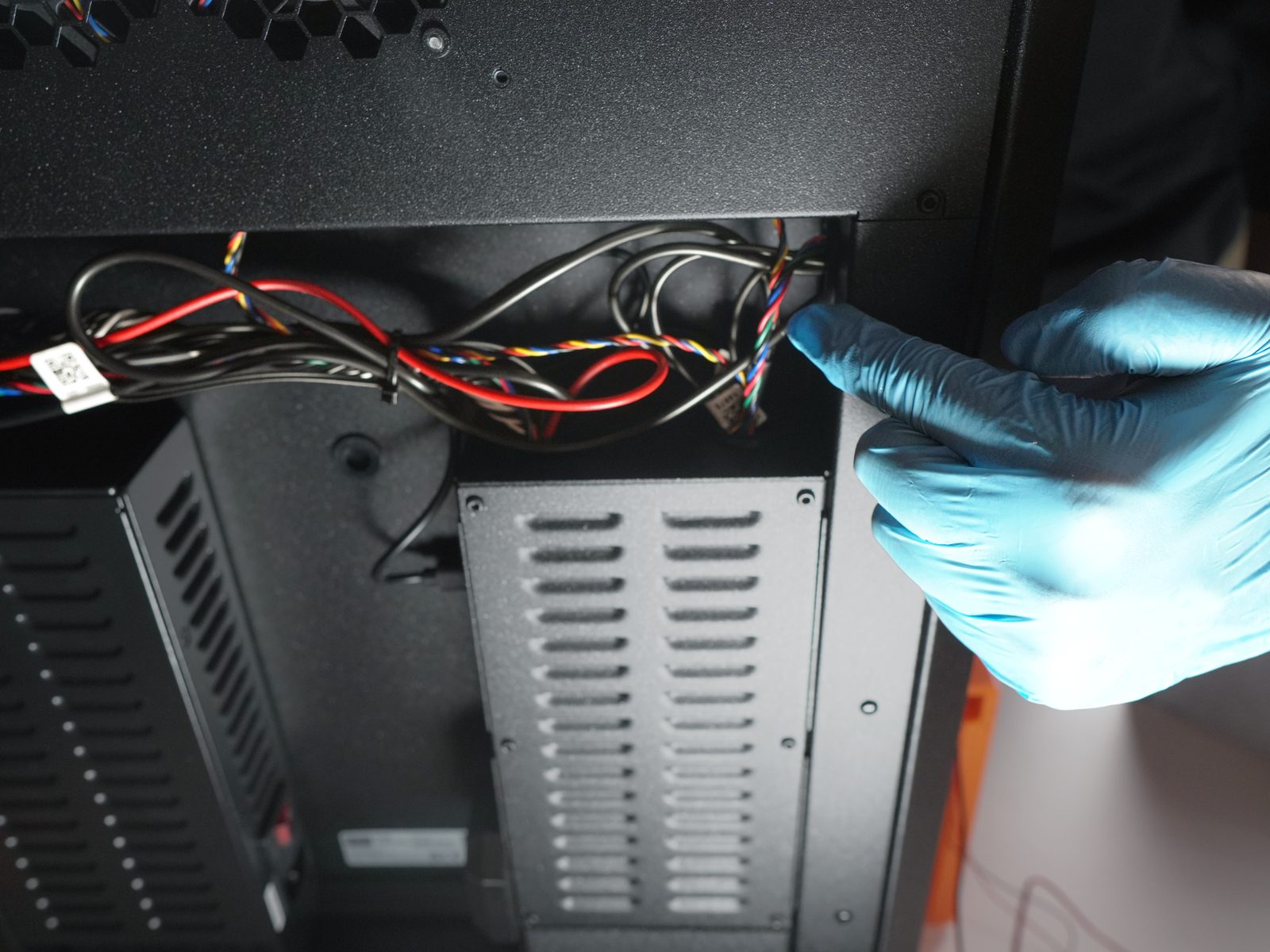
- Remove the back cable cover by unscrewing two bolts in the chamber.
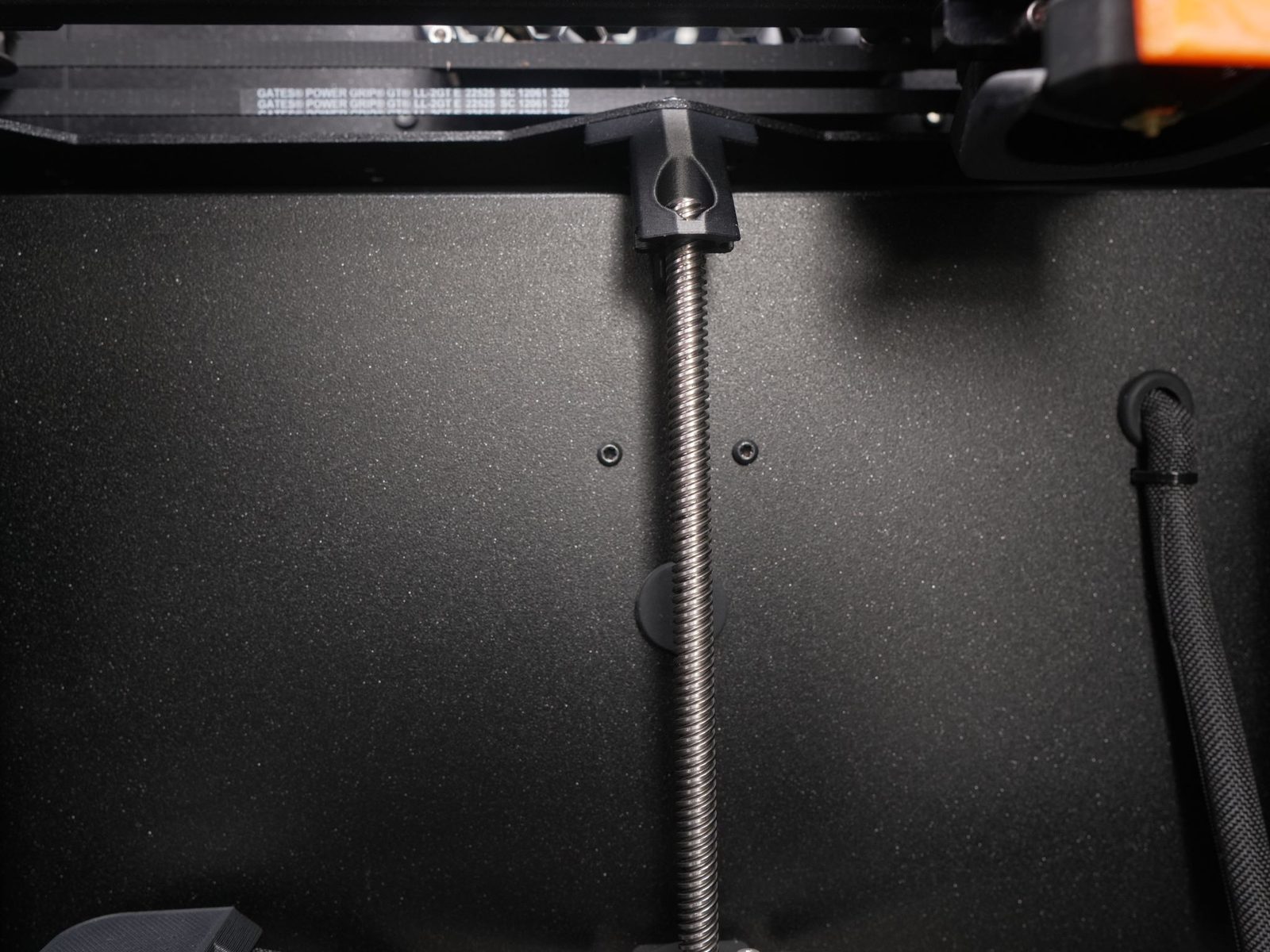

- Insert the wire harness into the print room through the opening.
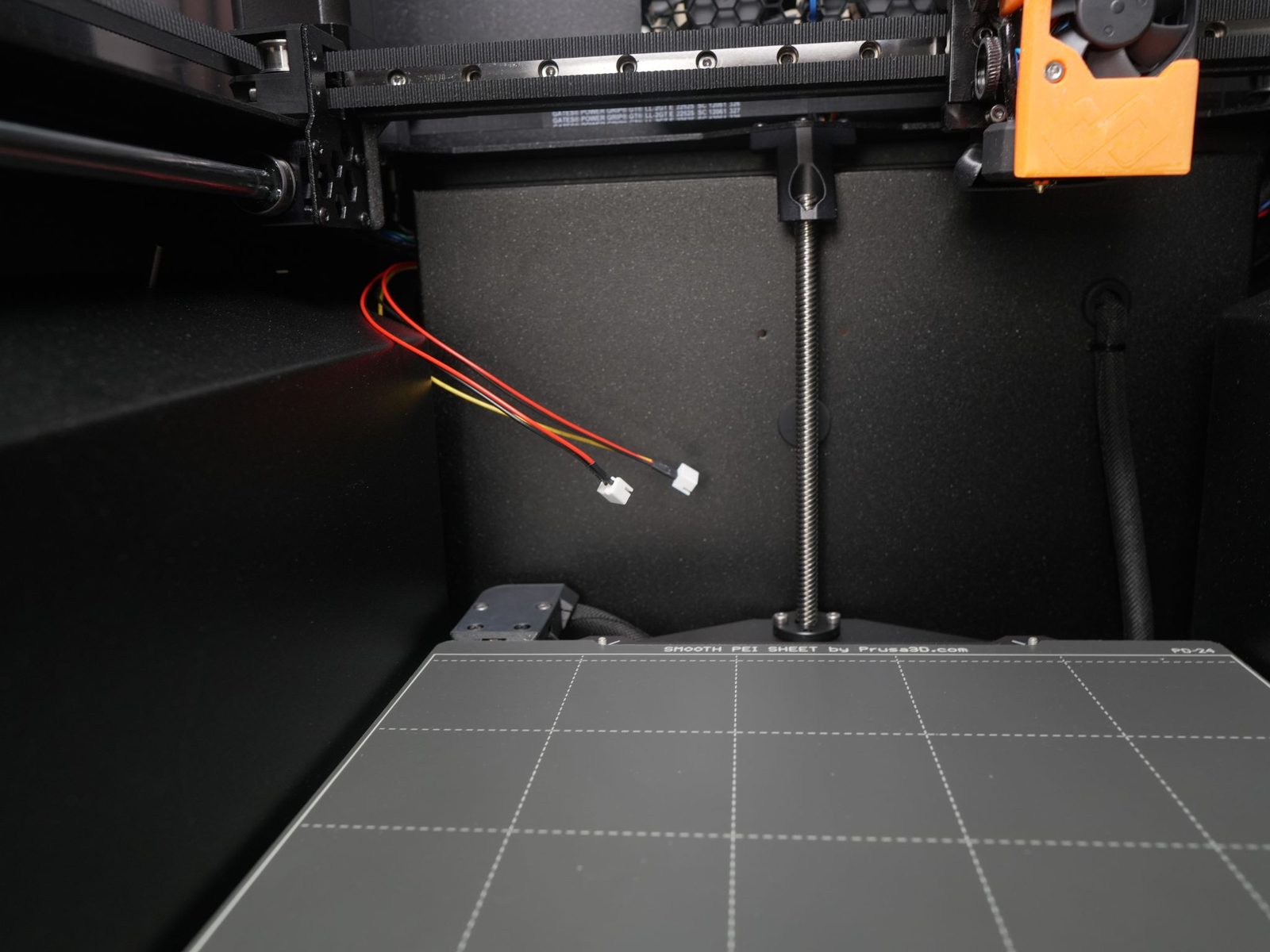

- Attach the bender holder using the double-sided tape and nuts provided.
- Guide the wire harness to the bender holder.
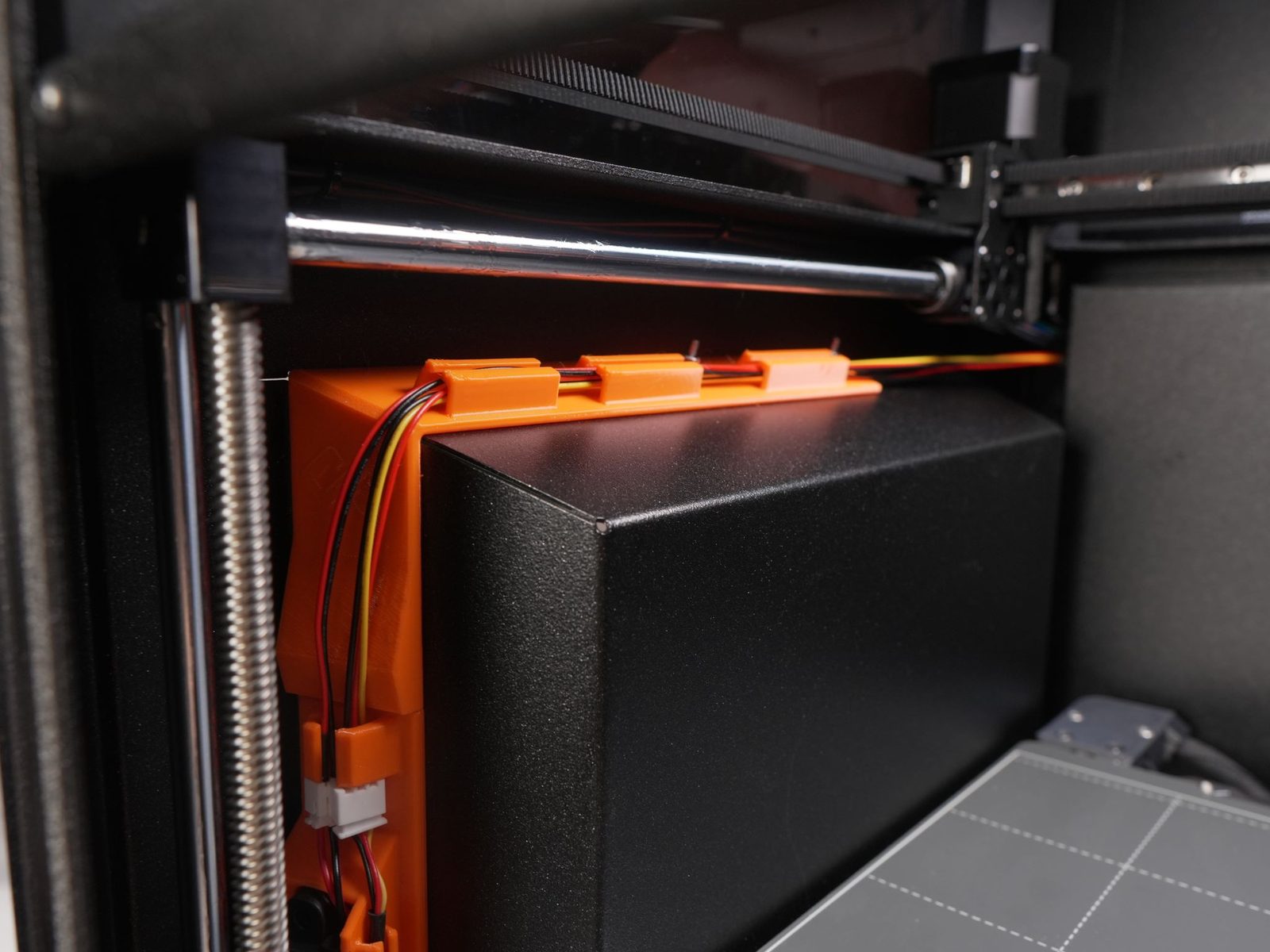
- Guide the limit-switch cable through the bender holder.

- Connect the wire harness to the actuator and switch.
- Pull out the loose part of the wire harness.
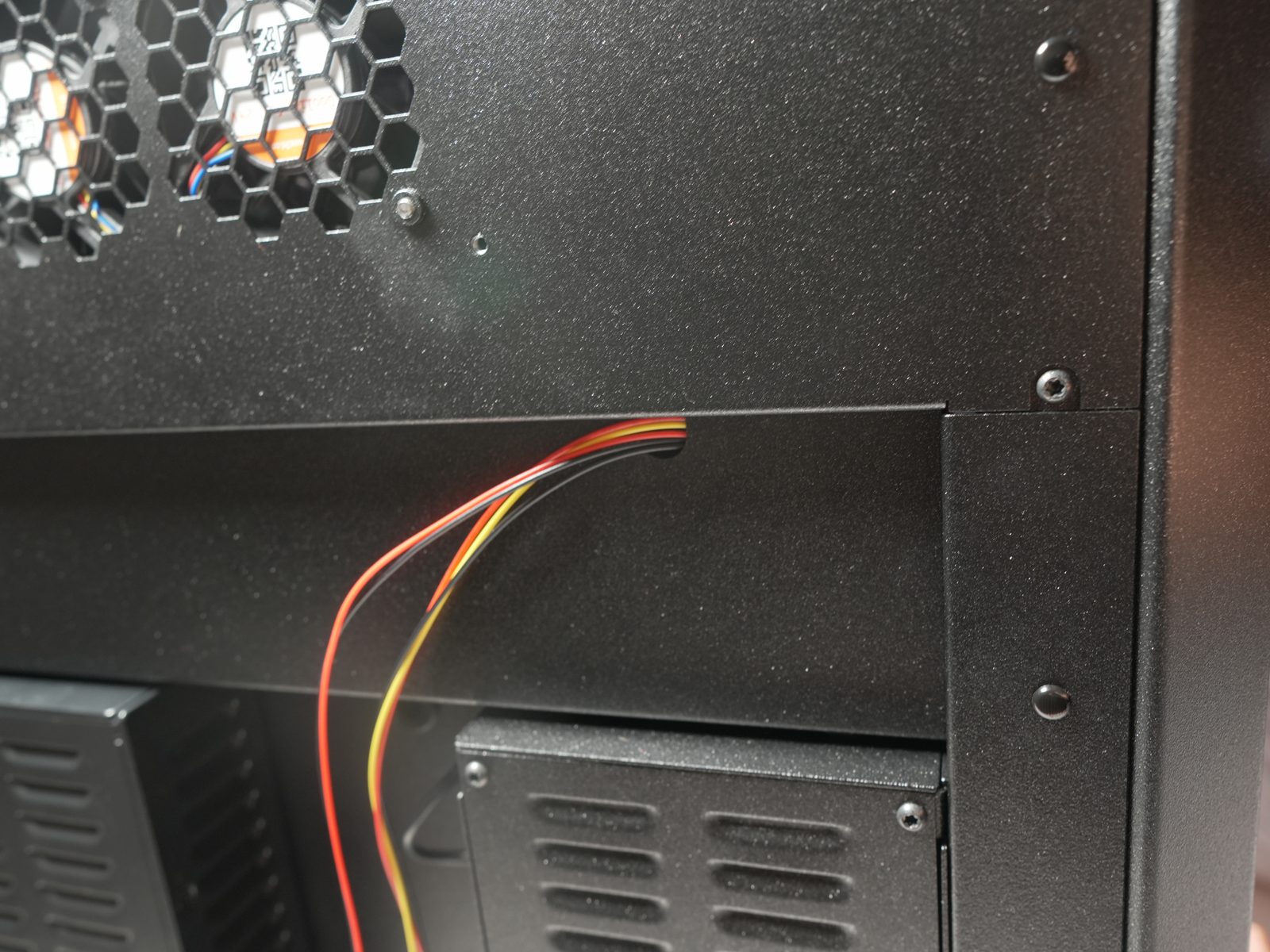
- Close the back cable panel using the original bolts.
- Use M3 bolts to secure the PCB holder at the back.
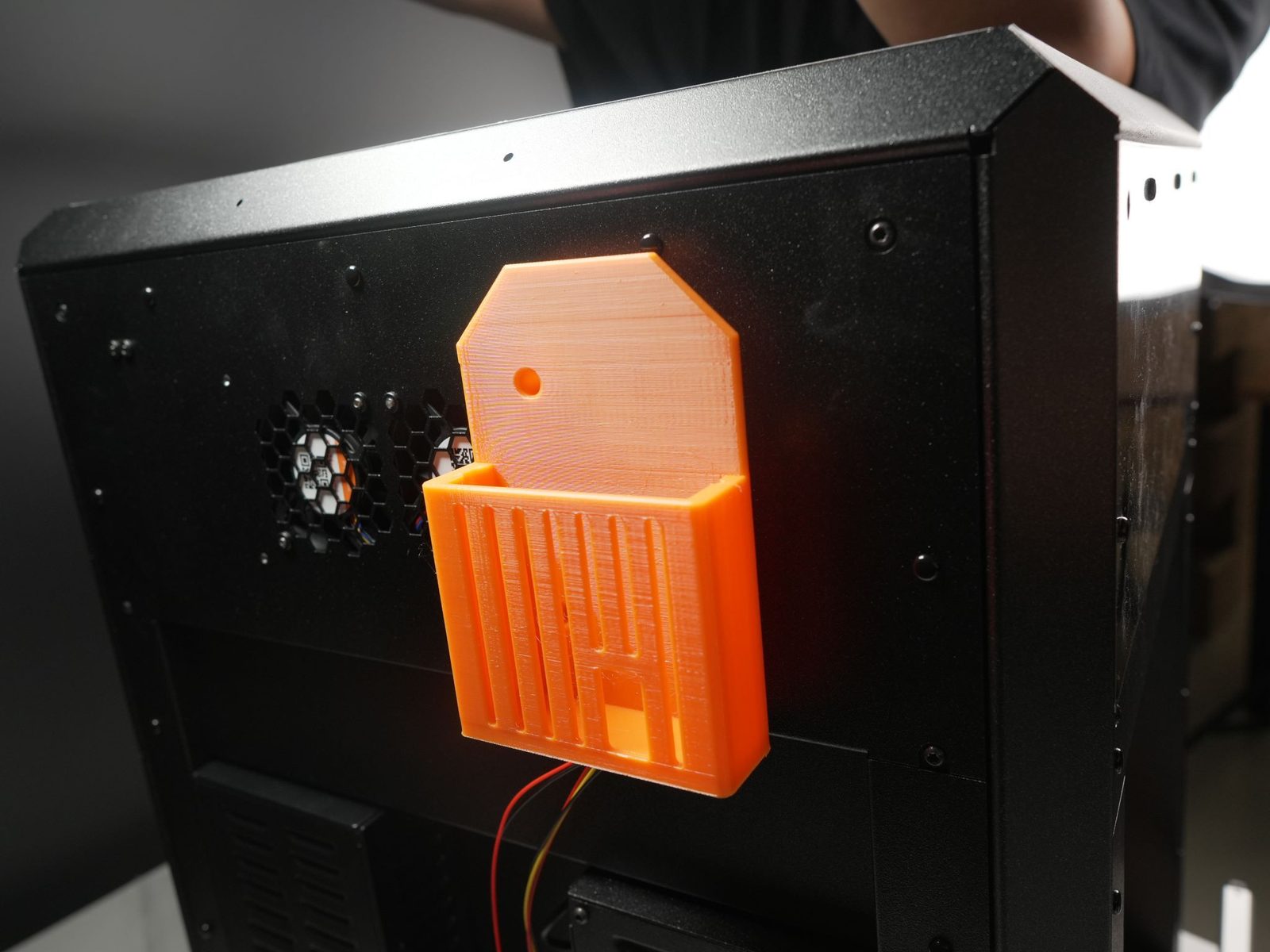
- Connect all cables.
- Connect the door handle and door bracket using an M3 bolt and nut at the right hole.
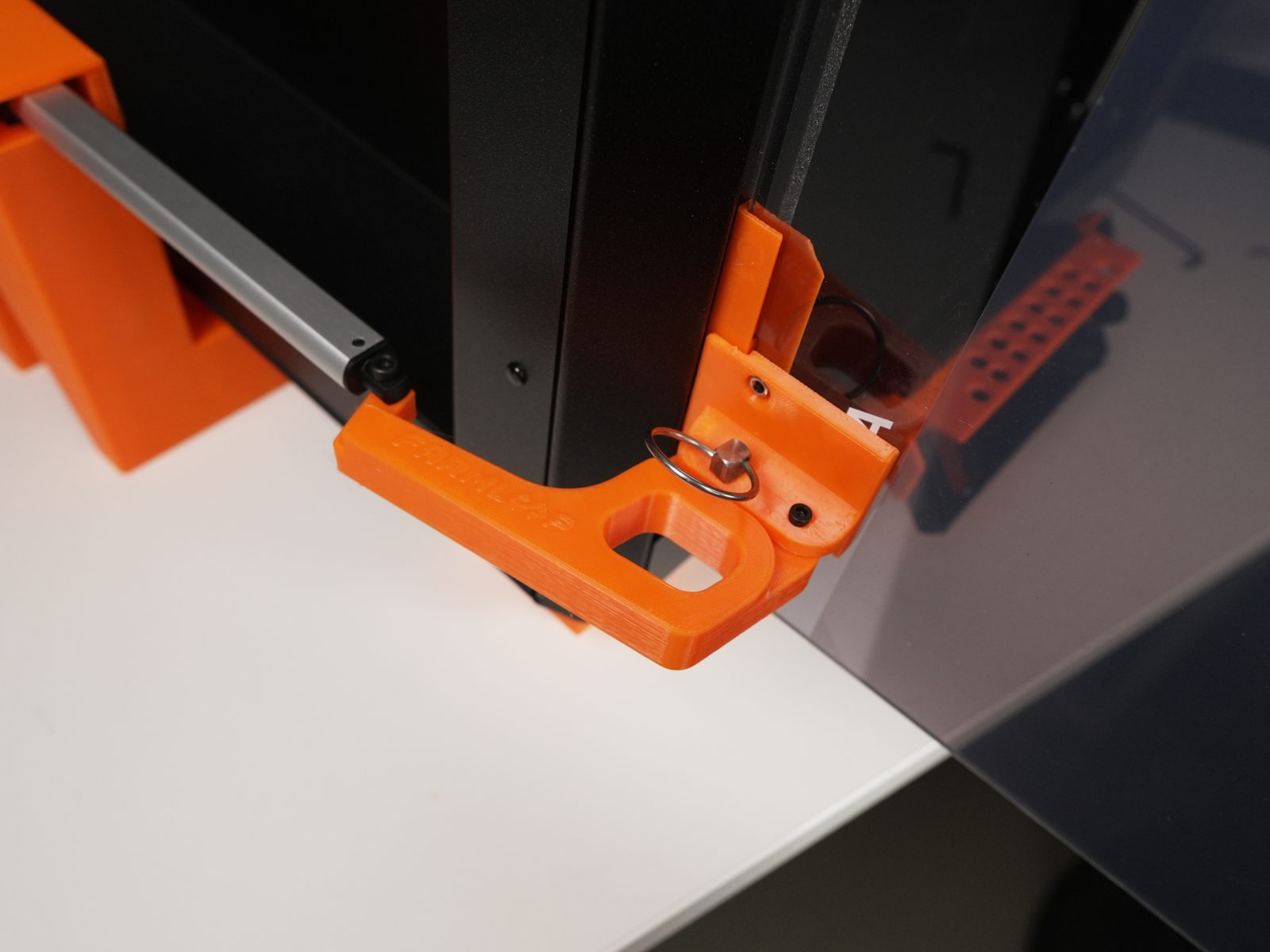
- Put the quick-release pin into the left hole.
- Connect the door handle to the actuator using an M4 bolt and nut.
- Pull the custom build plate out half way.
- Slide the plate clip in from the front.
- Push the build plate back to align with the heat bed.
Printer software setup
Section titled “Printer software setup”Once the printer itself is set up, see PrusaLink setup for connecting it to PrusaSlicer over the network and sending prints - directly, or via the FarmLoop app for full automation.
Support
Section titled “Support”- Contact: Open a support ticket
- Discord community: included with every FarmLoop account, Lite too: connect your FarmLoop account on the Dashboard to join; Pro and Business members also get the member channels