
FarmLoop Stage 2 assembly, Bambu A1 Mini
This guide covers installing FarmLoop Stage 2 on the Bambu Lab A1 Mini. The full-size A1 has its own guide at FarmLoop Stage 2 assembly, Bambu A1.
Read through the whole guide before you start. Lay out every part so you don’t have to stop mid-install.
Prerequisites
Section titled “Prerequisites”- Bambu Lab A1 Mini with latest firmware installed
- Printed parts from MakerWorld - FarmLoop Stage 2 for A1 Mini
- FarmLoop Pro subscription, sign up at app.3d-farmers.com - not required if you already have a SimplyPrint Print Farm subscription (see SimplyPrint integration)
- Superglue for the scraper assembly, plus gloves, safety glasses, and a paper towel
- A clean, flat work surface
Check that all parts are present
Section titled “Check that all parts are present”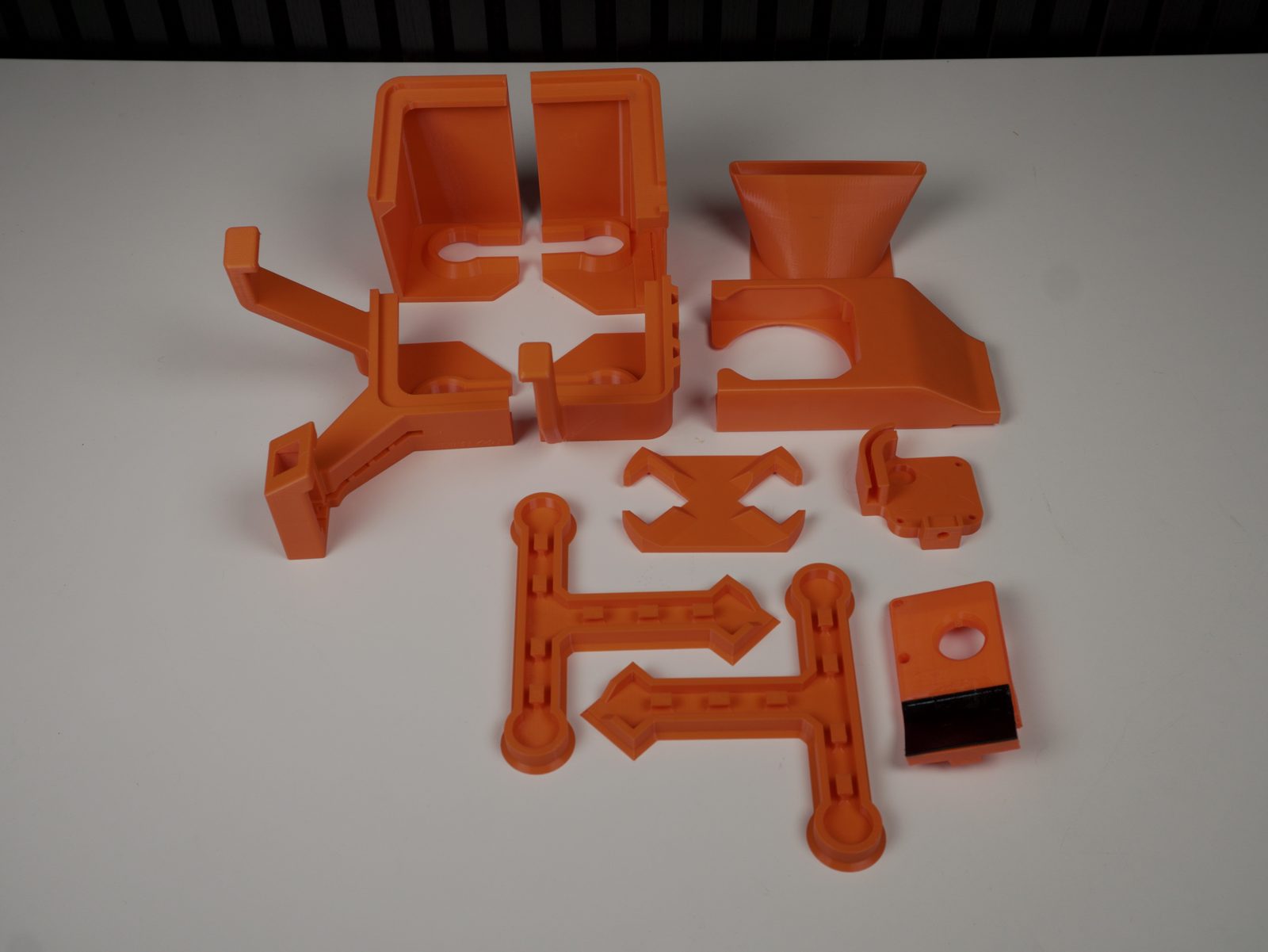
Check whether everything is present, as shown above.
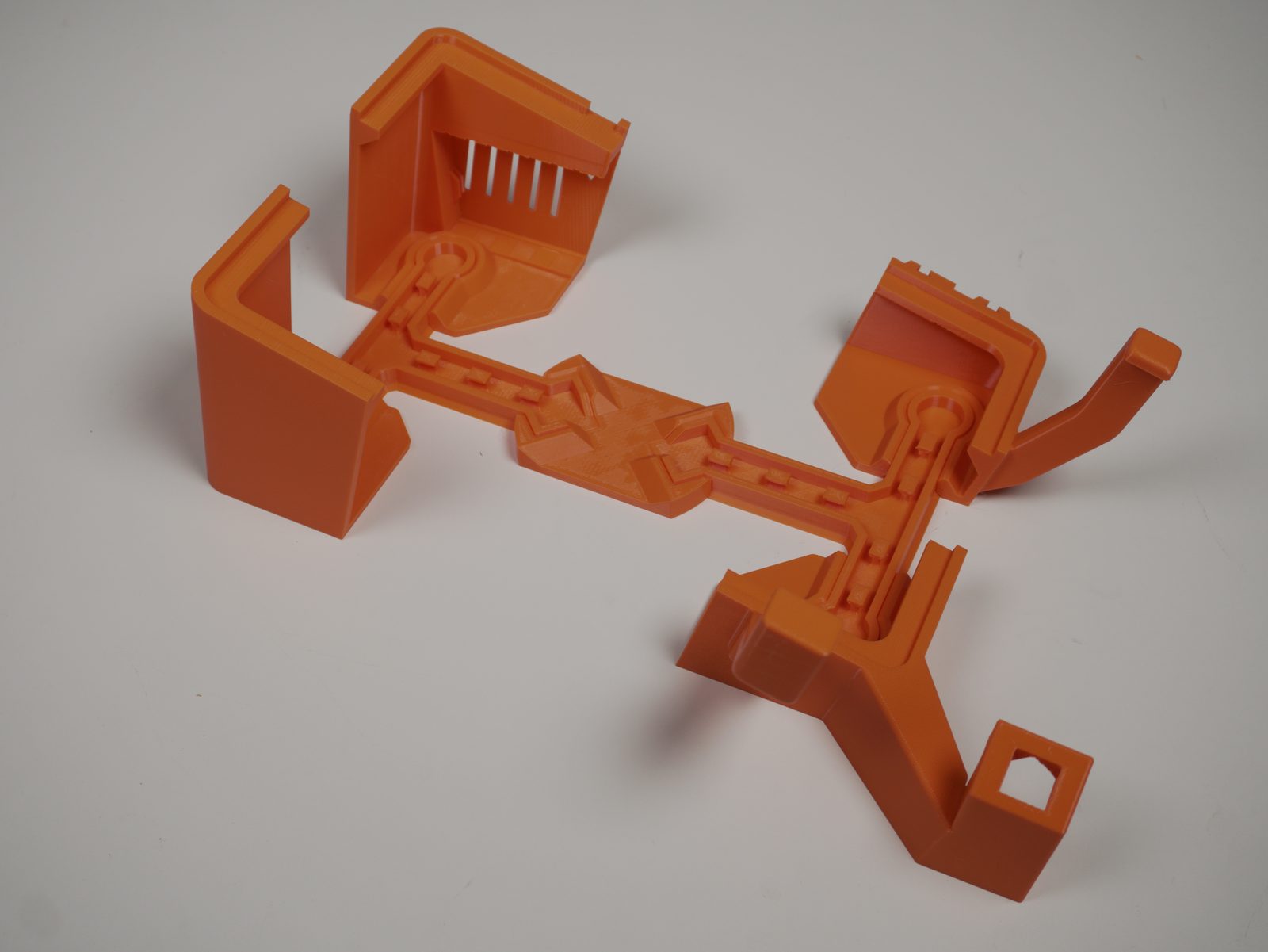
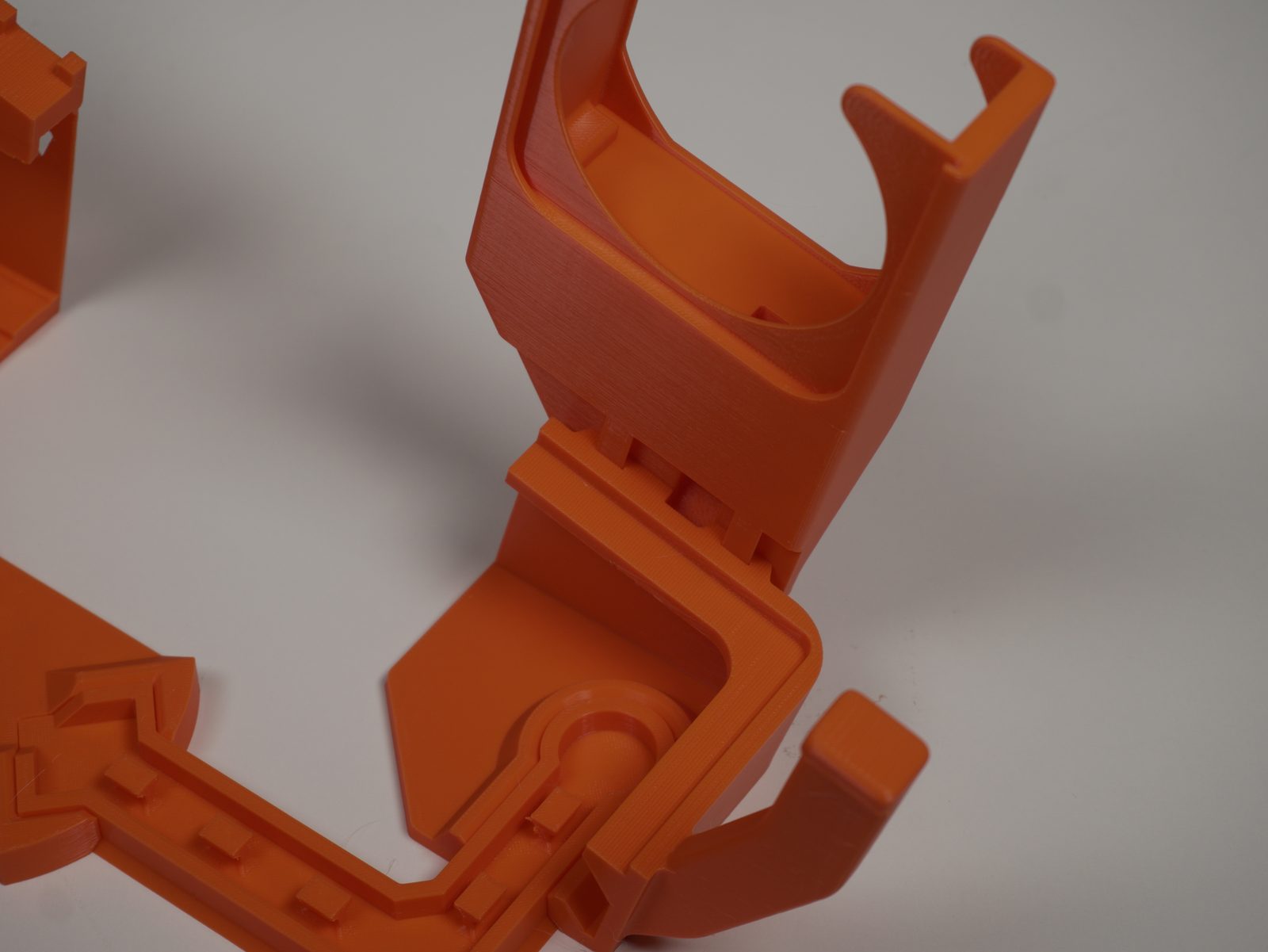
1. Assemble the printed parts
Section titled “1. Assemble the printed parts”- Assemble the 3D-printed parts per the orientations shown below.
2. Snap in the linear actuator
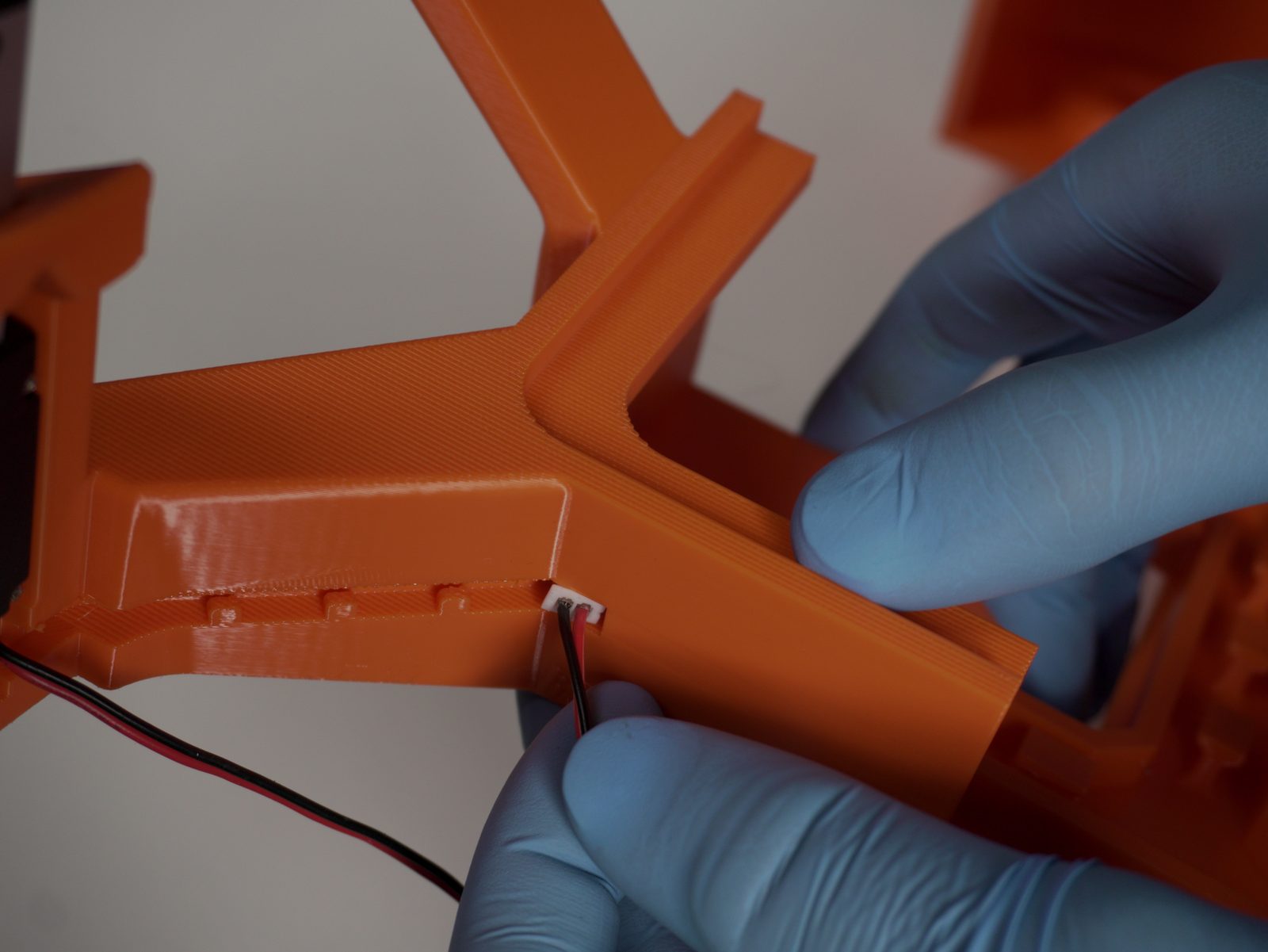
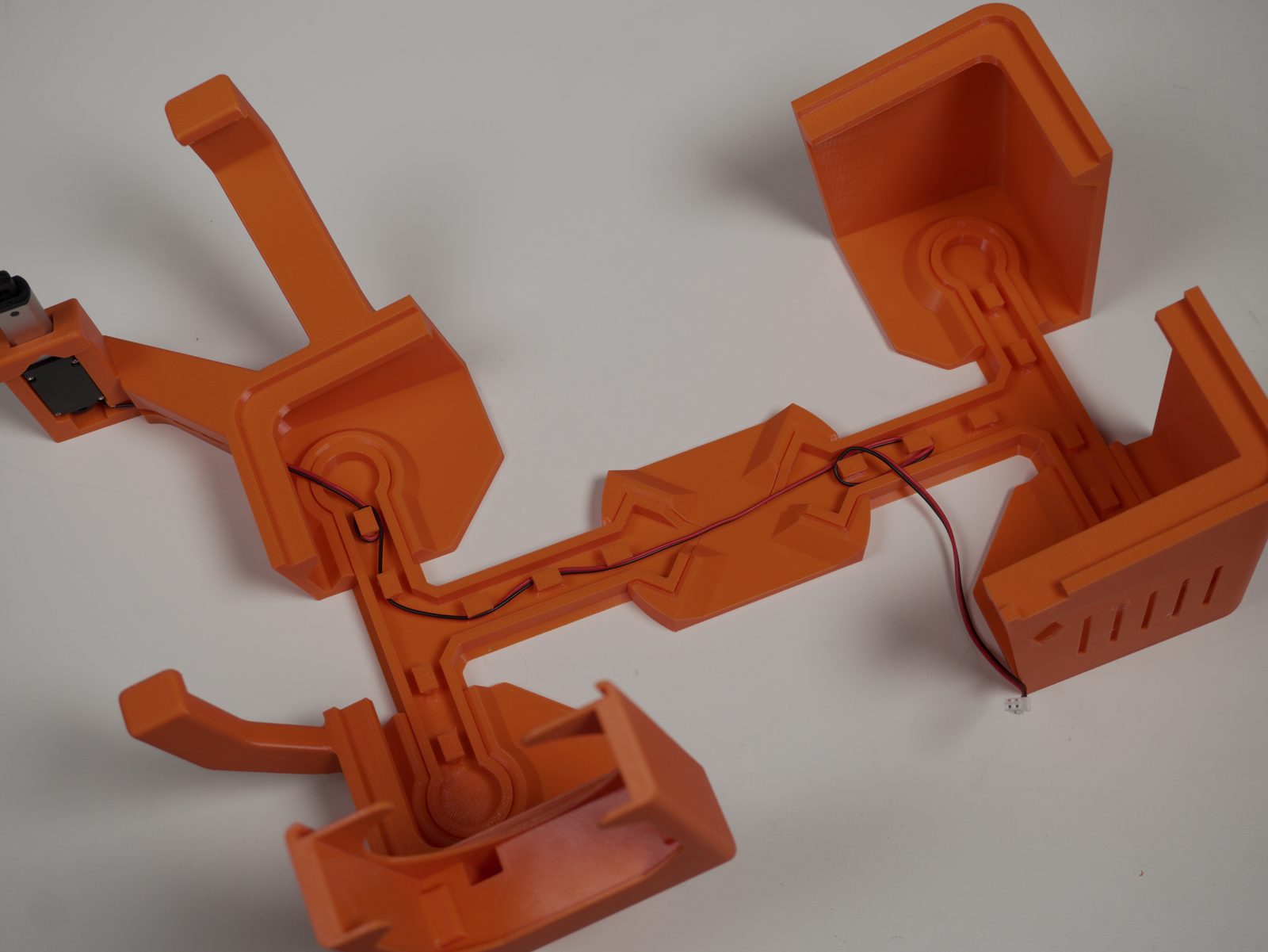
Section titled “2. Snap in the linear actuator”- Snap the actuator in with the black side to the front, sticker side to the back.
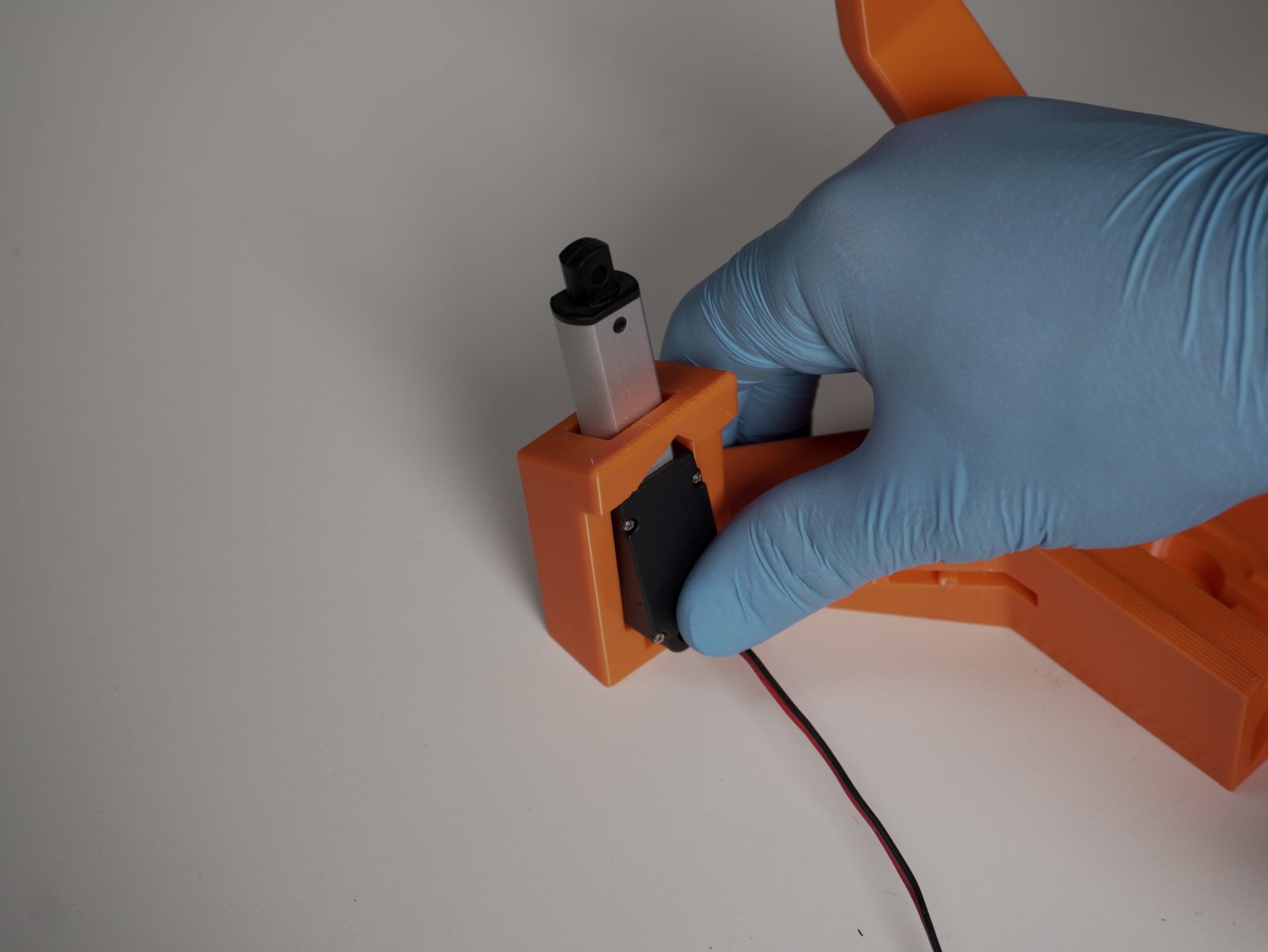
- Hide the cable in the cutout channel.
3. Insert the fan
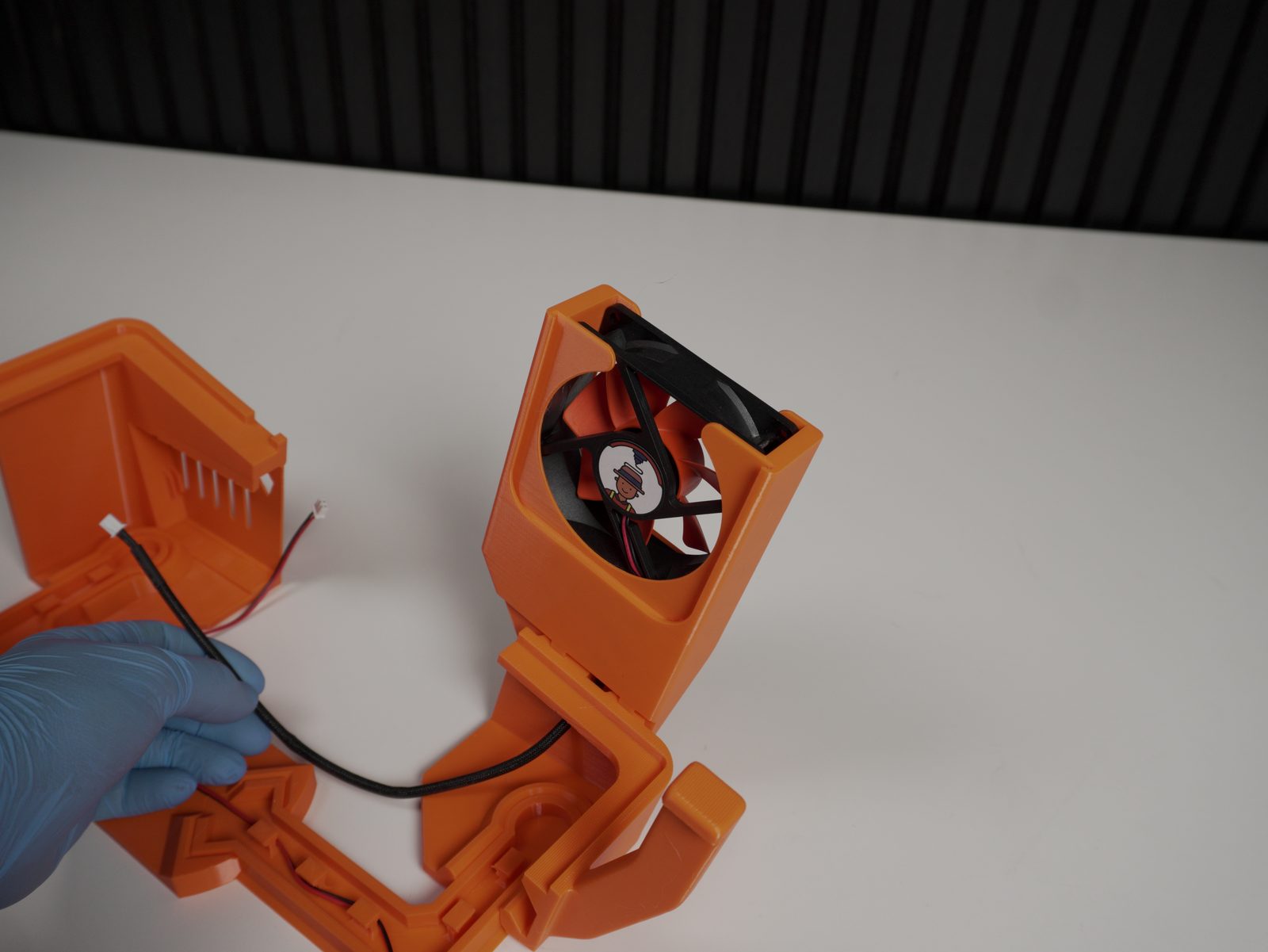
Section titled “3. Insert the fan”- Insert the fan with the sticker facing the front.
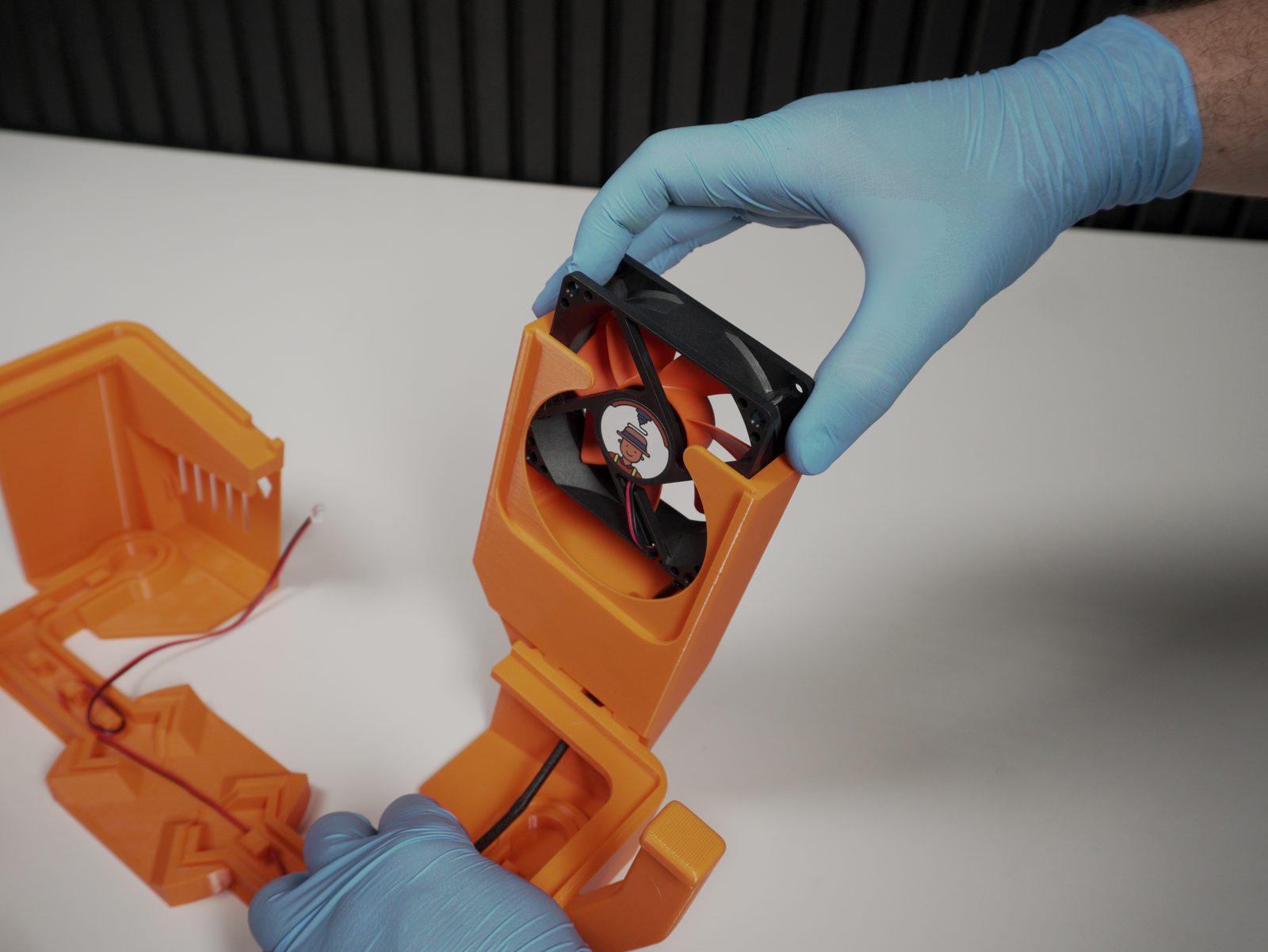
- Feed the cable through the opening for clean cable management.
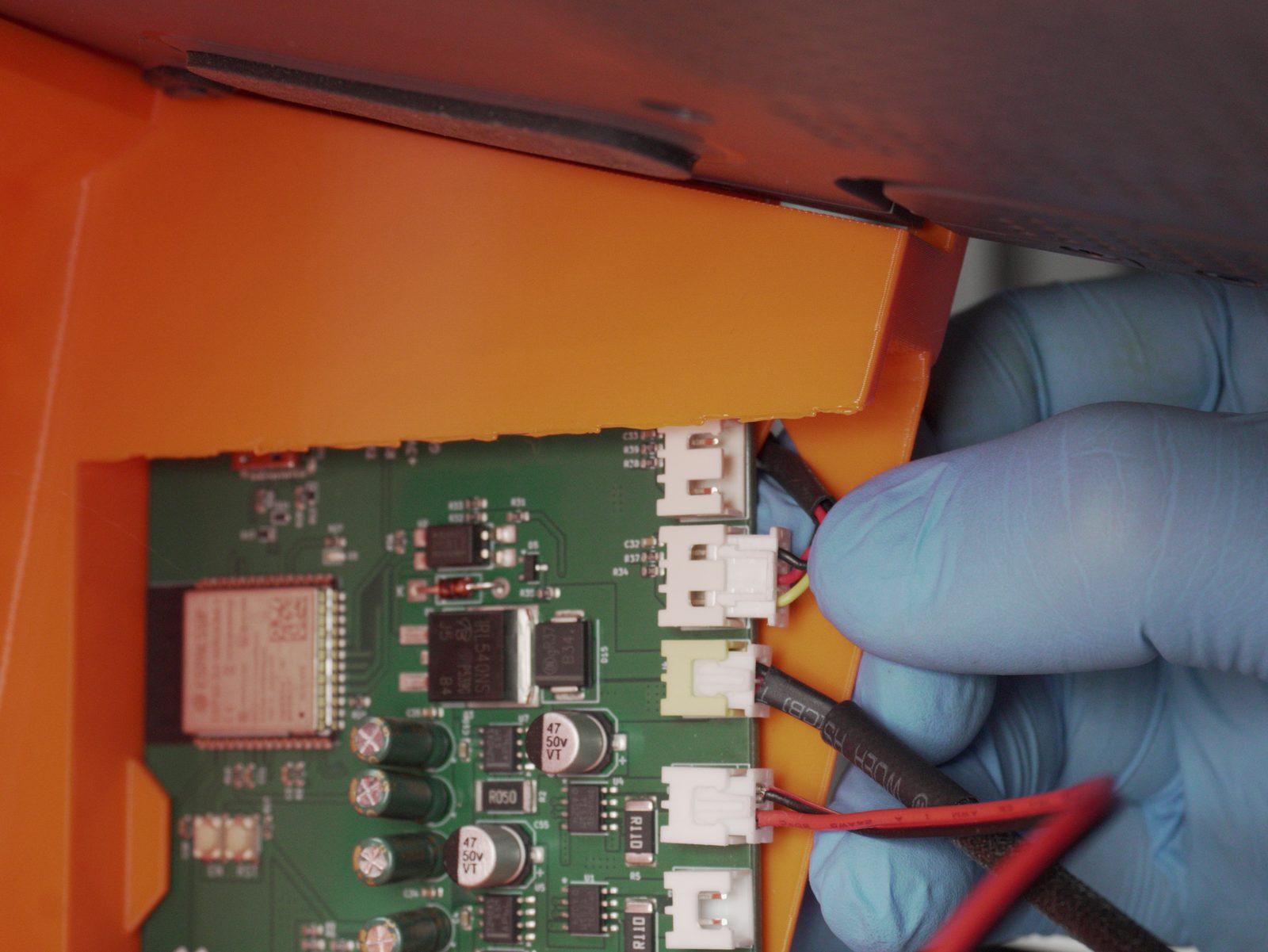
4. Insert the PCB and plug in cables
Section titled “4. Insert the PCB and plug in cables”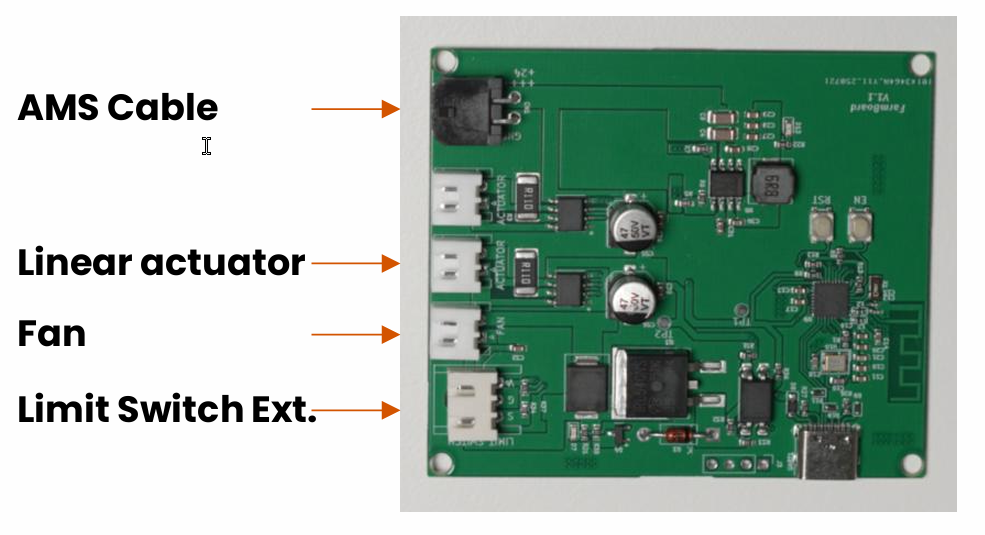

- Seat the PCB in its housing.
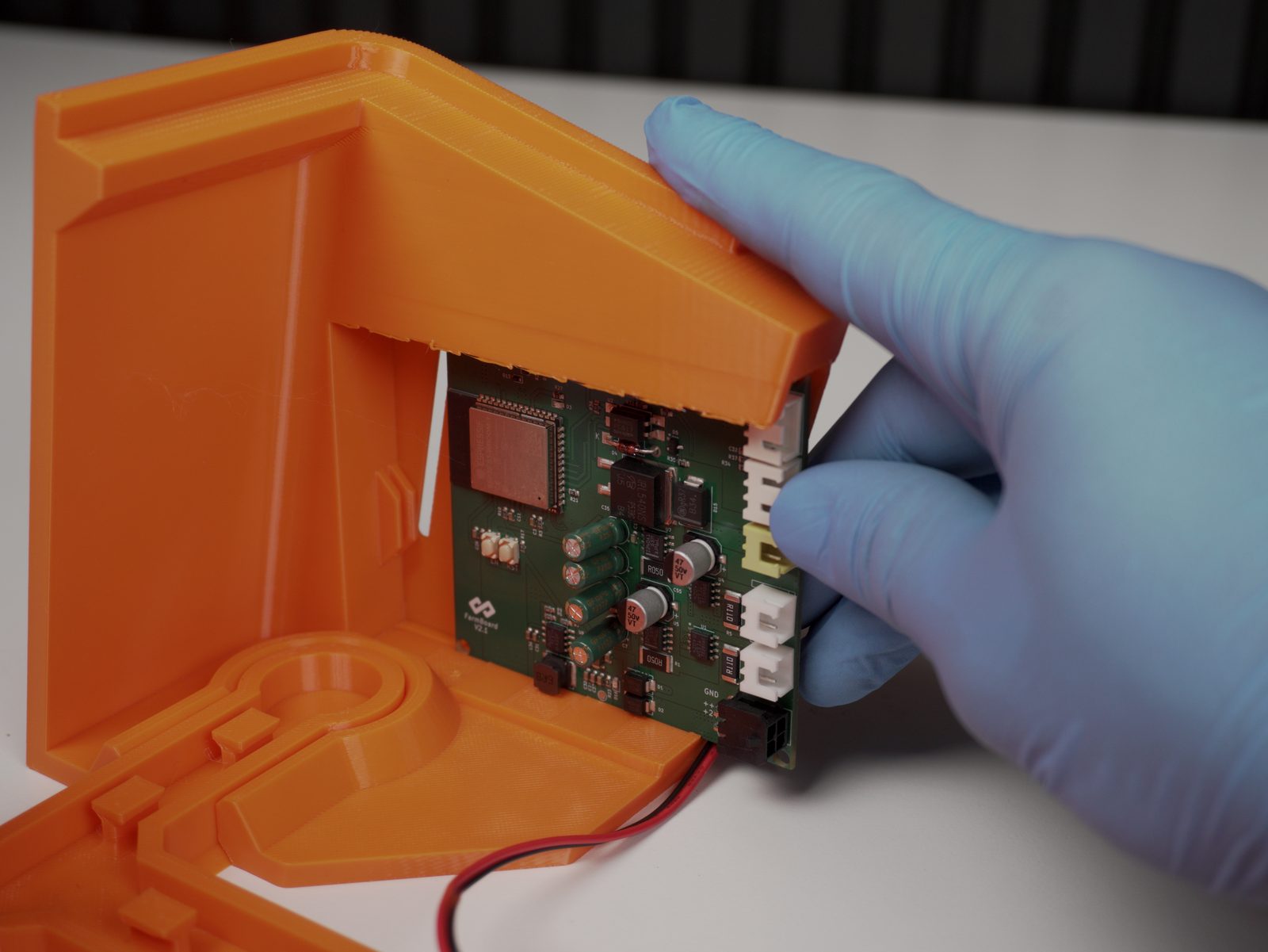
- Connect each cable to its labelled port:
- AMS cable (older kits) - new kits: connect the external power supply to this port instead and plug it into a wall socket; the printer’s AMS port stays free. See the power supply article.
- Linear actuator
- Limit-switch extension
- Fan
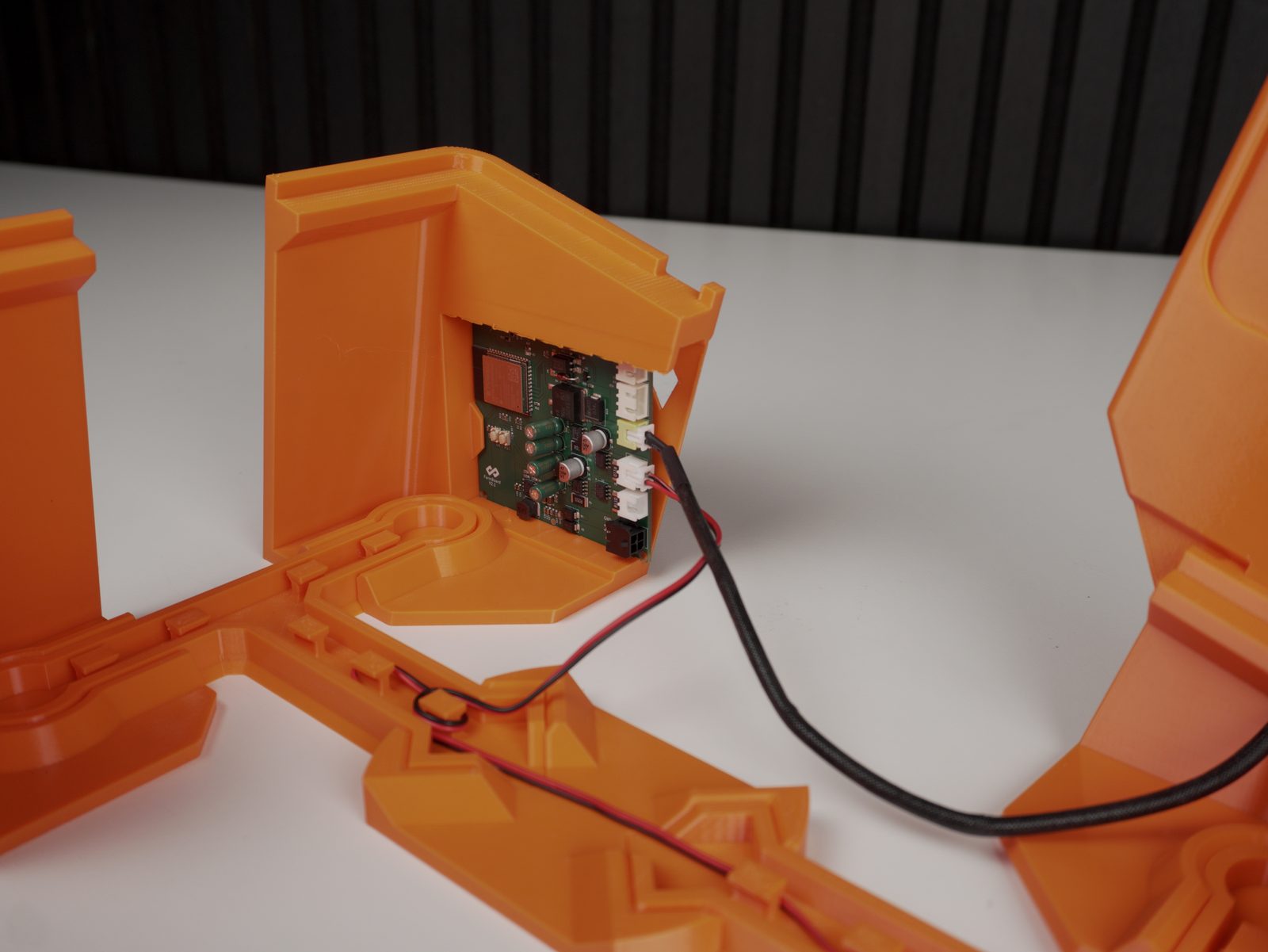
Once everything is wired, your module should look like this:
5. Add the printer
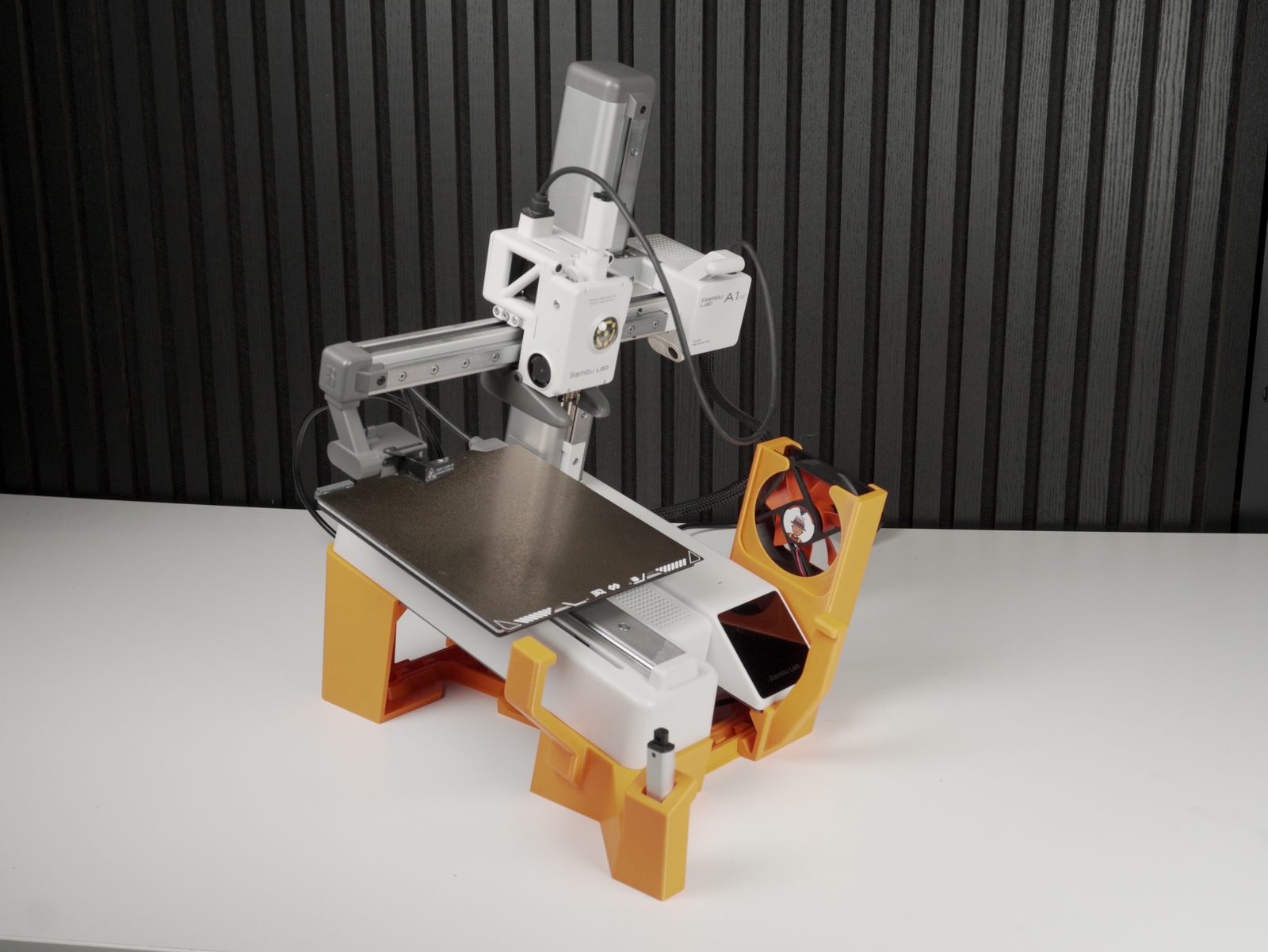
Section titled “5. Add the printer”- Seat the printer on the tilted base. Make sure the printer sits tightly on the base, wobble here will cause issues later.
6. Install the limit switch
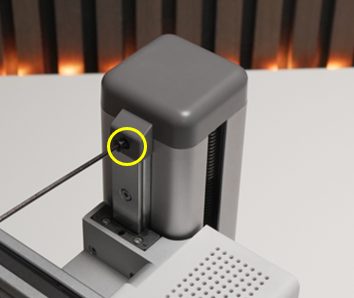
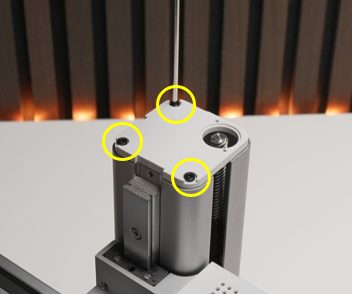
Section titled “6. Install the limit switch”- Remove the grey lid, then remove the screws underneath.
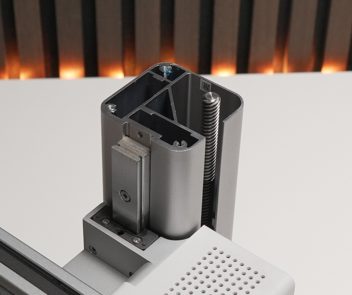
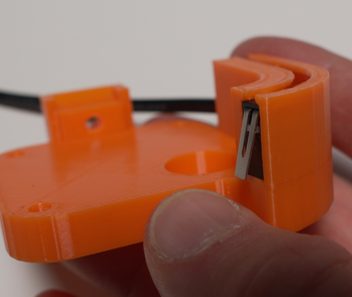
- Insert the limit switch into the printed holder and connect it to the limit-switch extension cable.
- Mount the assembly using the same screws you just removed.
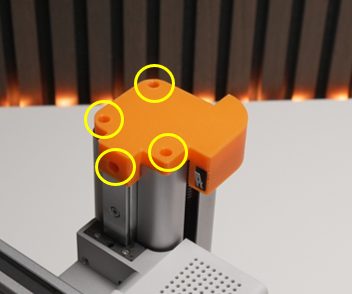
7. Mount the PCB module and connect the AMS cable
Section titled “7. Mount the PCB module and connect the AMS cable”- Mount the PCB housing onto the printer’s rear gantry post.
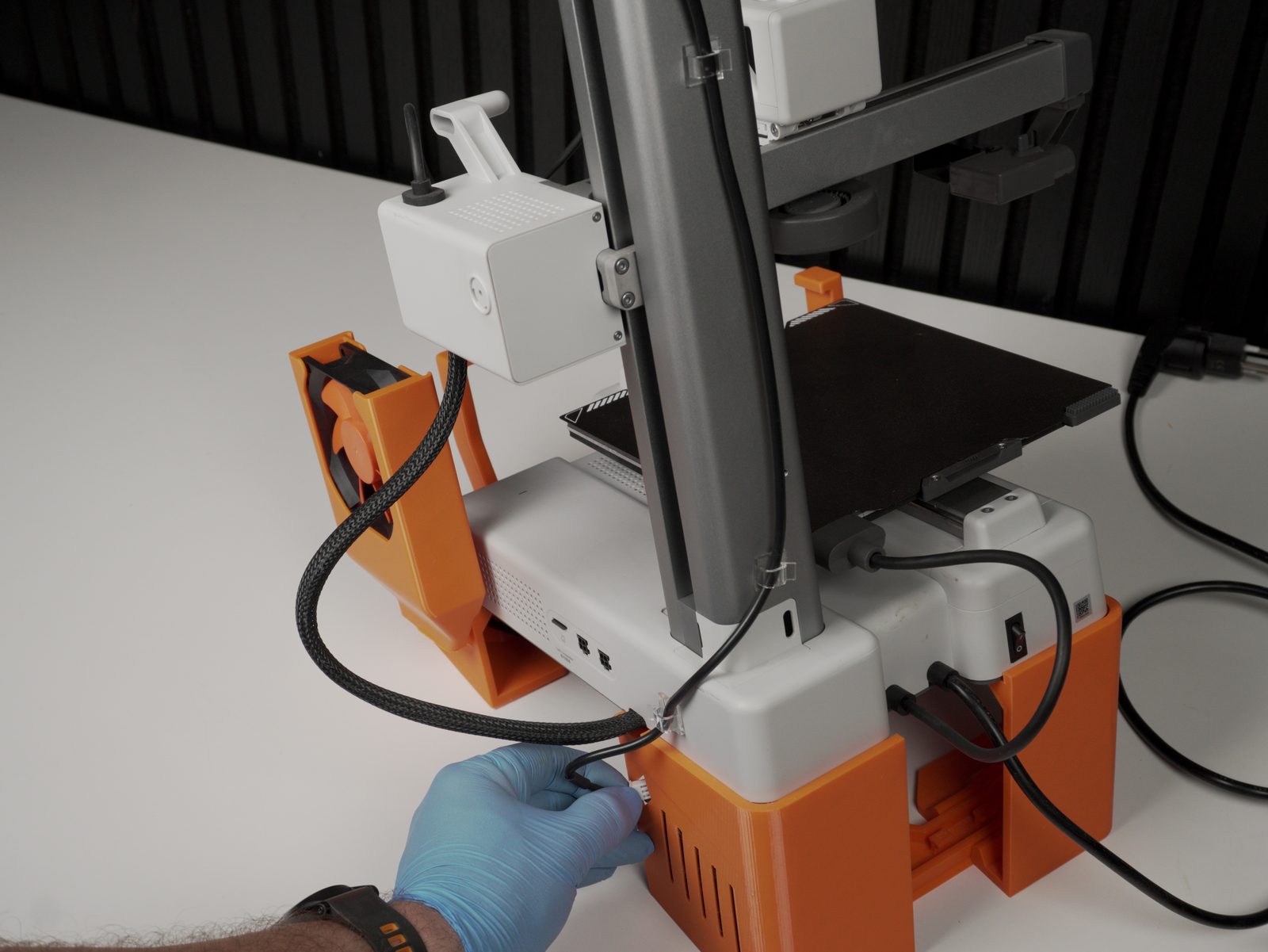
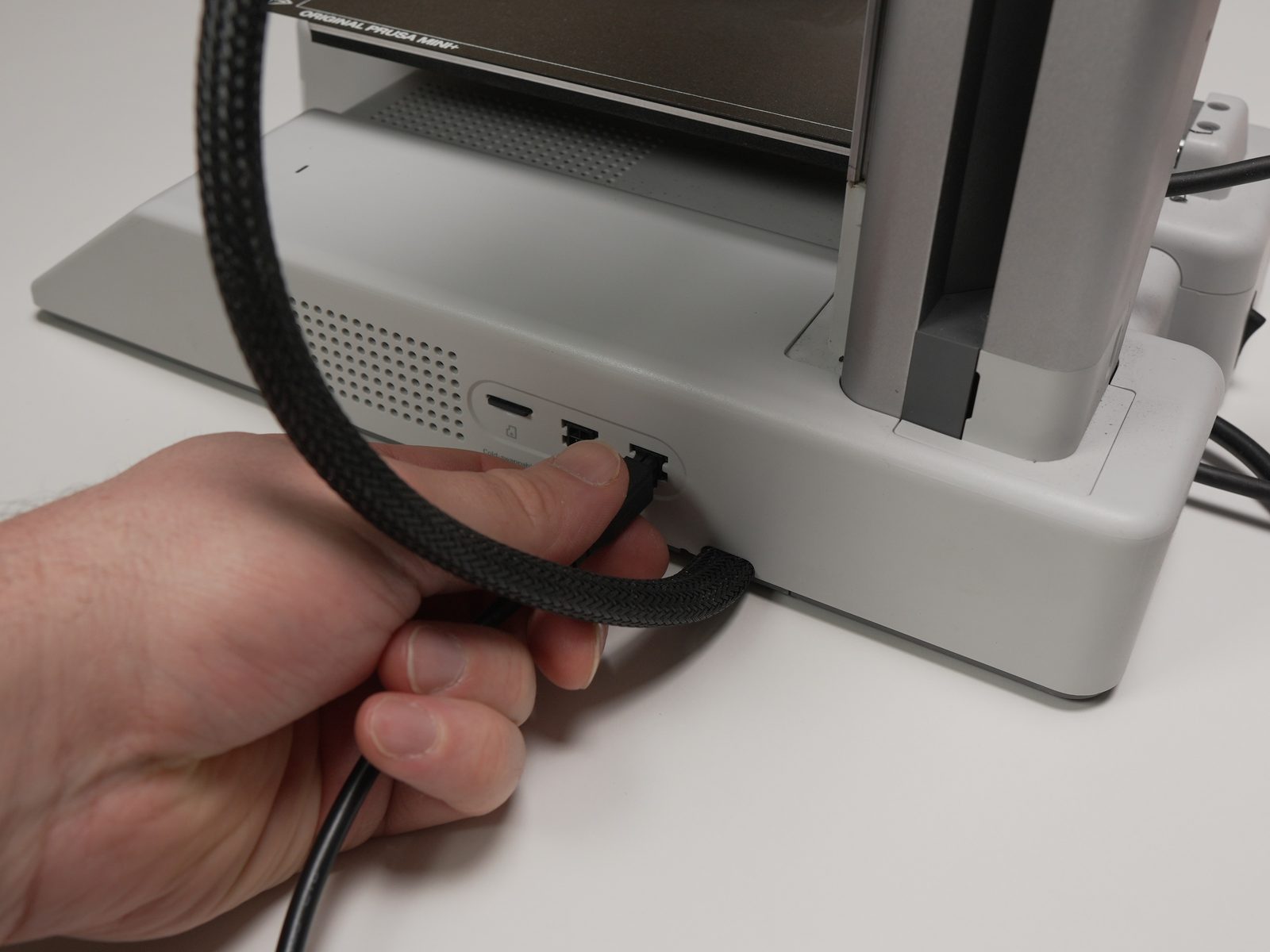
- Connect the AMS cable to one of the two ports on the back of the printer.
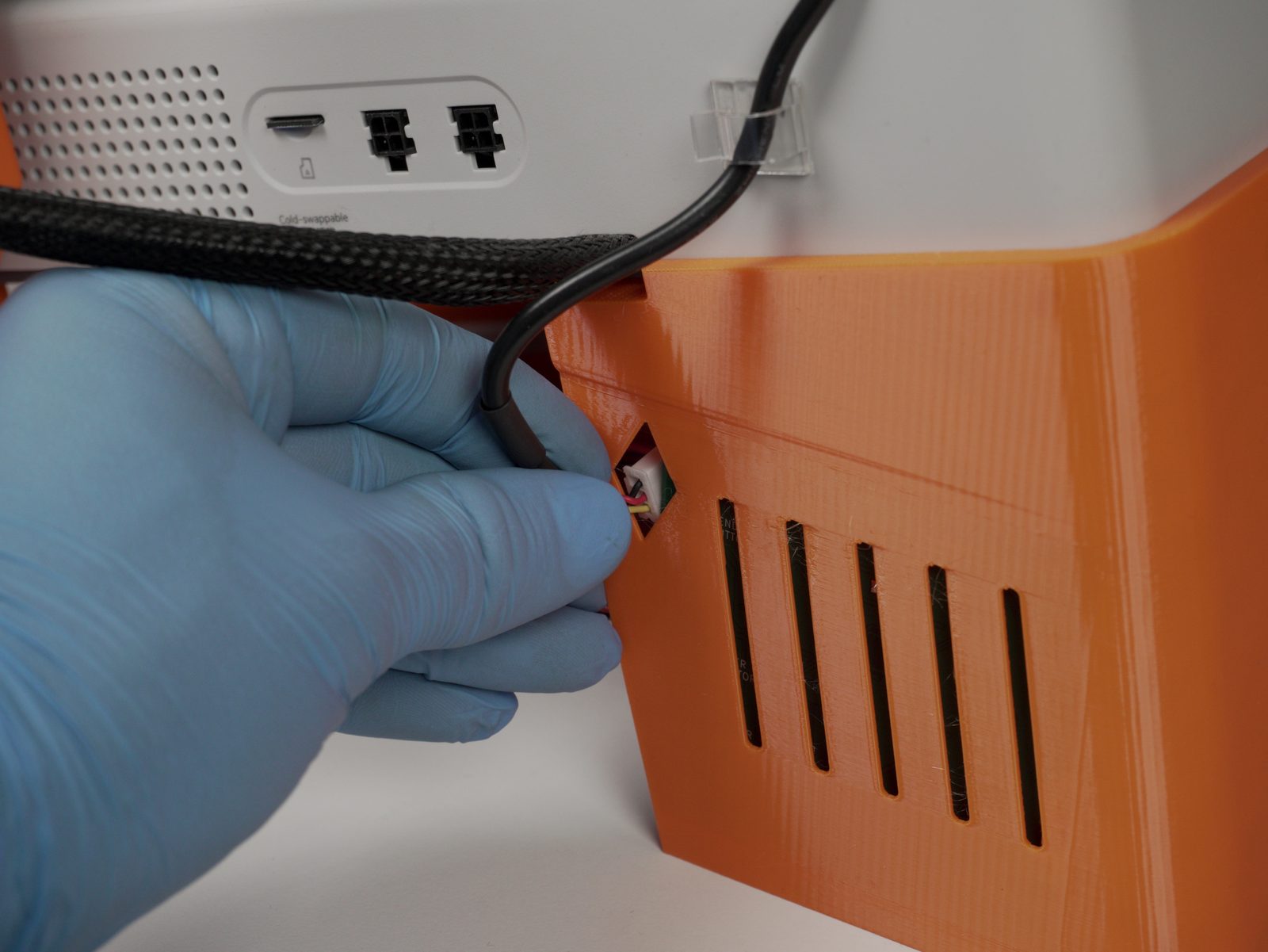
- Route the cable through the housing and connect it to the FarmBoard’s AMS cable port.
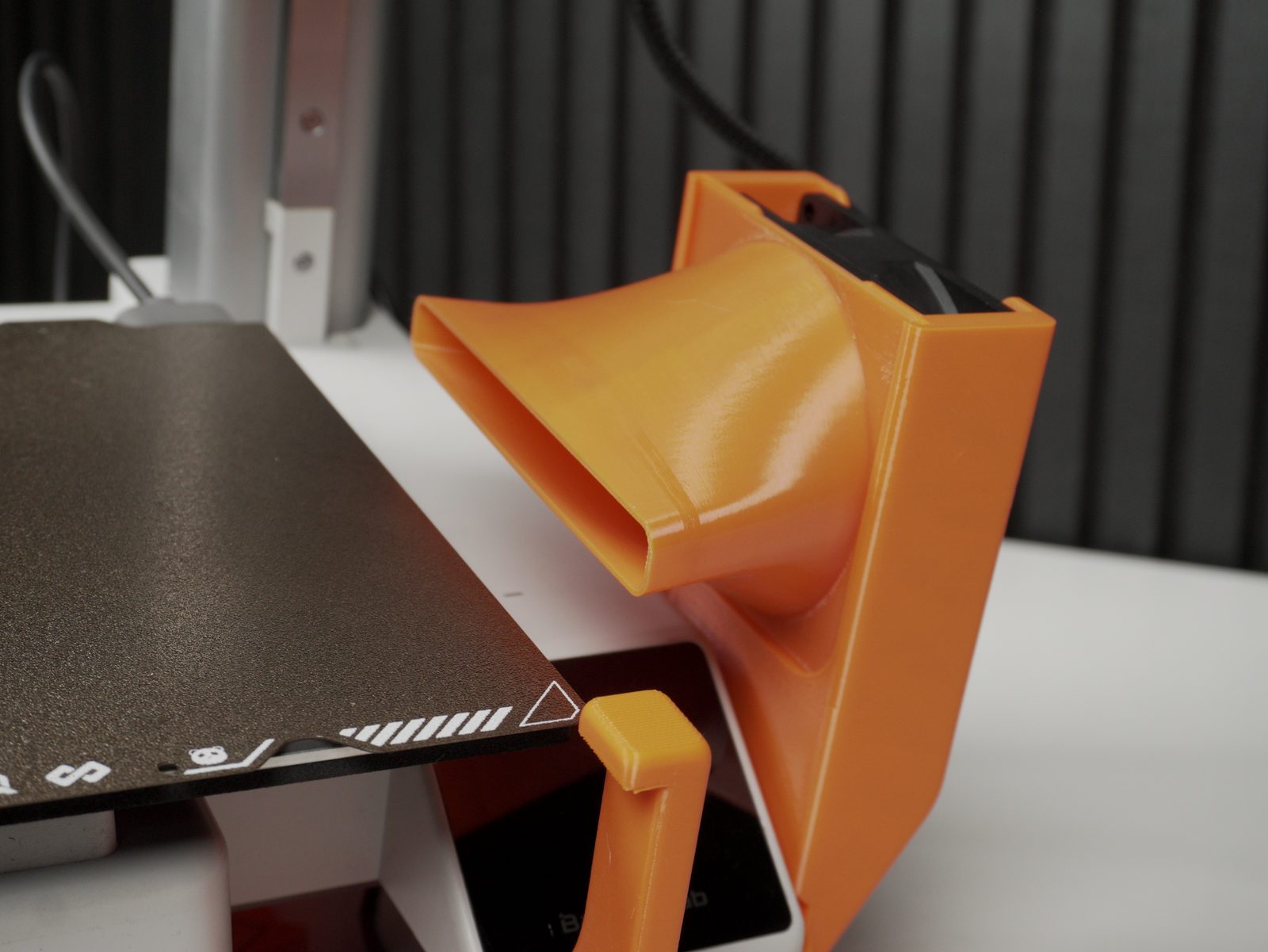
8. Insert the fan duct
Section titled “8. Insert the fan duct”- Slide the air duct in from the top.
9. Assemble and install the scraper
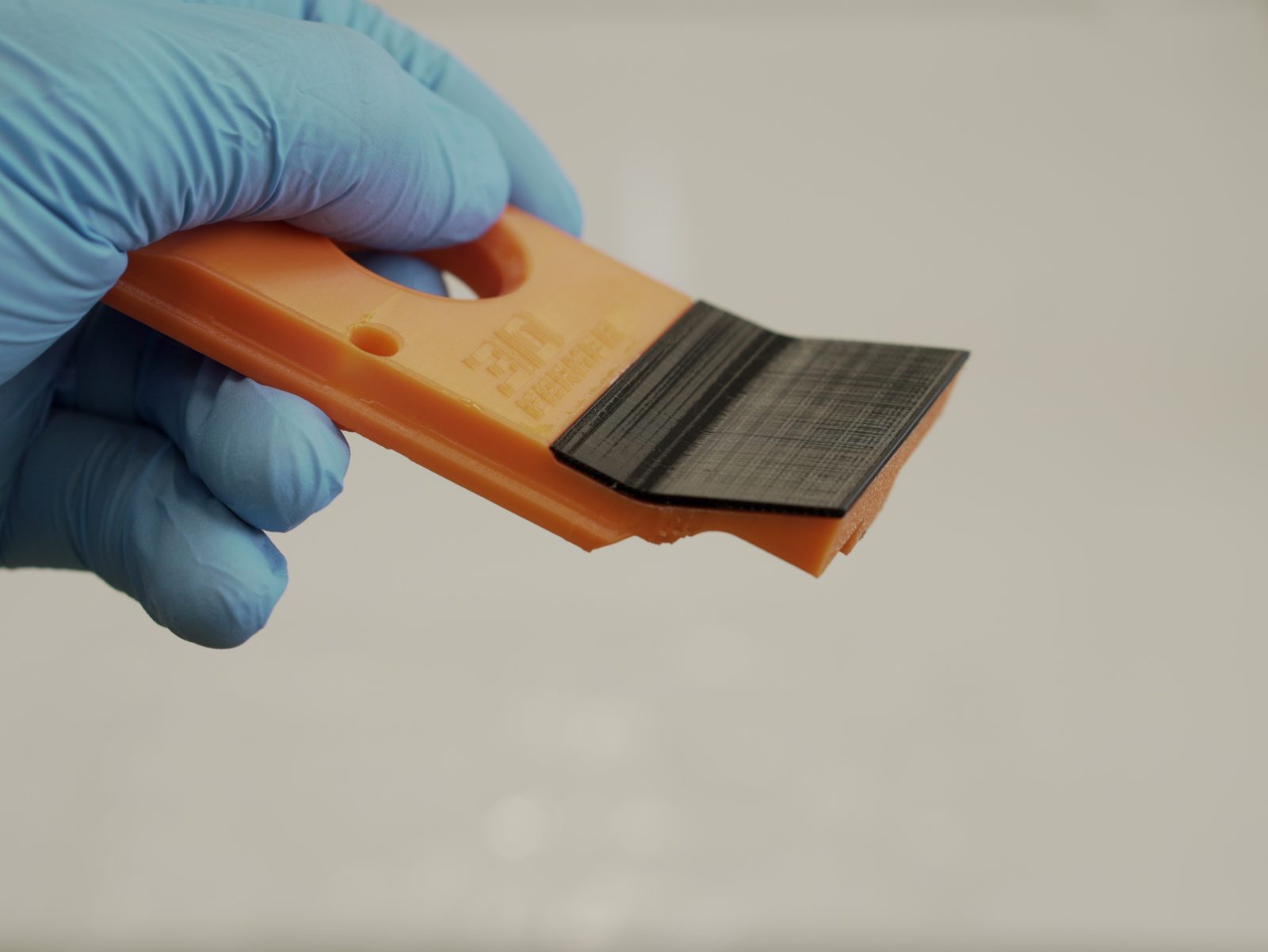
Section titled “9. Assemble and install the scraper”Start by laying out everything you’ll need:
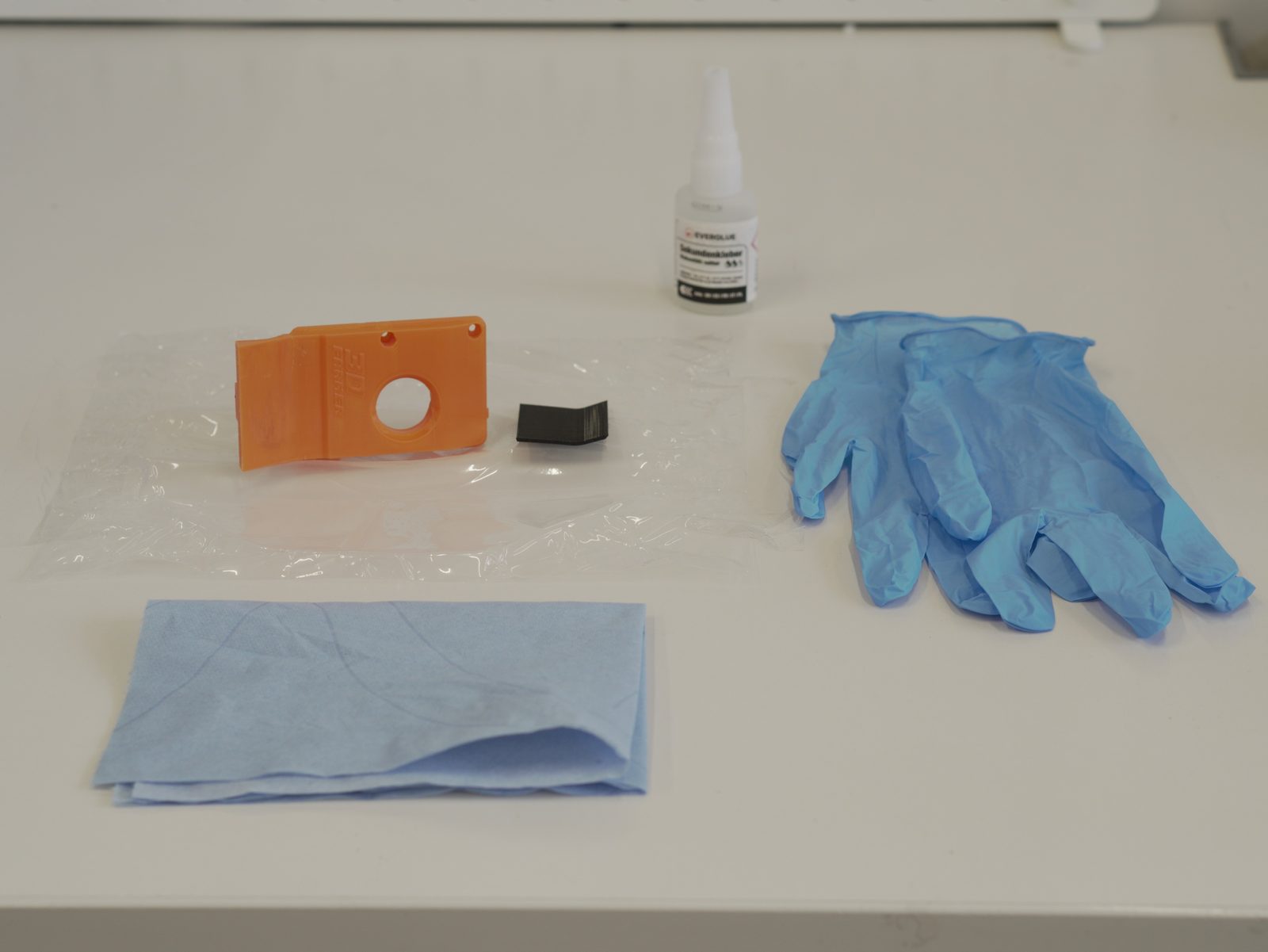
- Glue the TPU part to the PETG scraper part as shown. We recommend superglue.
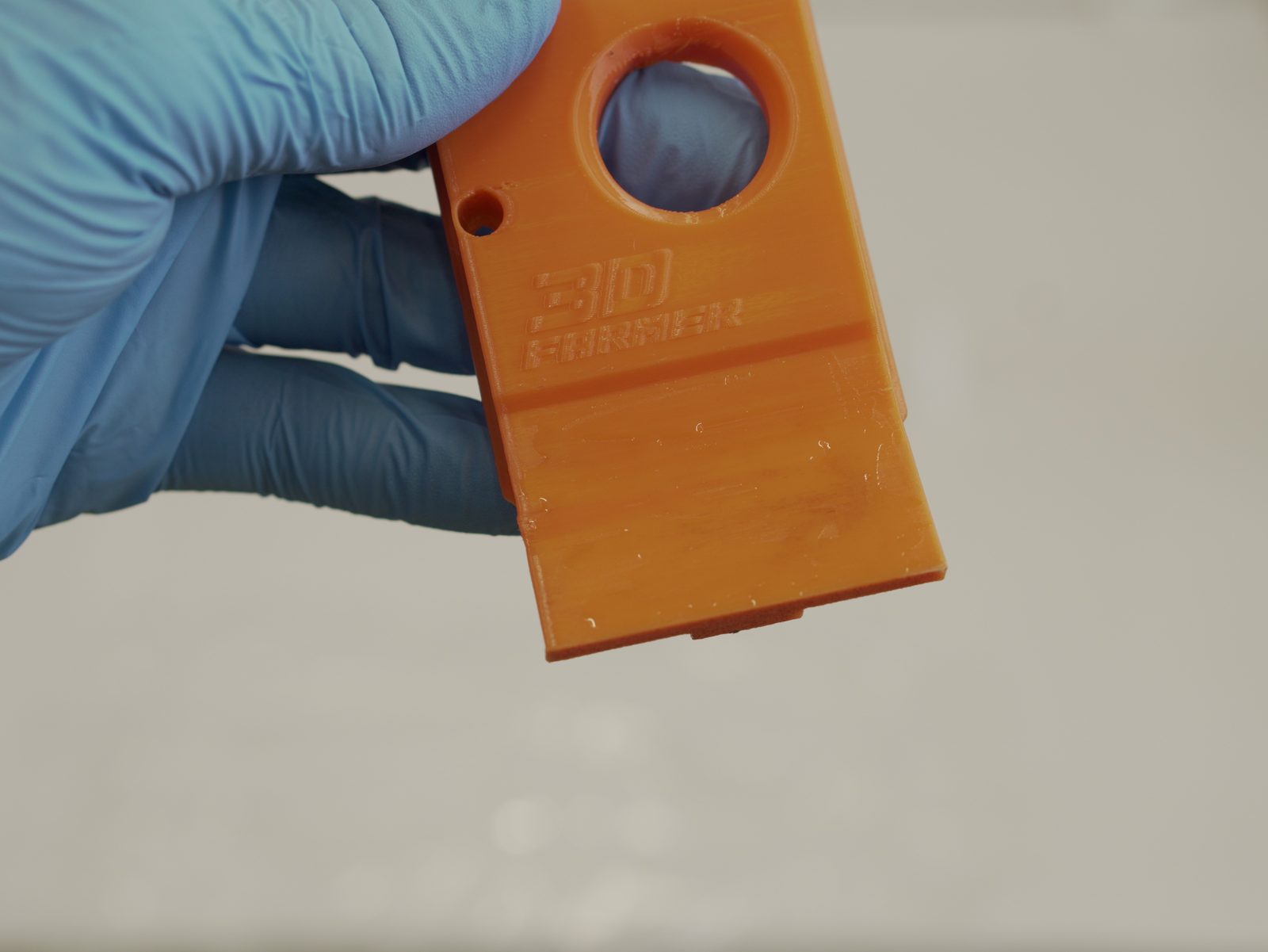
- Apply glue to the recessed area of the PETG part.
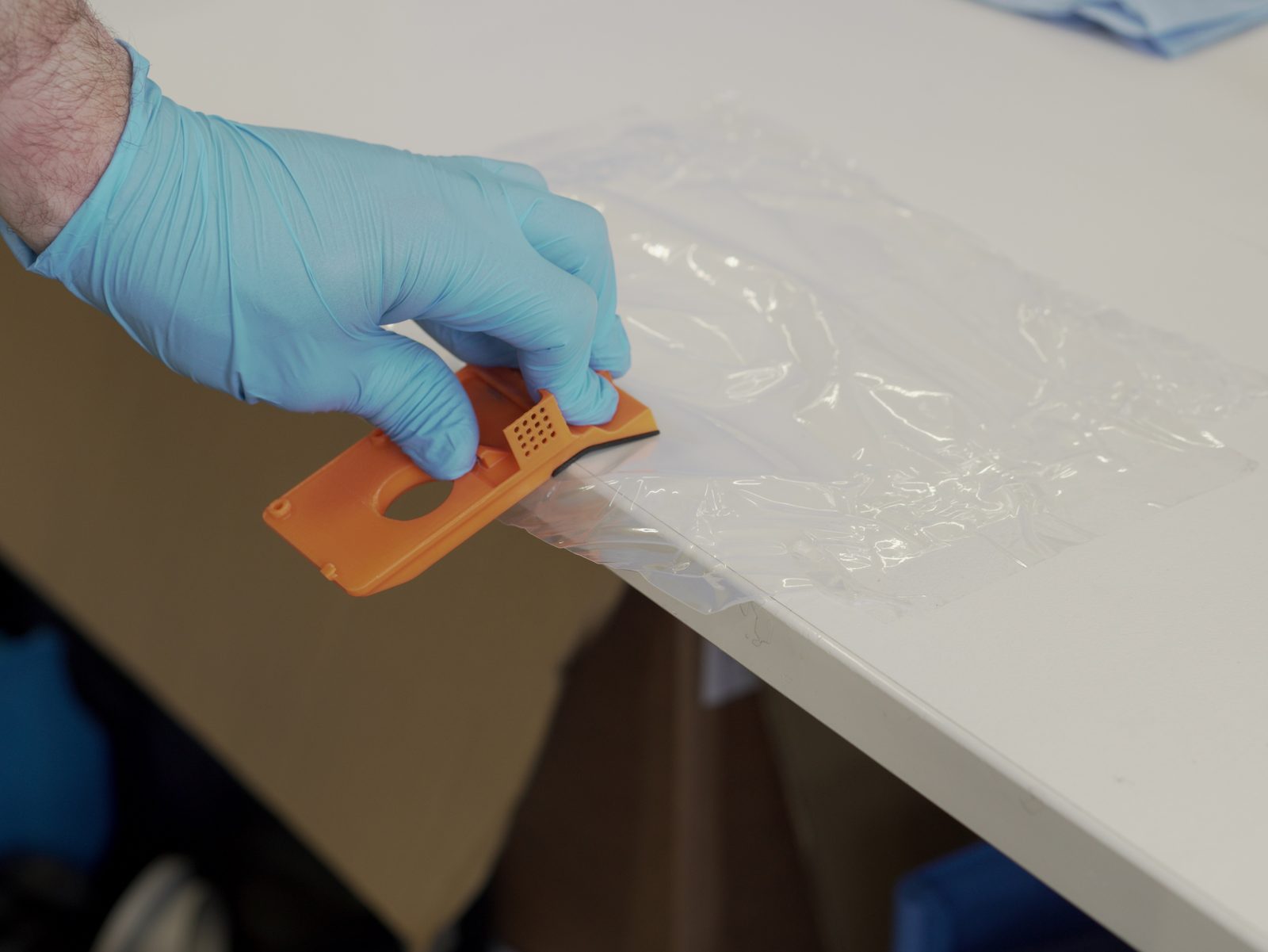
- Press the two parts together on a non-stick surface to prevent them from adhering to the table.
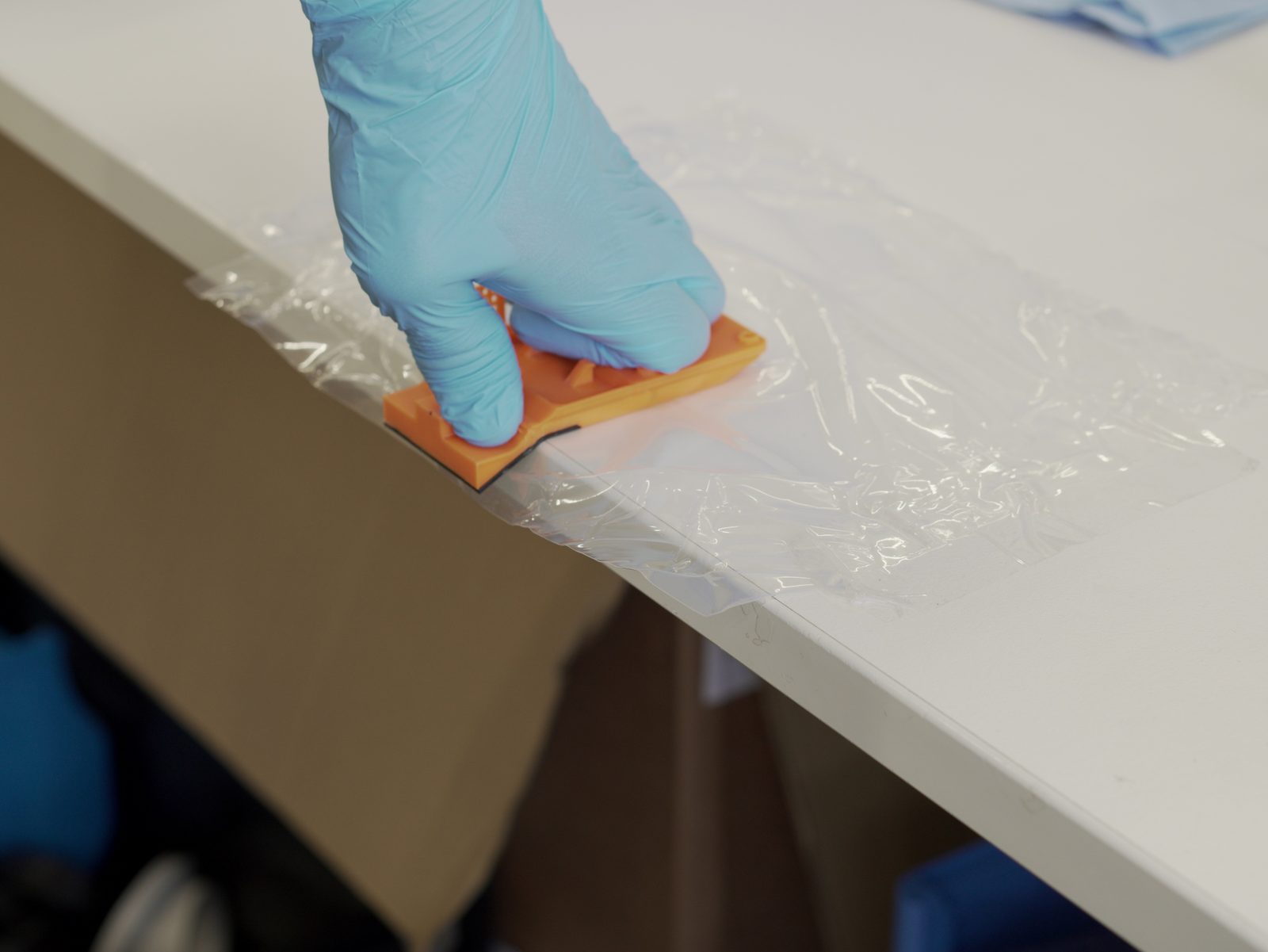
- Wipe away any excess or overflow glue.
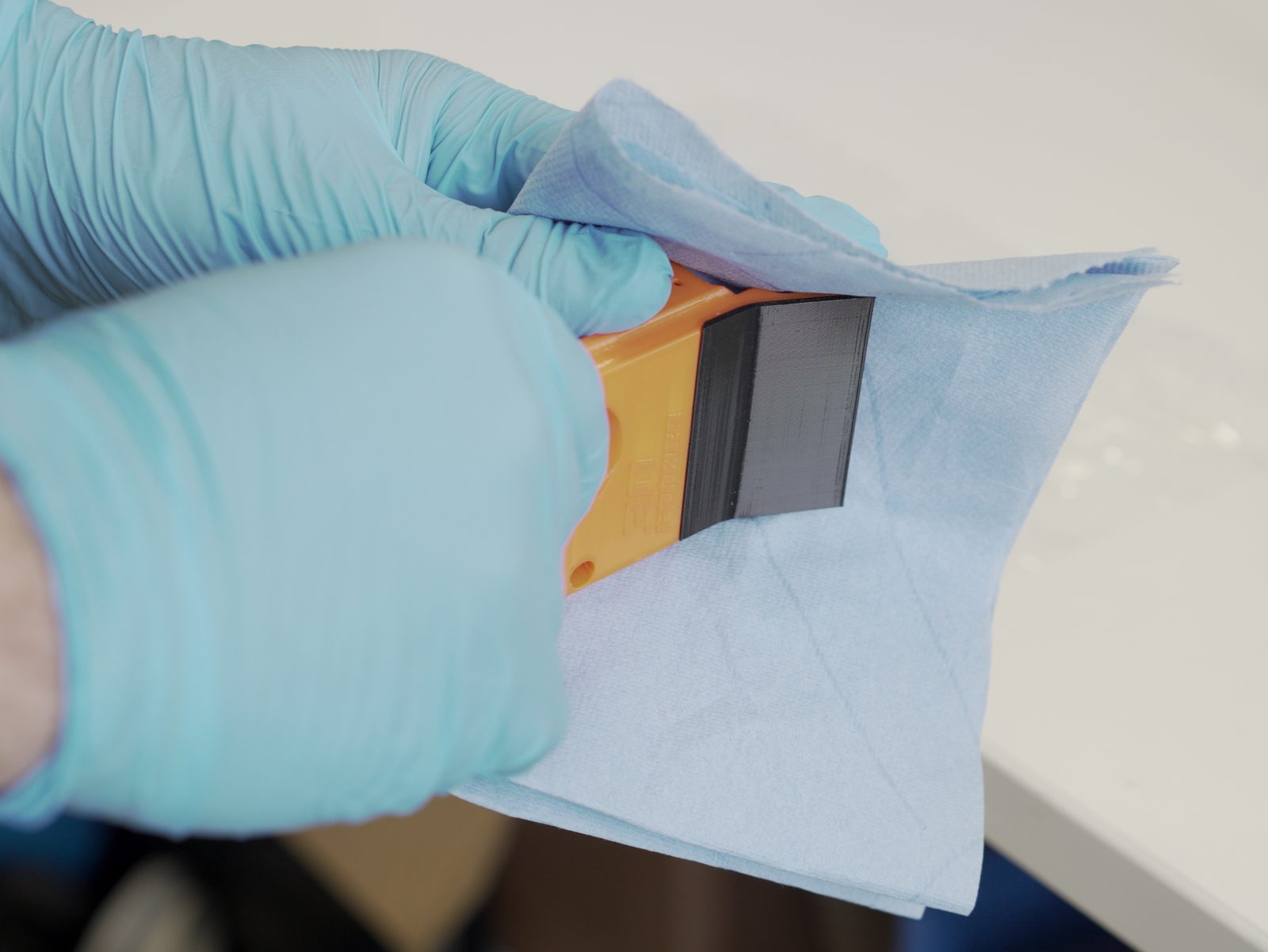
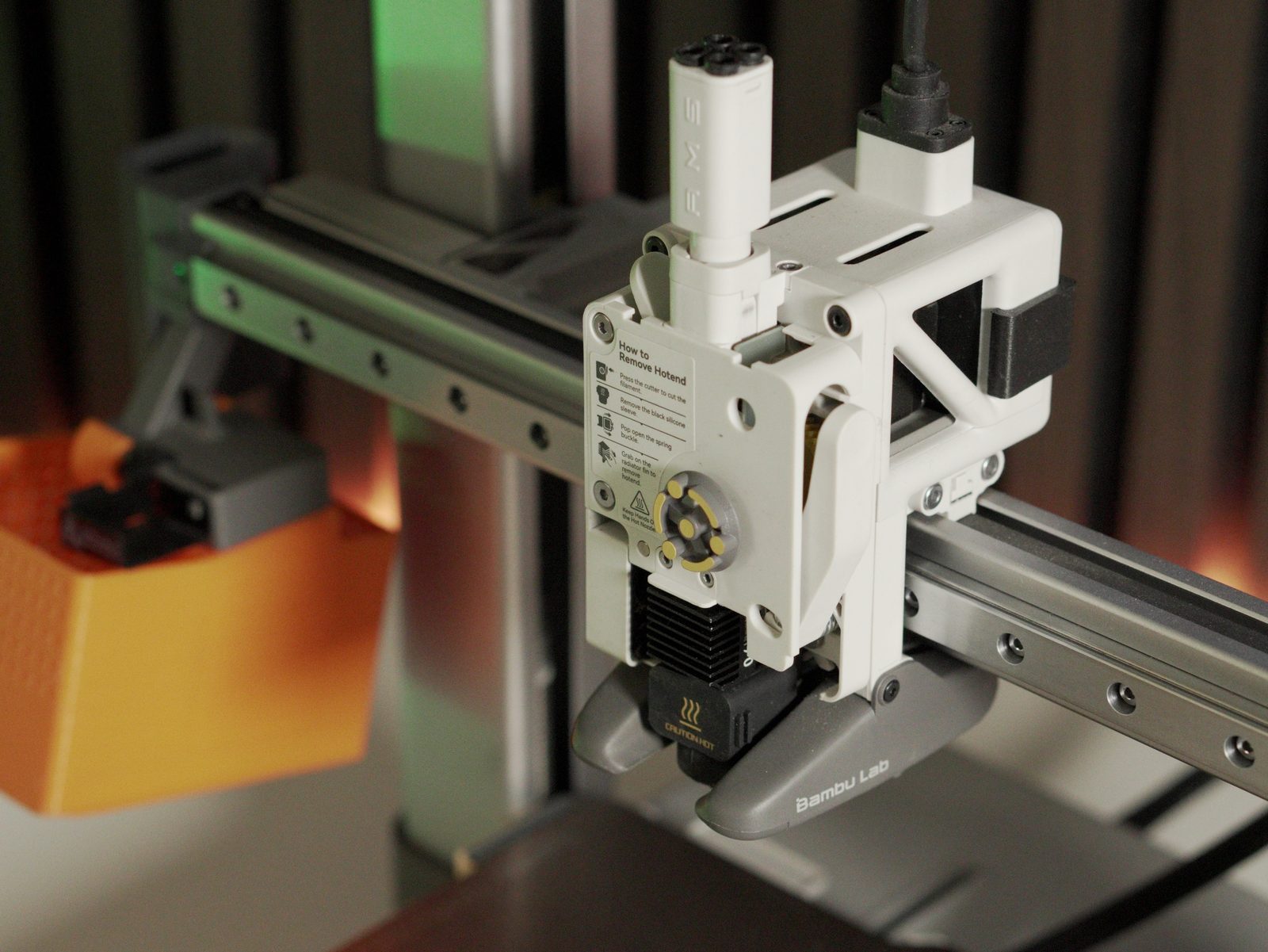
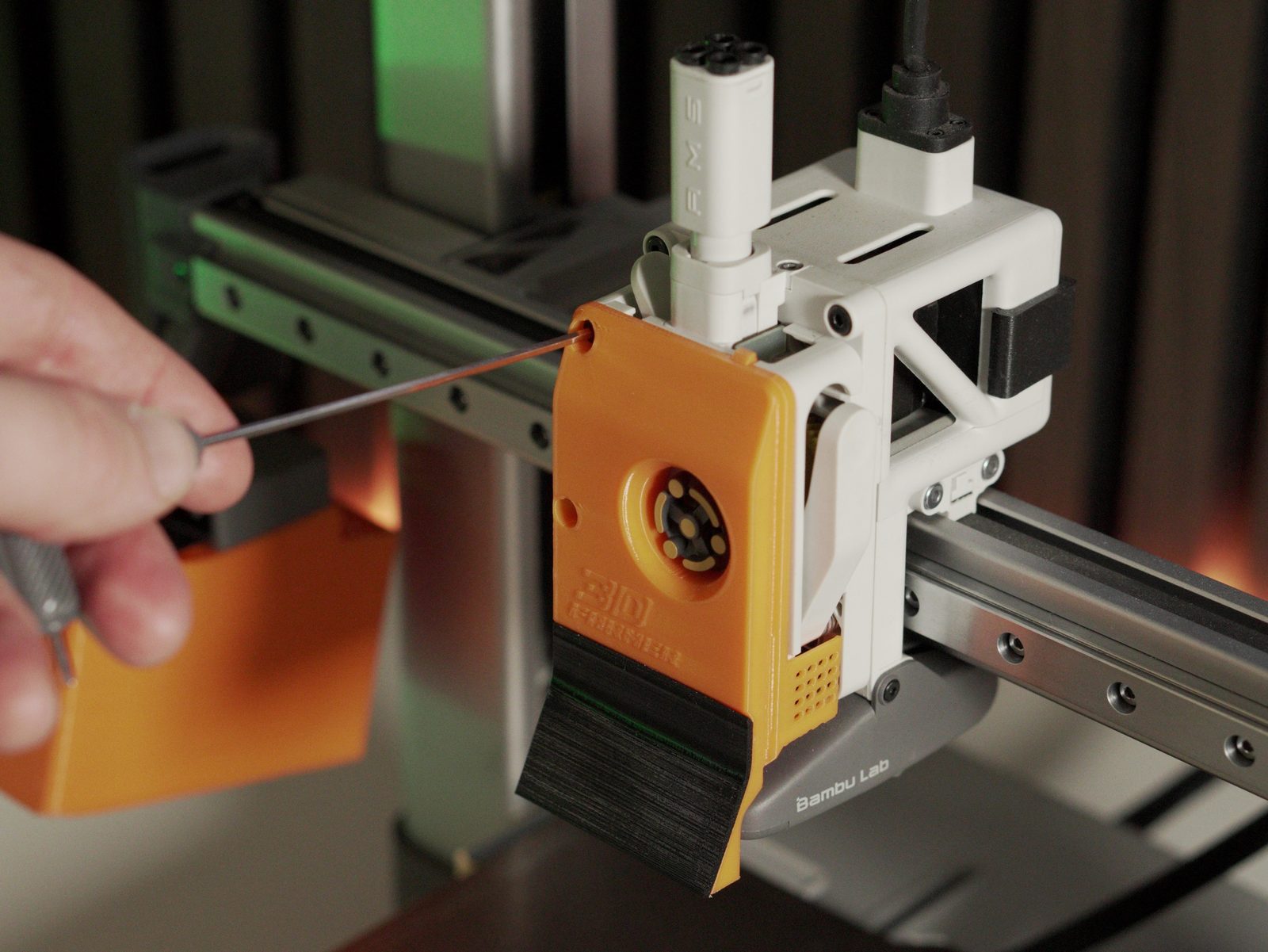
- Remove the original cover and the two marked screws.
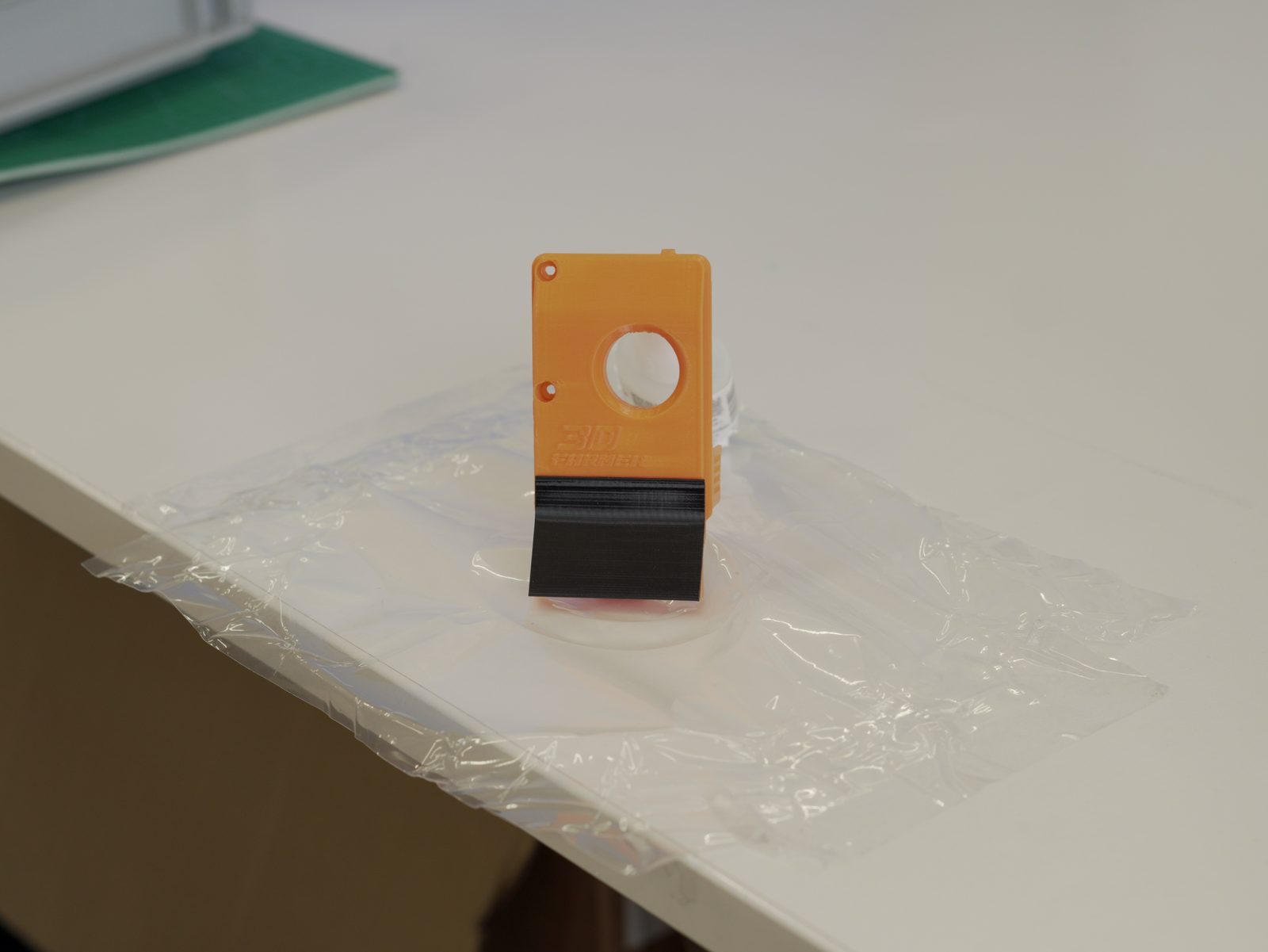
- Hook the FarmLoop scraper into the top hinges first, then fold it downward.
- Once the glue has set, secure the scraper with the screws. We recommend the slightly longer black BT3×8 SHCS (self-tapping) screws for increased strength.
Operation
Section titled “Operation”Limit-switch controls
Section titled “Limit-switch controls”The LIMIT SWITCH on the FarmLoop module is the manual control input. Its function depends on the current system state:
| System state | Action | Result |
|---|---|---|
| Idle | Long press (4-6 seconds) | Fan ON (waits for triple tap) |
| Fan running | Triple tap (3× within 8 s) | Fan OFF + bending cycles start |
| Idle | Double tap (2× within 4 s) | Test mode (fan 2 s + actuator cycle) |
| Any state | Four quick taps (within 10 seconds) | EMERGENCY RESET, homes the actuator and returns to idle |
OTA mode
Section titled “OTA mode”The FarmBoard’s built-in web page - update firmware, connect Digital trigger mode, or grab logs. The full walkthrough - entering OTA mode, accessing http://farmloop.local, uploading a .bin file - lives on Accessing the board (OTA mode). Defaults are tuned out of the box, so you only need OTA for firmware updates in most cases.
Troubleshooting
Section titled “Troubleshooting”| Problem | Solution |
|---|---|
| Board does not respond to LIMIT SWITCH | Check limit-switch wiring. Try the emergency reset (four quick taps within 10 s). If still unresponsive, power-cycle the board. |
| Test mode triggered accidentally | Test mode requires a double tap (2 presses within 4 s). A single tap is ignored. Wait ~12 s for the test to finish and the board returns to idle. |
| Bending starts unexpectedly | Triple tap (3 quick taps within 8 s) starts bending. Four quick taps within 10 s for emergency reset. |
| Fan stays on too long | Fan auto-shuts off after 2 hours as a safety measure. To stop earlier, triple-tap to start bending or use the emergency reset (four quick taps within 10 s). |
| OTA mode does not start | OTA needs 5 quick taps (each shorter than 0.8 s) within 3 seconds. Slow taps are not counted. Watch the serial monitor for tap-count feedback. |
| Cannot access OTA page | Ensure you’re connected to the FarmLoop Wi-Fi (password 3D-Farmers). Try http://192.168.4.1 if farmloop.local doesn’t resolve. |
| OTA times out | OTA mode has a 5-minute timeout. Re-enter OTA mode (5 quick taps) and save changes promptly. |
| Settings reset after reboot | You didn’t Save, or OTA mode timed out before saving. Re-enter OTA mode and click Save on the relevant card (e.g. Save Printer Config) promptly. |
Support
Section titled “Support”- Contact: Open a support ticket
- Discord community: included with every FarmLoop account, Lite too: connect your FarmLoop account on the Dashboard to join; Pro and Business members also get the member channels