
FarmLoop Stage 2 assembly, Elegoo Centauri Carbon
Please read through the entire guide before beginning the installation. Ensure you have all prerequisites ready to avoid interruptions during assembly.
This guide covers installing FarmLoop Stage 2 on the Elegoo Centauri Carbon.
Prerequisites
Section titled “Prerequisites”- Elegoo Centauri Carbon with latest firmware installed
- FarmLoop Stage 2 kit - door-opener actuator, bender actuator and holders, wire harness, limit switch, pusher head, FarmBoard PCB, and mounting hardware
- FarmLoop Pro subscription, sign up at app.3d-farmers.com - not required if you already have a SimplyPrint Print Farm subscription (see SimplyPrint integration)
- A clean, flat work surface large enough to lay every part out
Components used in this guide:
- Door-opener button, rubber ring, and metal ring
- Door-opener linear actuator
- Bender linear actuator, bender bracket, and 2 levers, joined with an M4 bolt
- 2 bender holders
- Limit switch
- Printer’s top lid
- Rear rubber feet and 1 tilted foot (right side)
- Printed door hinge, secured with M3 bolts
- Wire harness, cable bracket, and side cable bracket
- FarmBoard PCB and PCB holder
- Pusher head
Hardware assembly
Section titled “Hardware assembly”1. Assemble the door opener
Section titled “1. Assemble the door opener”- Attach the wire to the terminals before pressing the button into place - it’s much easier to reach now than after the button is seated in the hole.
- Press the button into the designated hole in the lid.
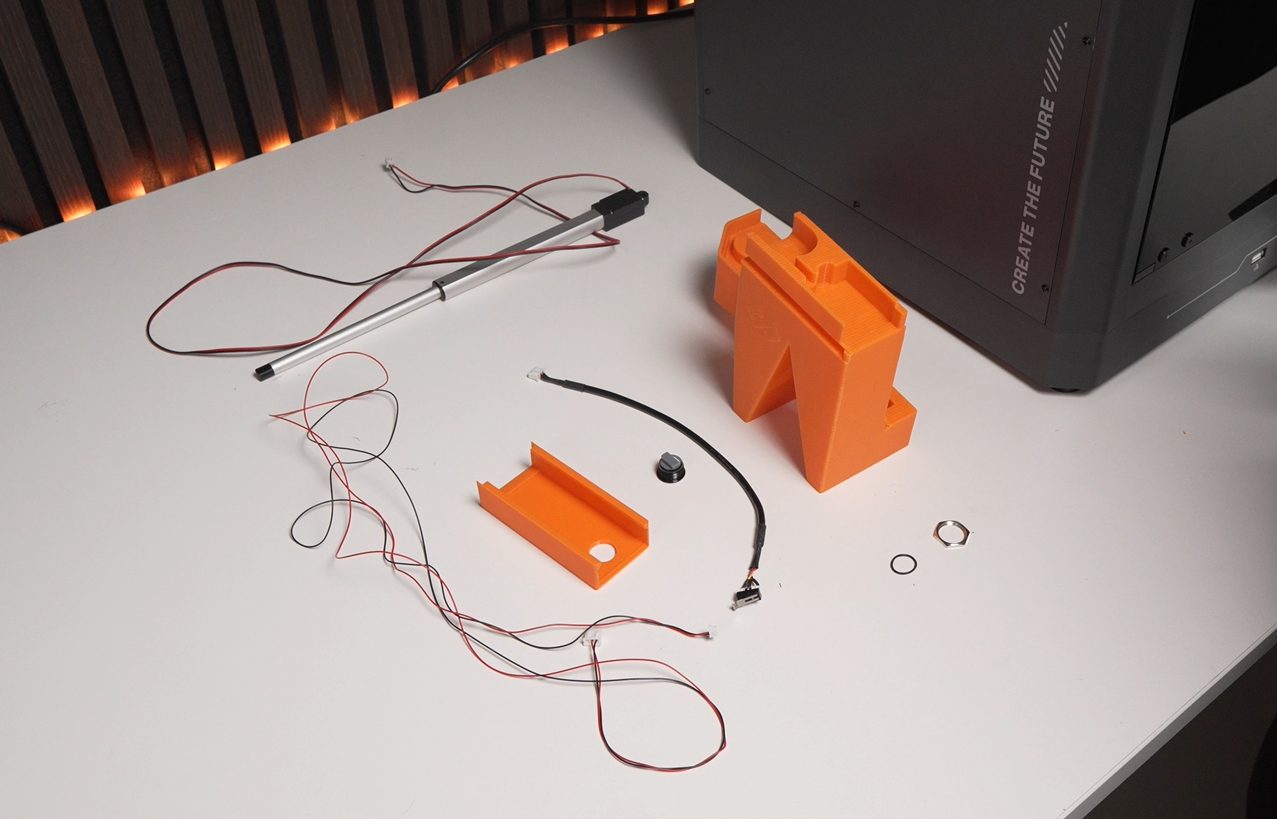
- Fix the button using the rubber ring and metal ring.
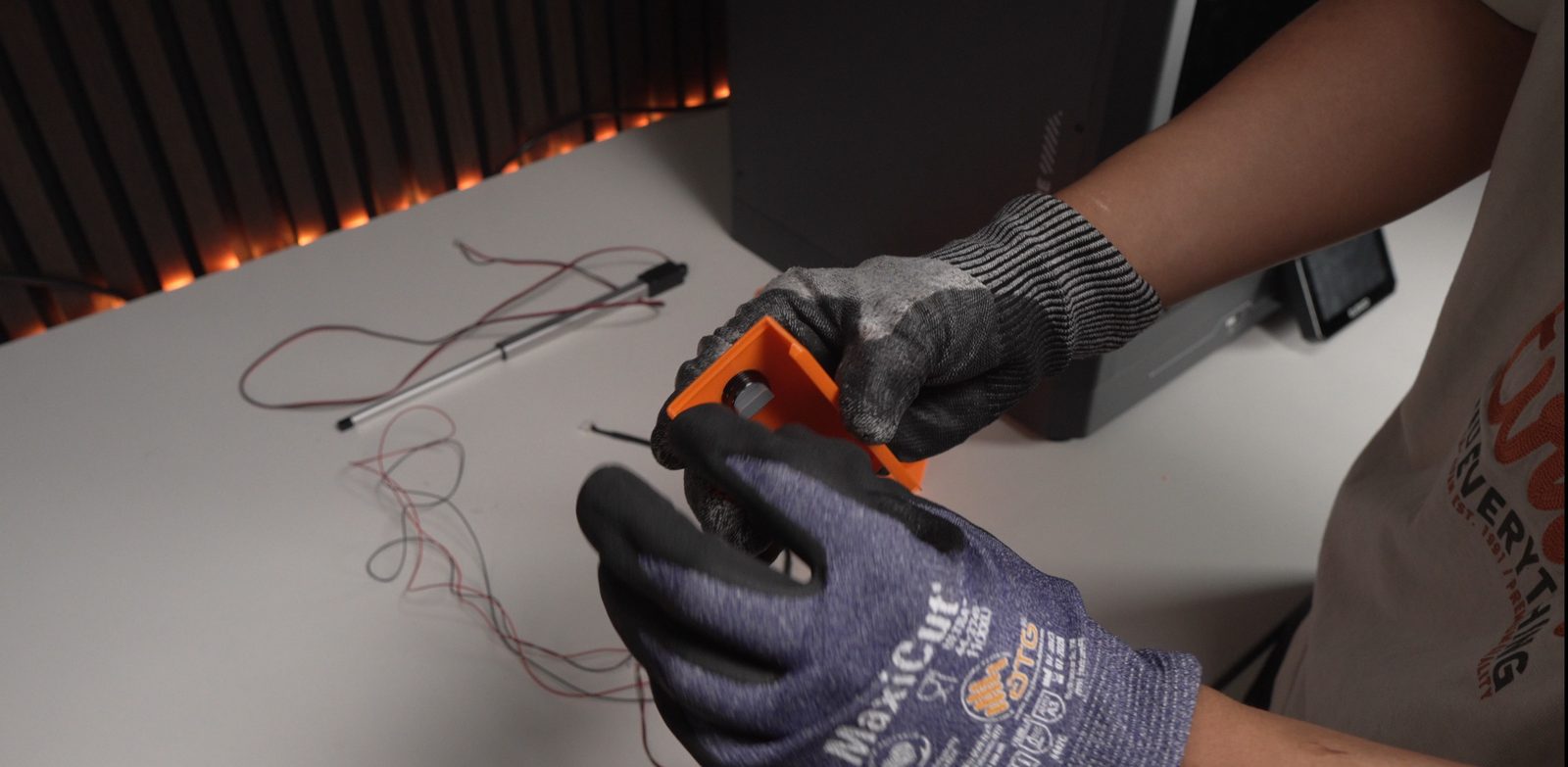
- Slide the actuator into the bottom part until fully seated.
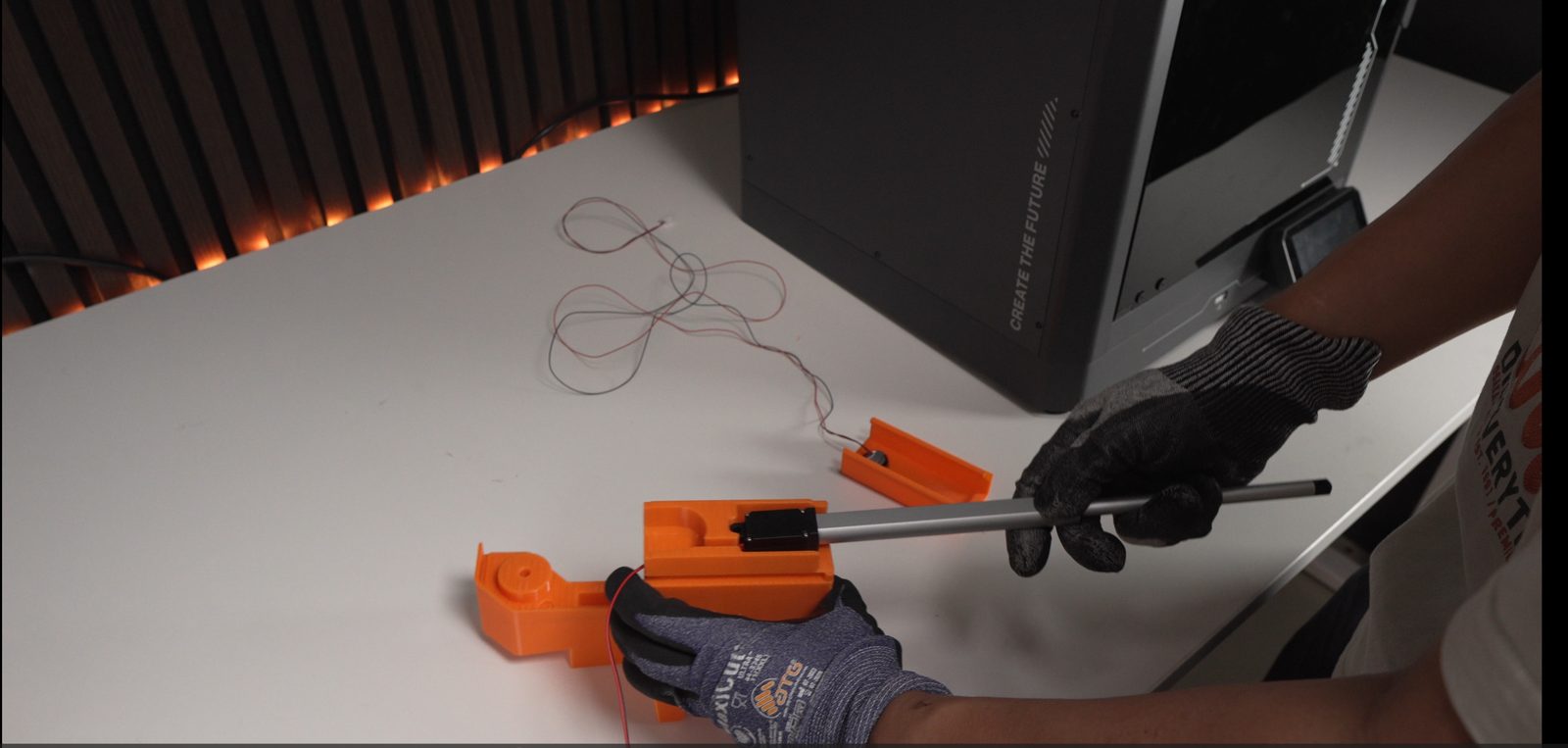
- Align the lid with the base and press them together until they click/lock into place.

2. Set up the benders
Section titled “2. Set up the benders”- Slide the actuator into the bracket (cable should be at the bottom).
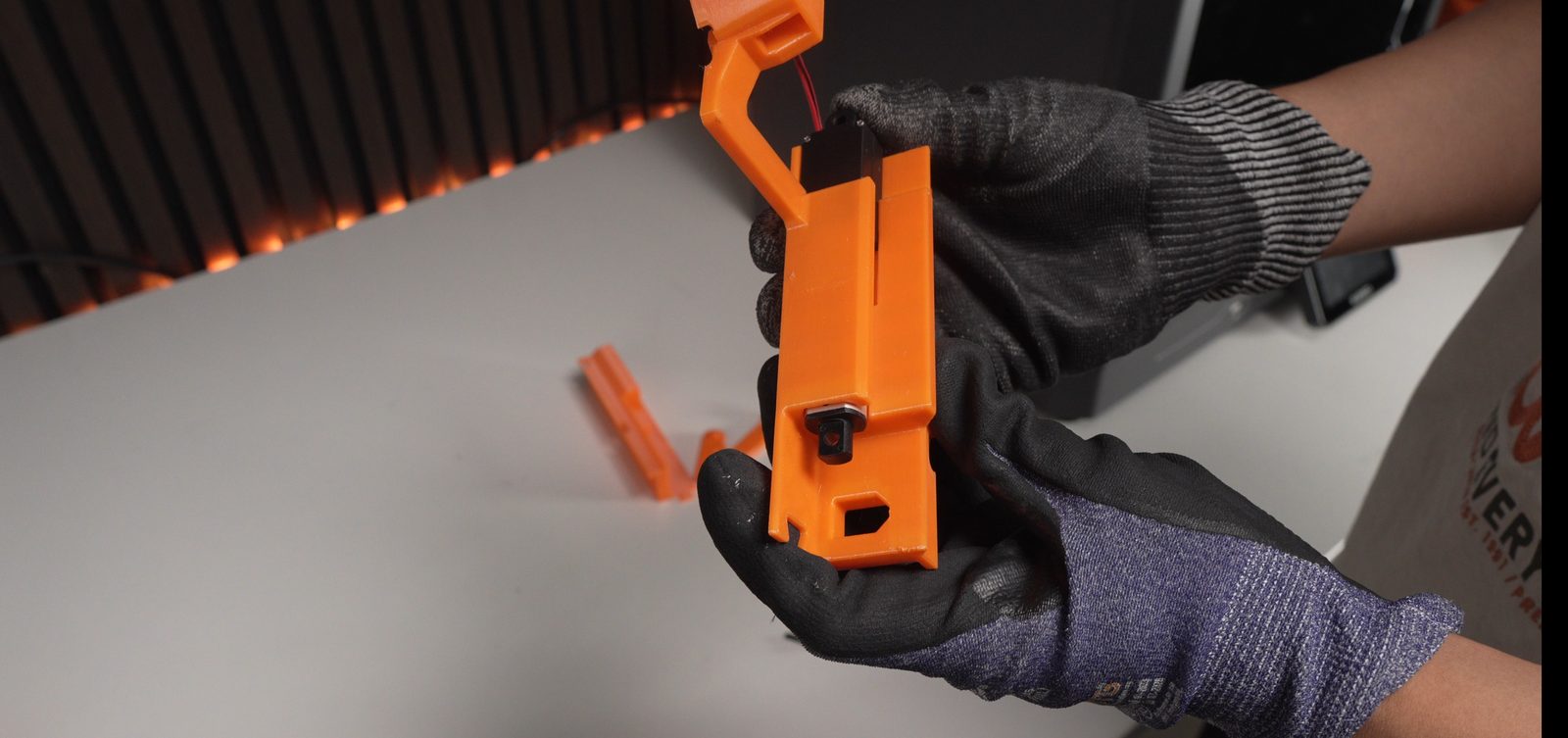

- Assemble the two levers using an M4 bolt.
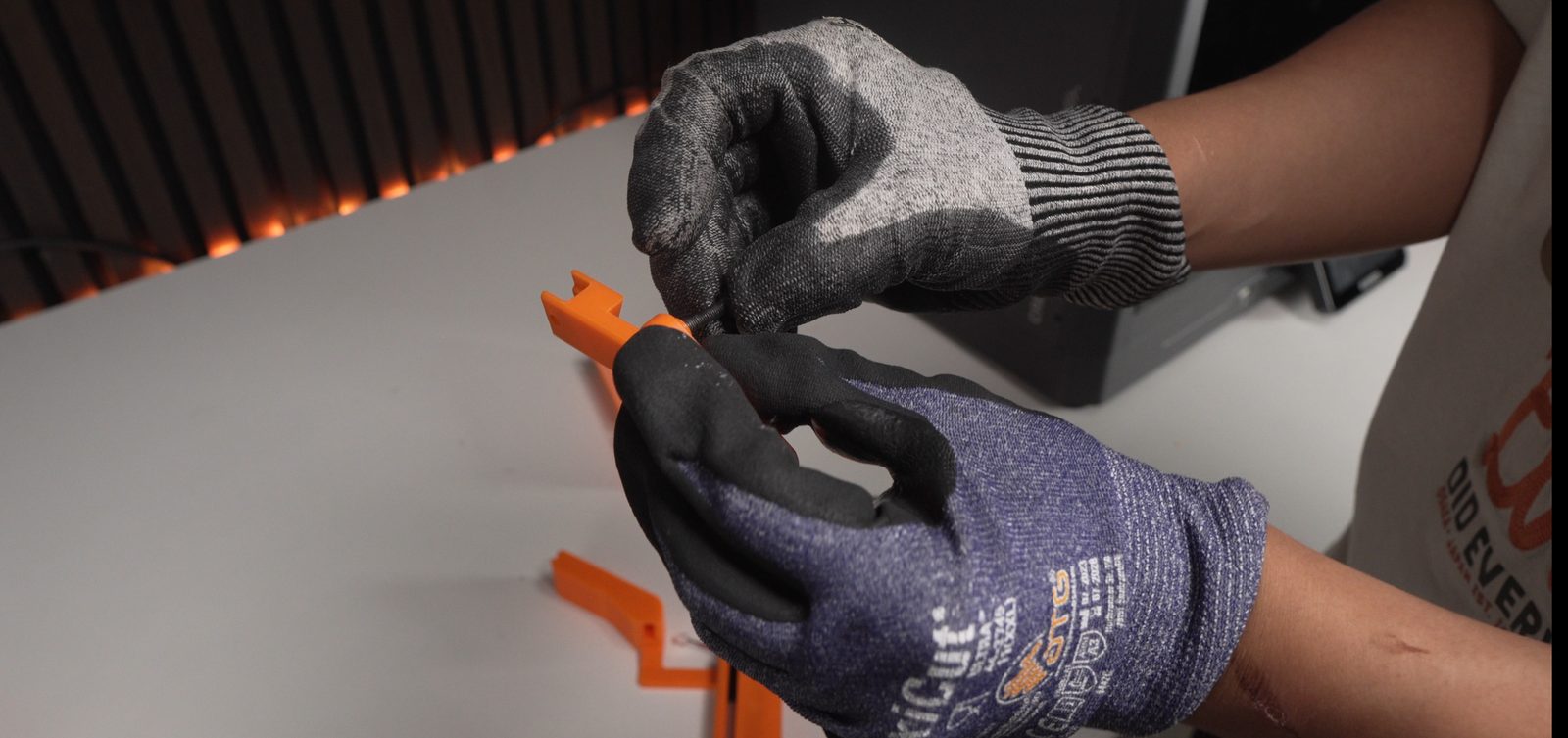

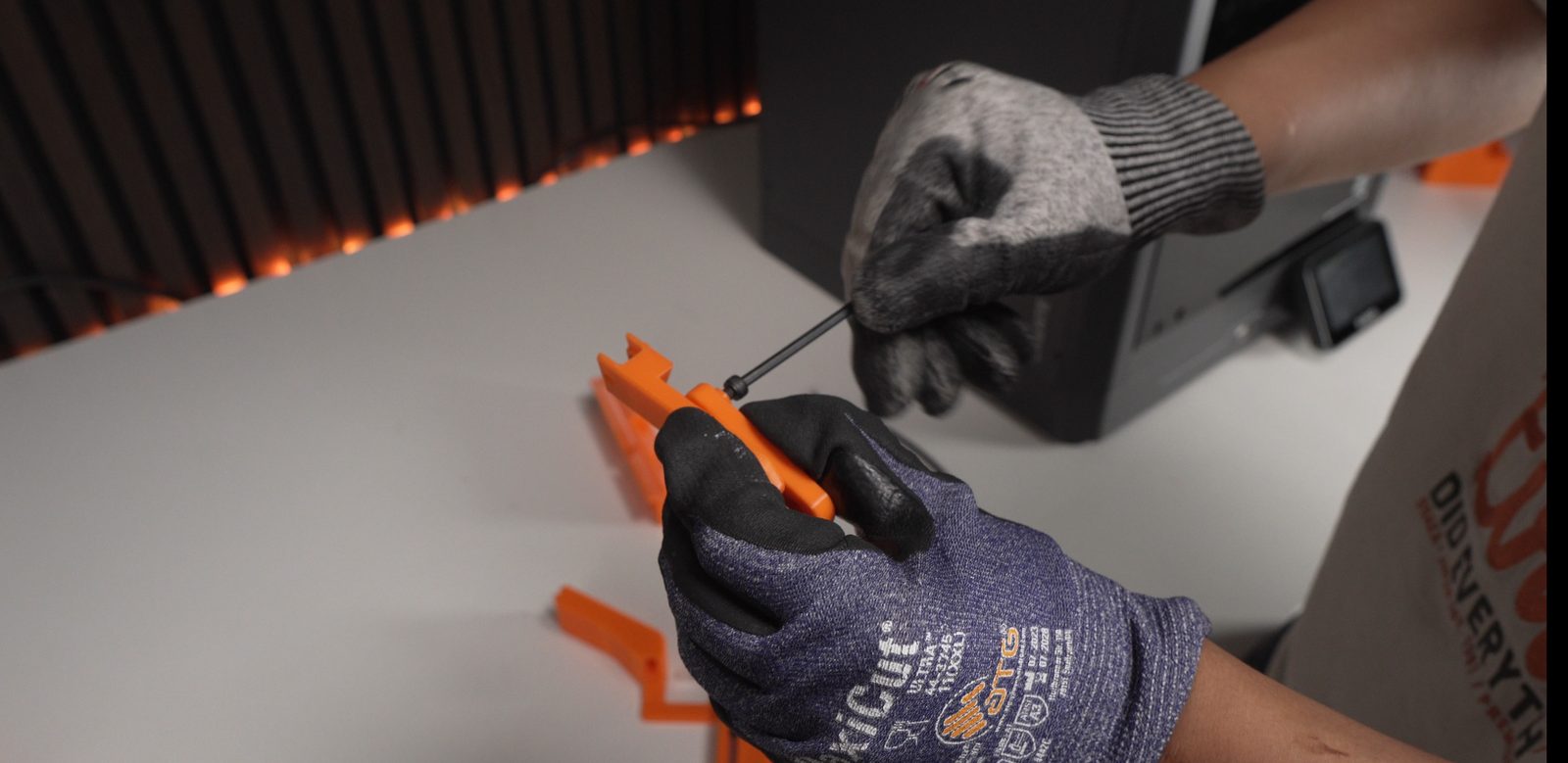
- Attach the lever group to the actuator using an M4 bolt.
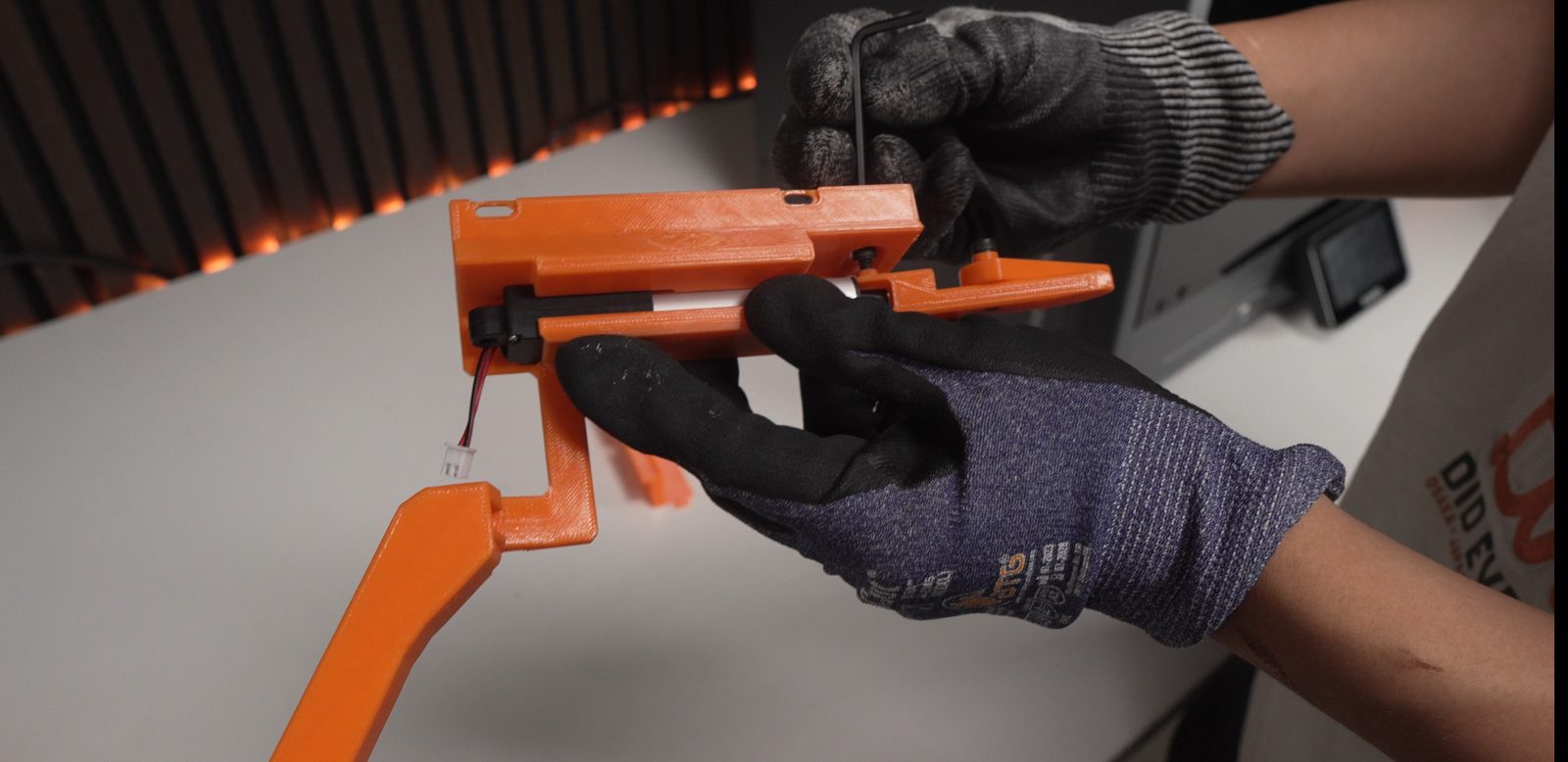
- Assemble the two bender holders together.
- Attach the bender to the bender holder at a tilted angle.




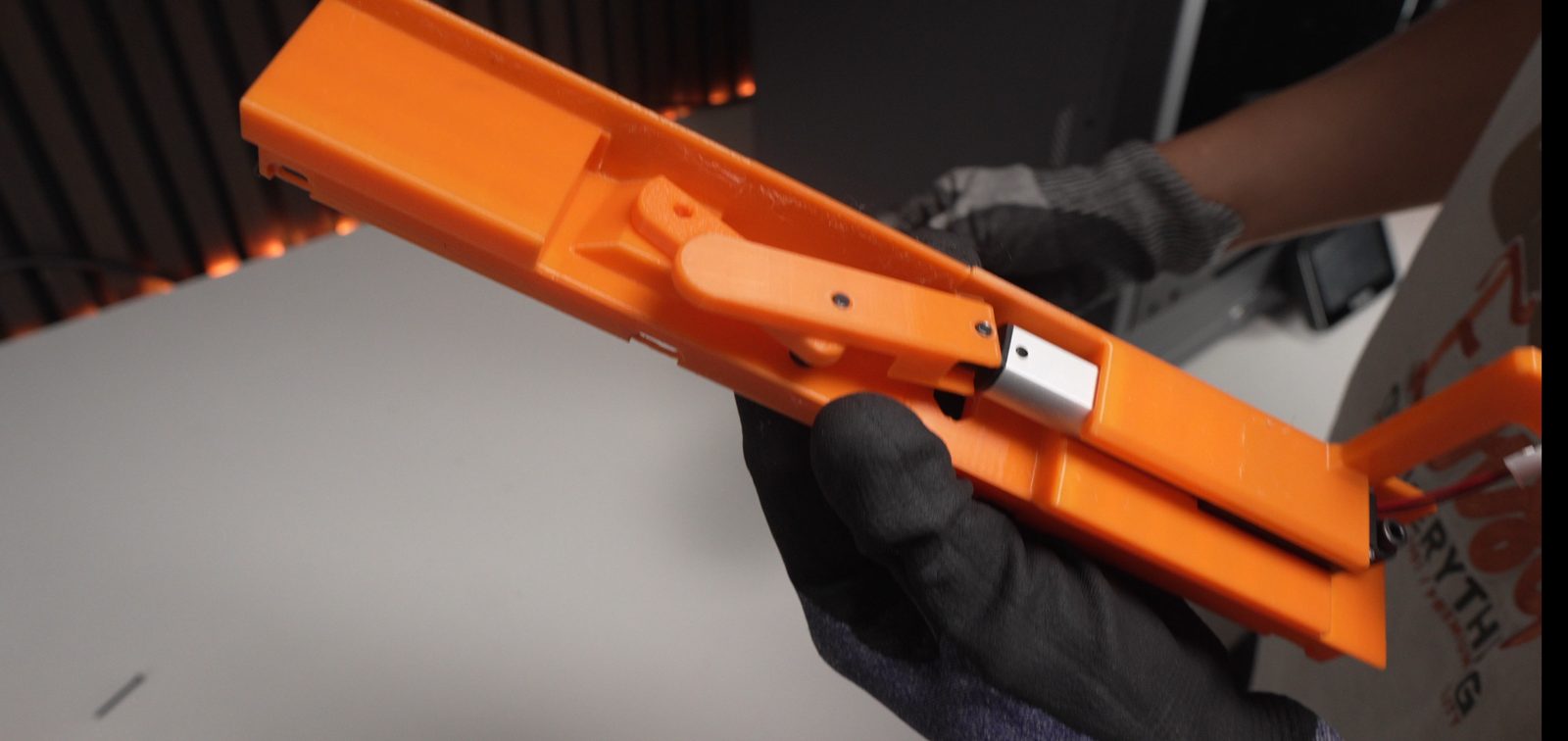

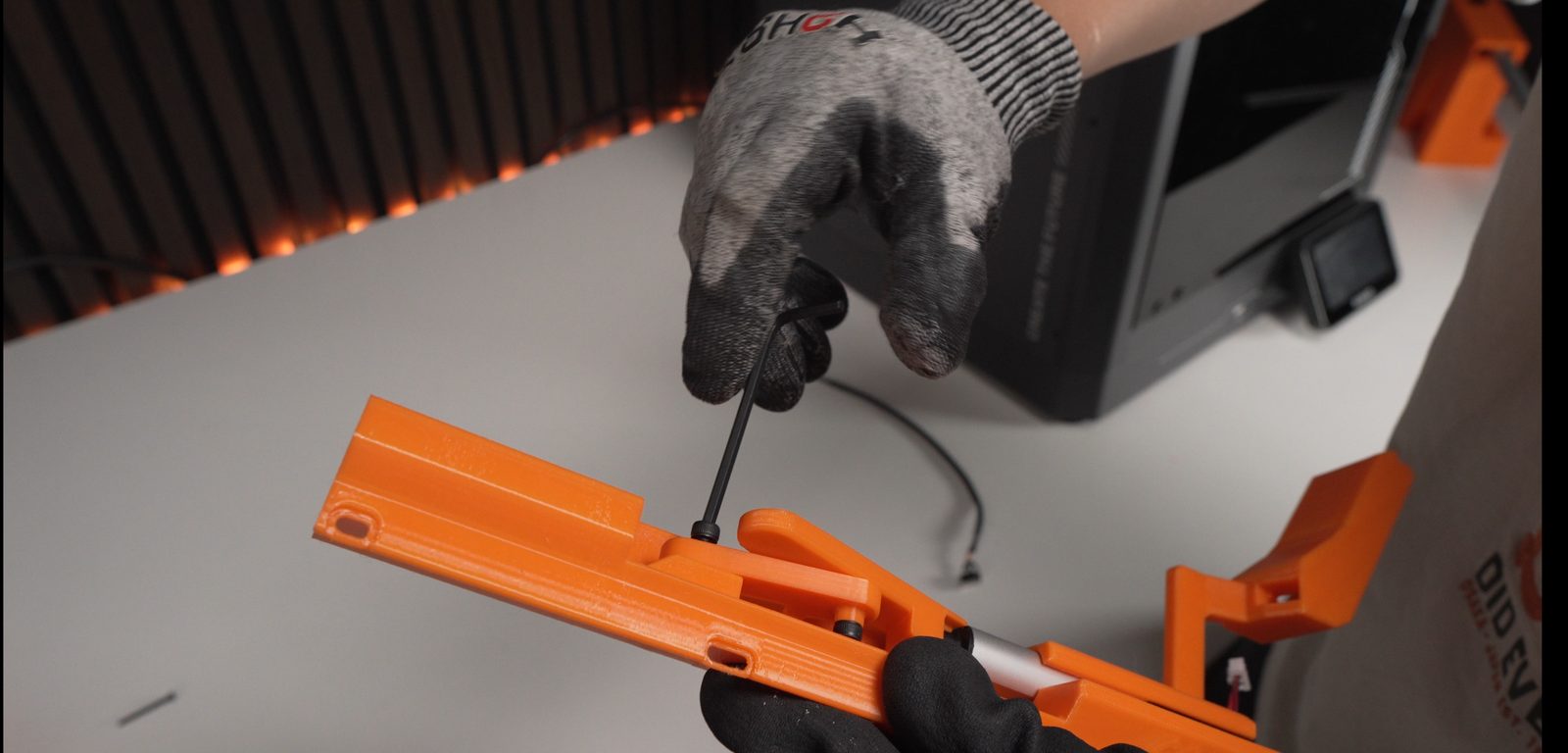
- Press the limit switch into the slot in the right part.

3. Prepare the 3D printer
Section titled “3. Prepare the 3D printer”- Remove the printer’s top lid and set it aside.
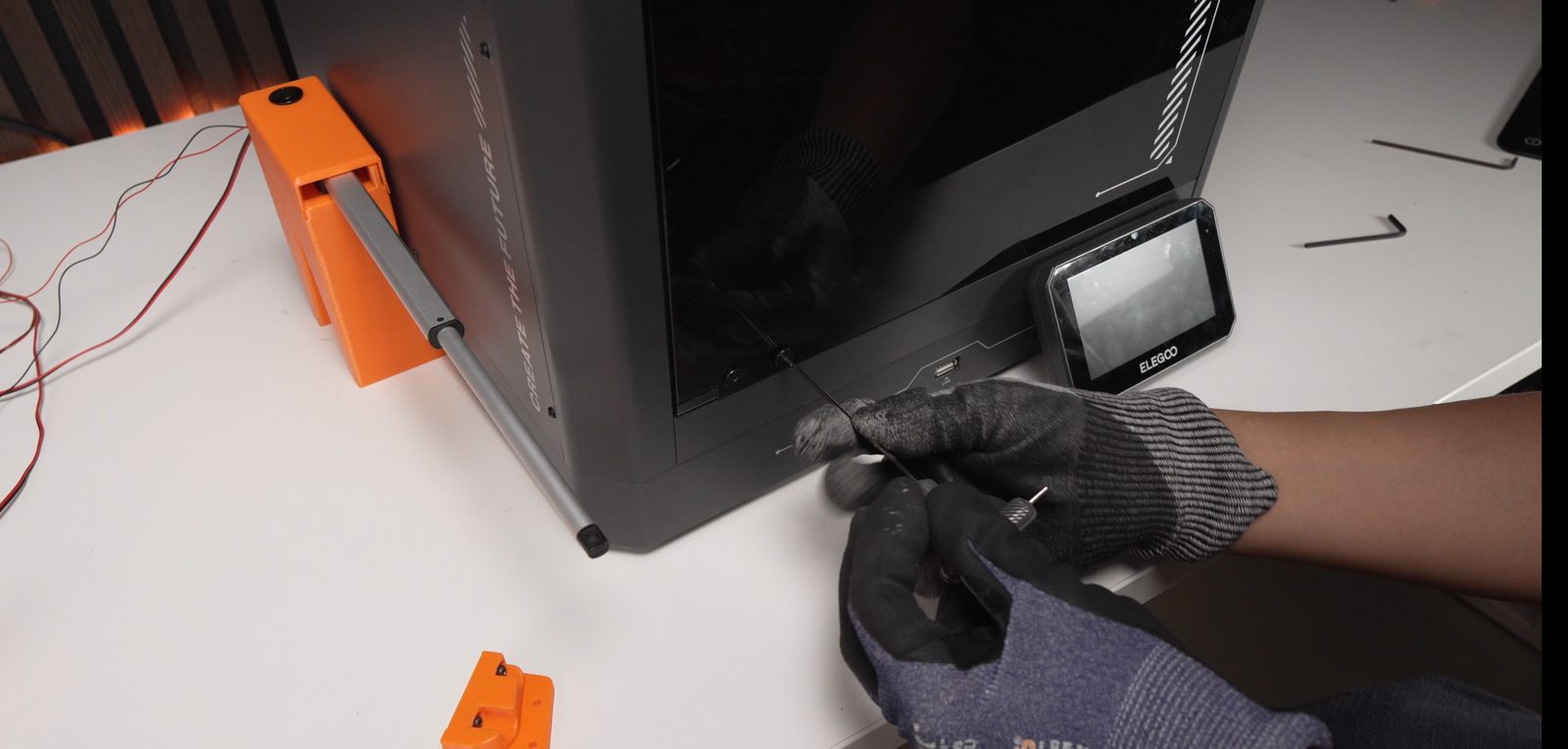

- Remove the 4 bolts at the front panel.
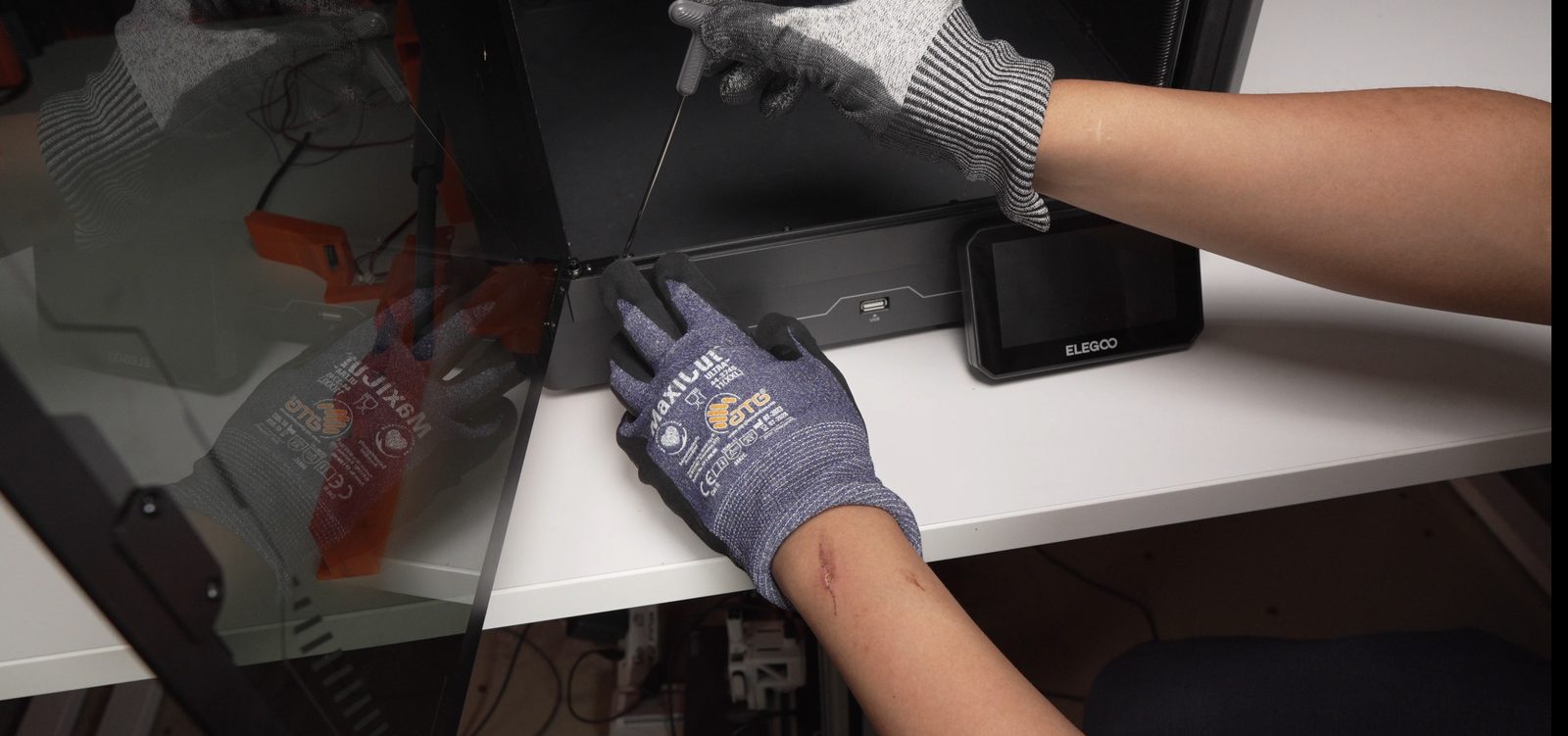

- Flip the printer.
- Remove the two rubber feet at the back and replace the right one with a tilted foot.
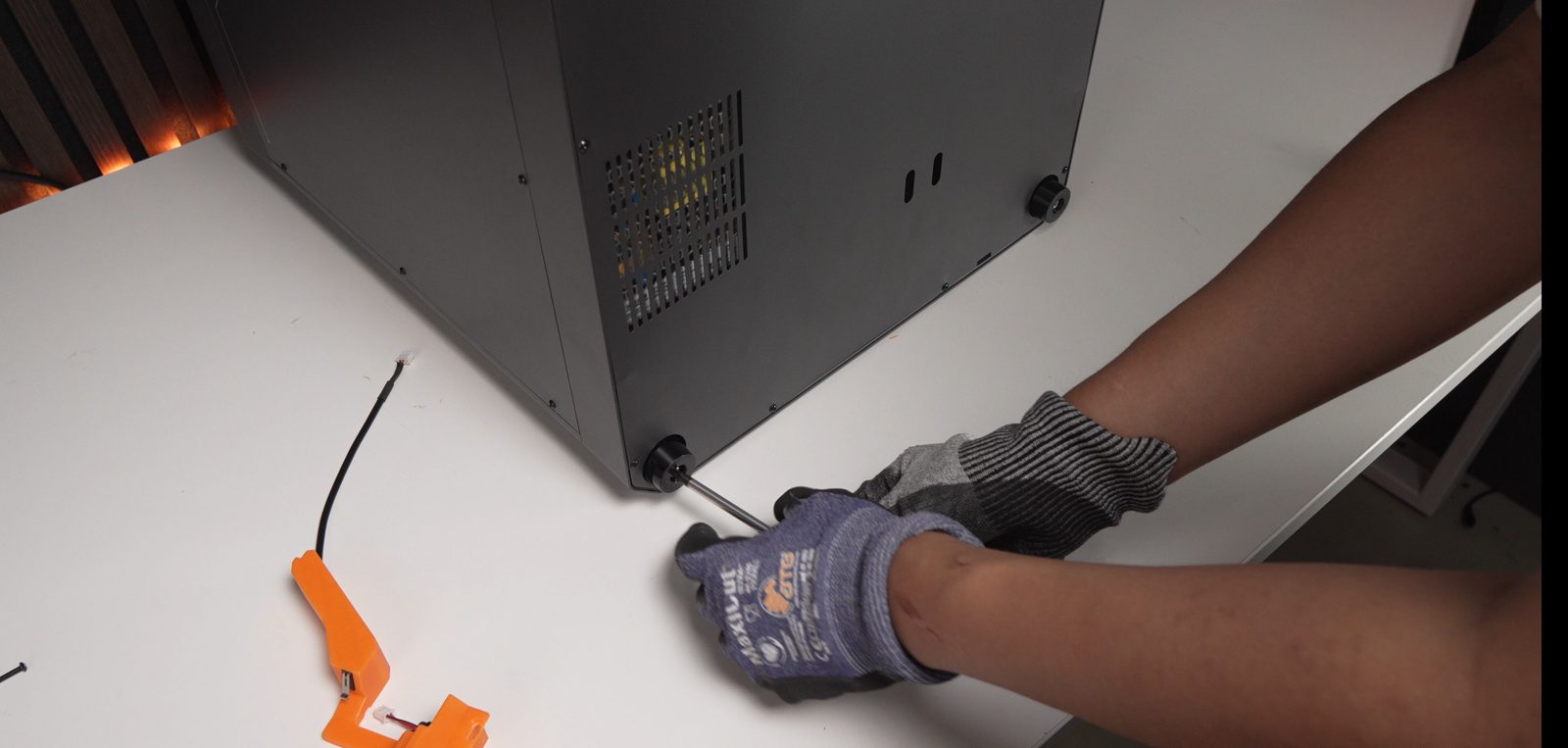

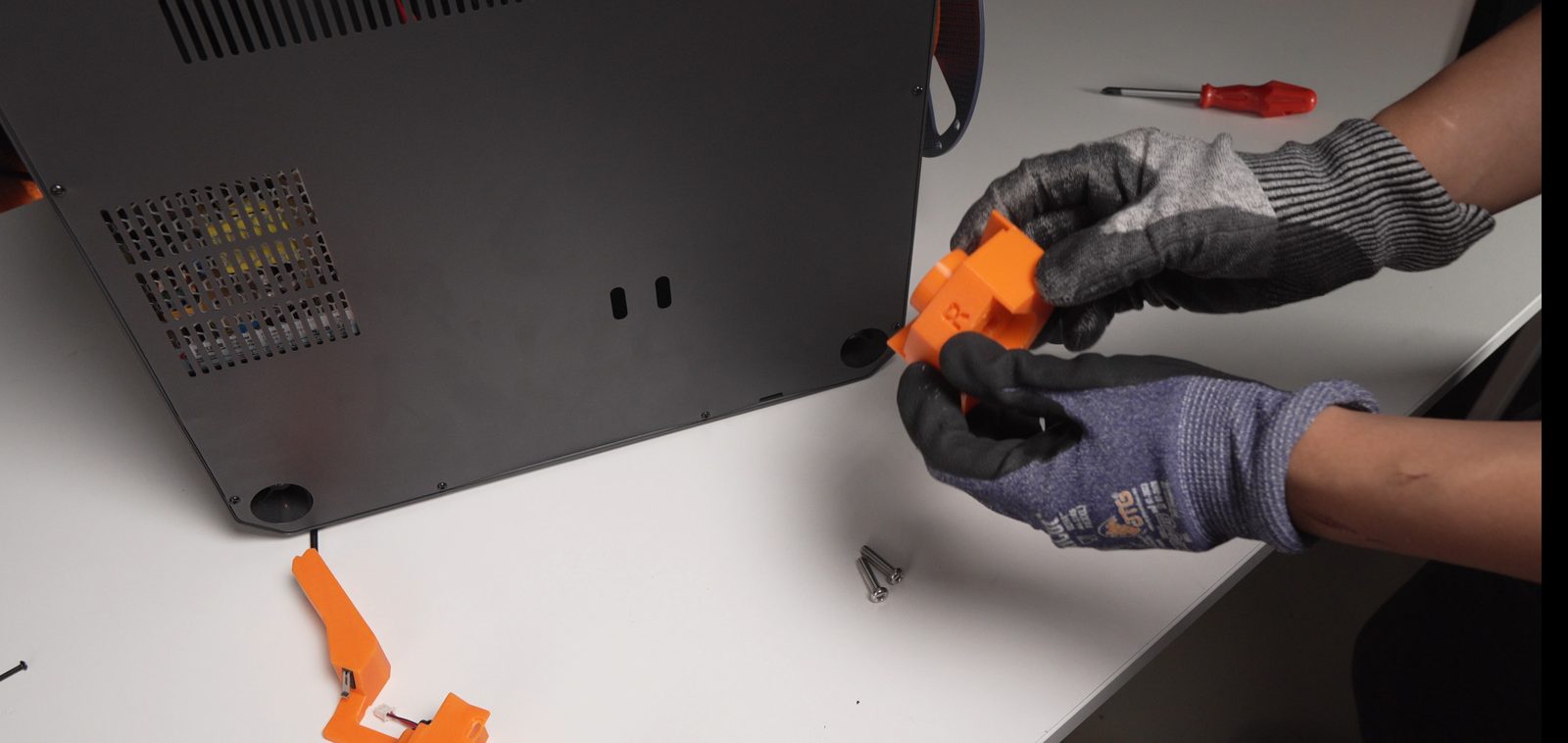
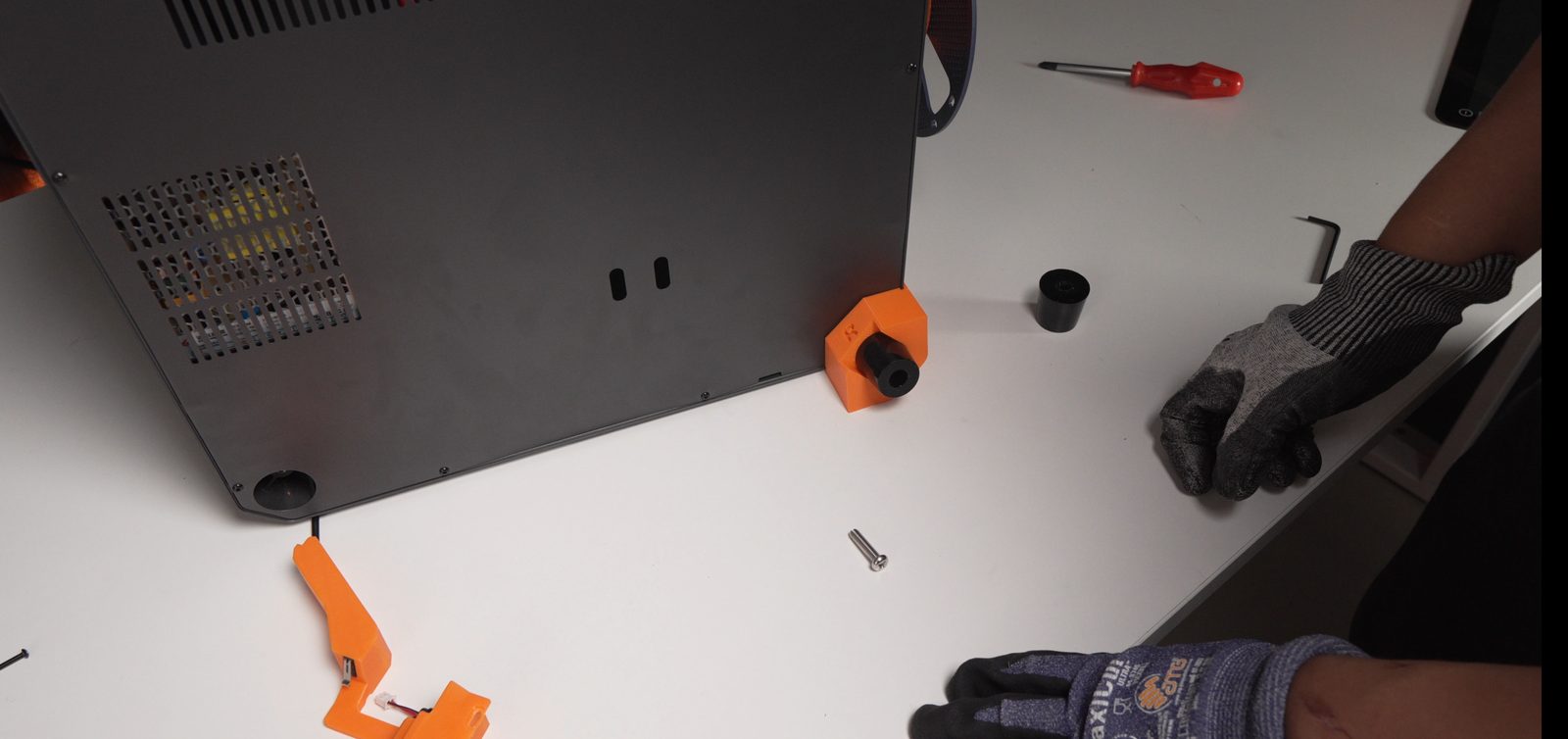


- Flip the printer back.
- Lift the printer slightly to put the actuator-holder foot in the correct position.
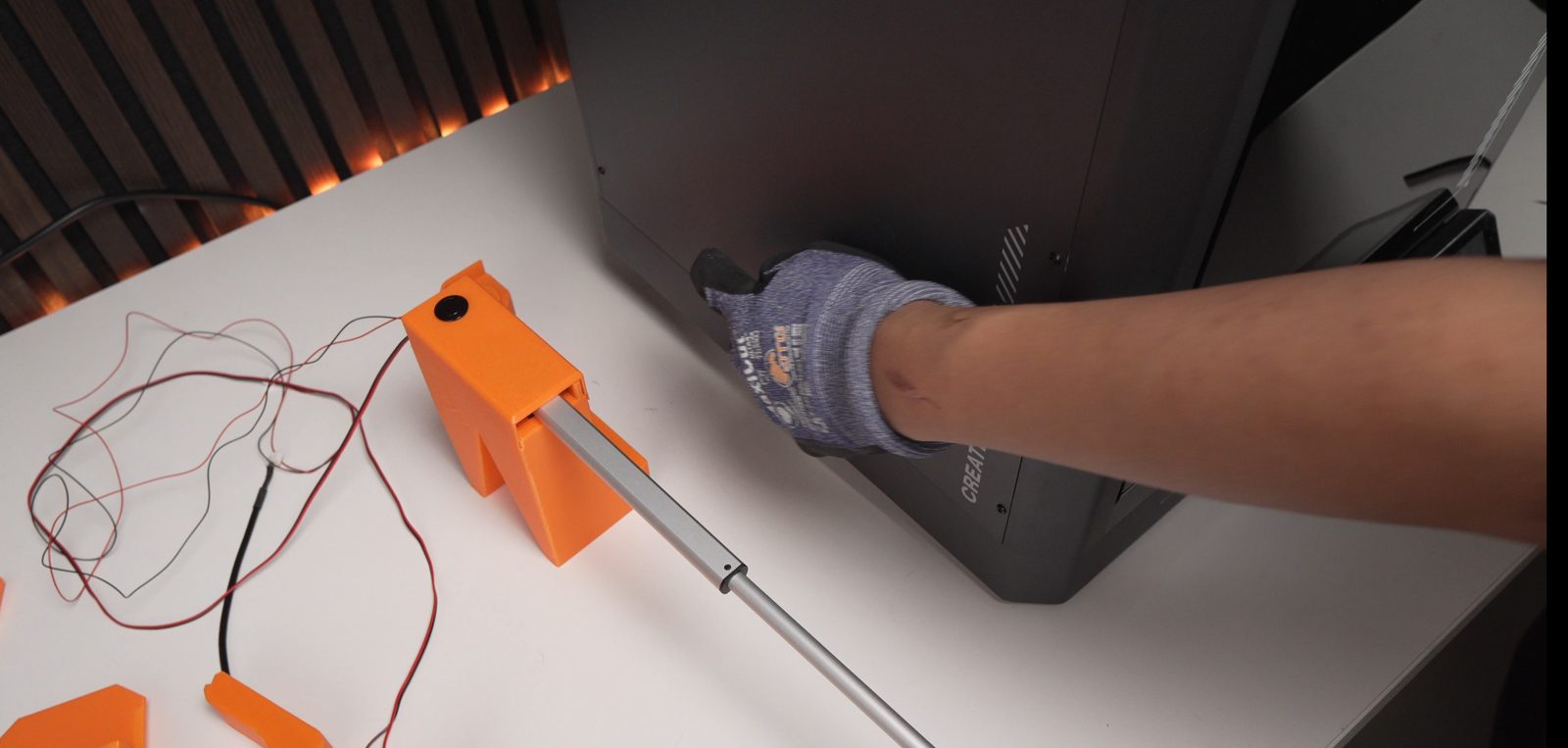
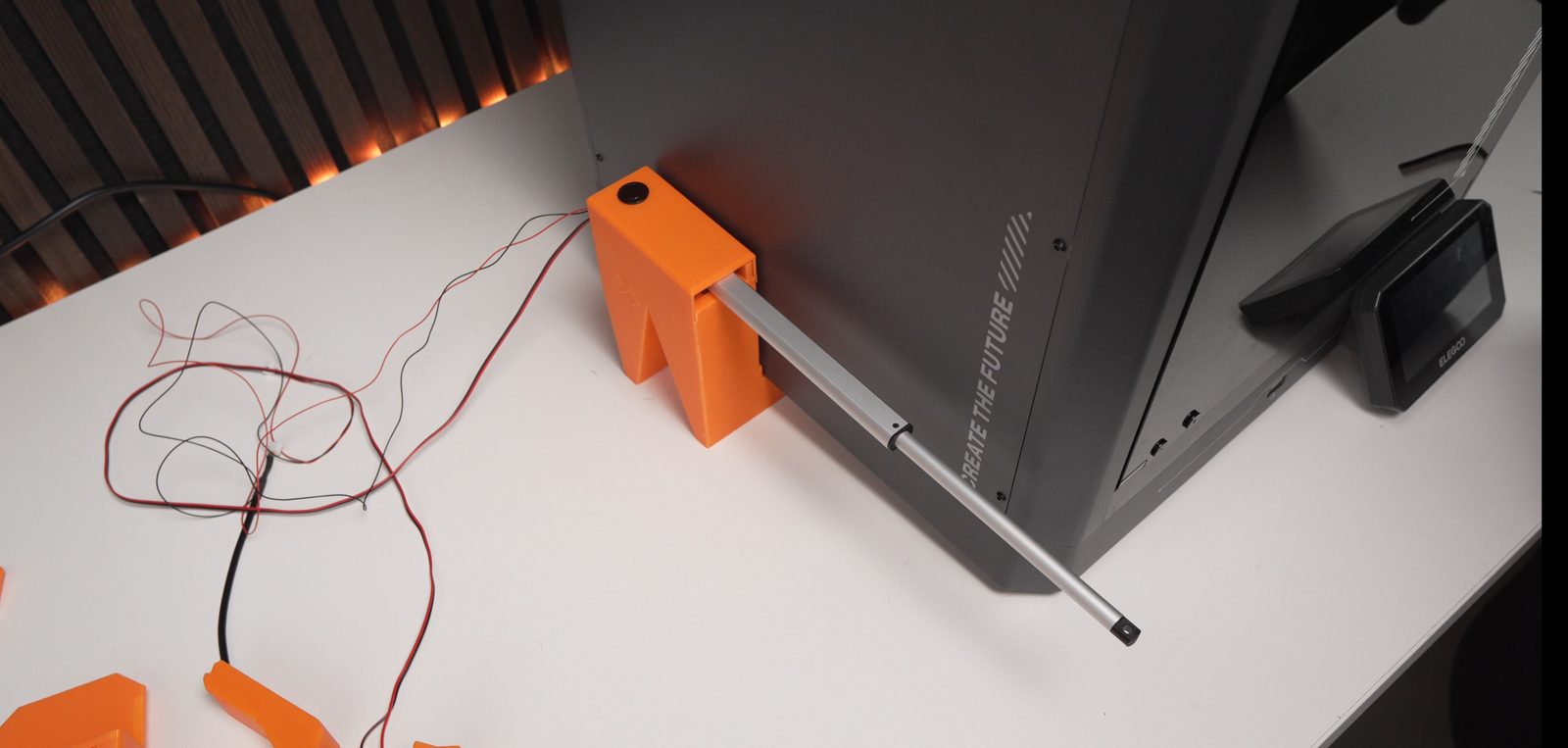
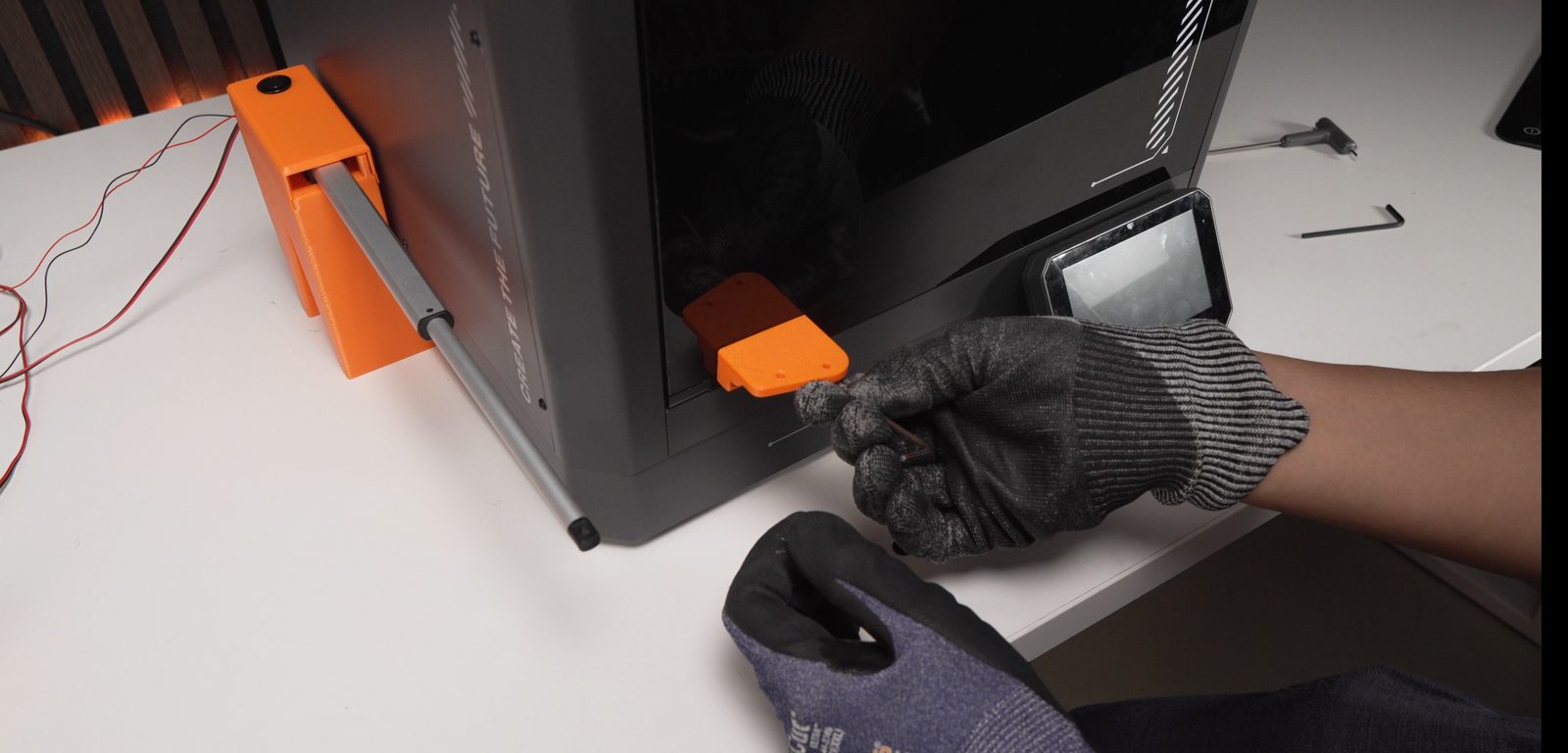

- Remove the bottom two screws from the original door hinge - position the new door hinge and reinsert two M3 bolts to secure it.
- Insert the wire harness into the print room through the opening.
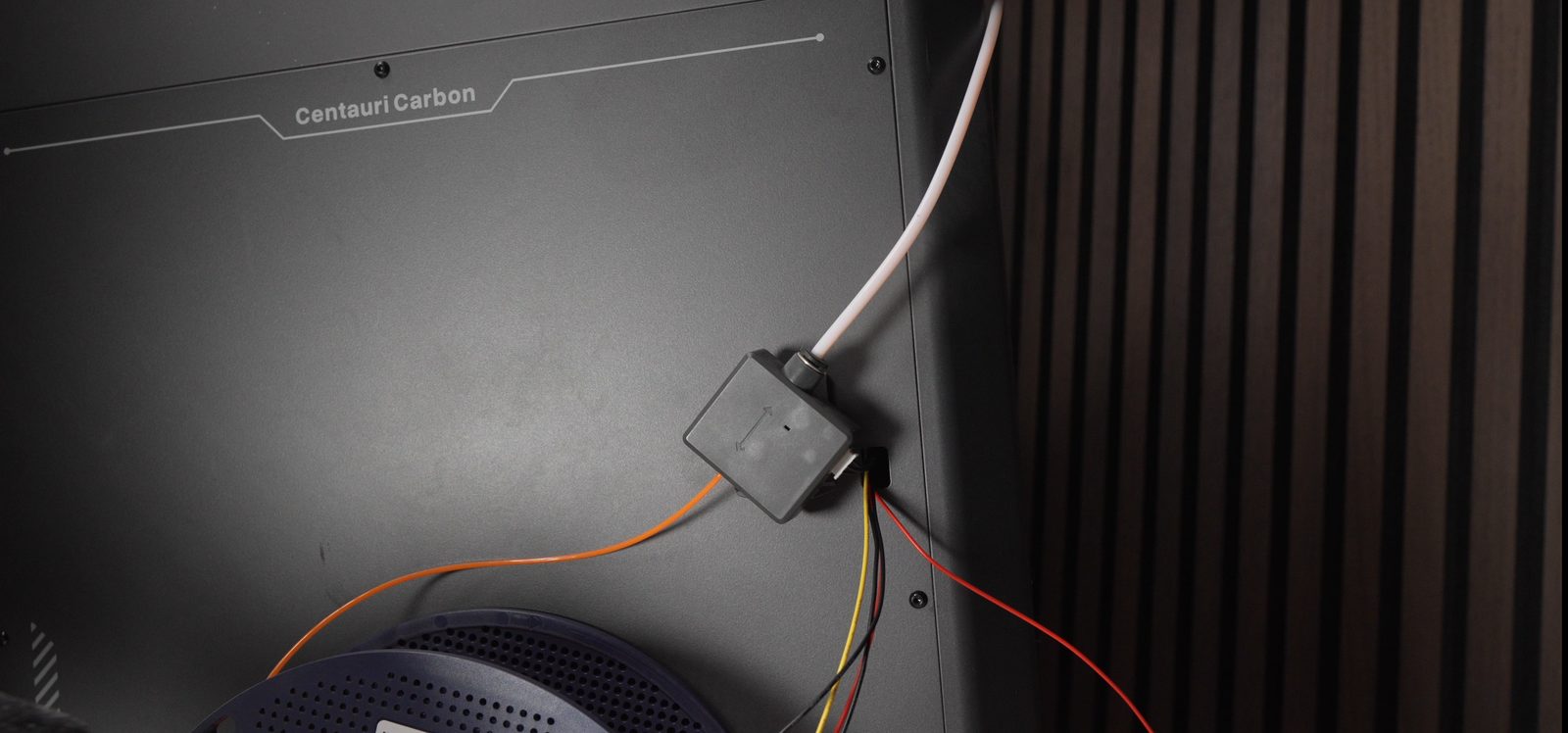

- Remove the 4 bolts on the side of the printer’s right wall - you’ll reuse them in the next step.
- Put the cable bracket on and secure it using those same 4 bolts.
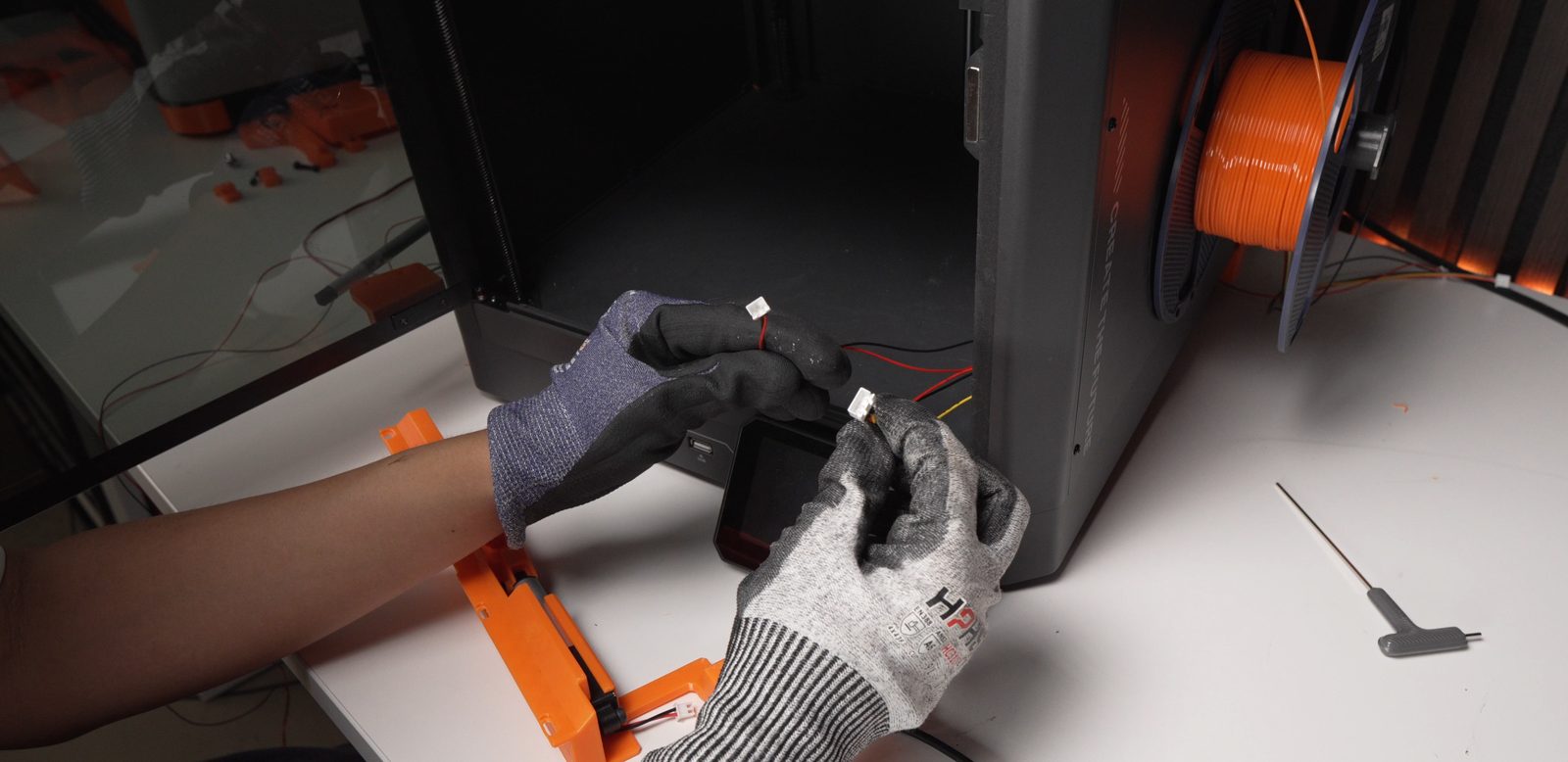
- Connect the wire harness to the actuator and switch.


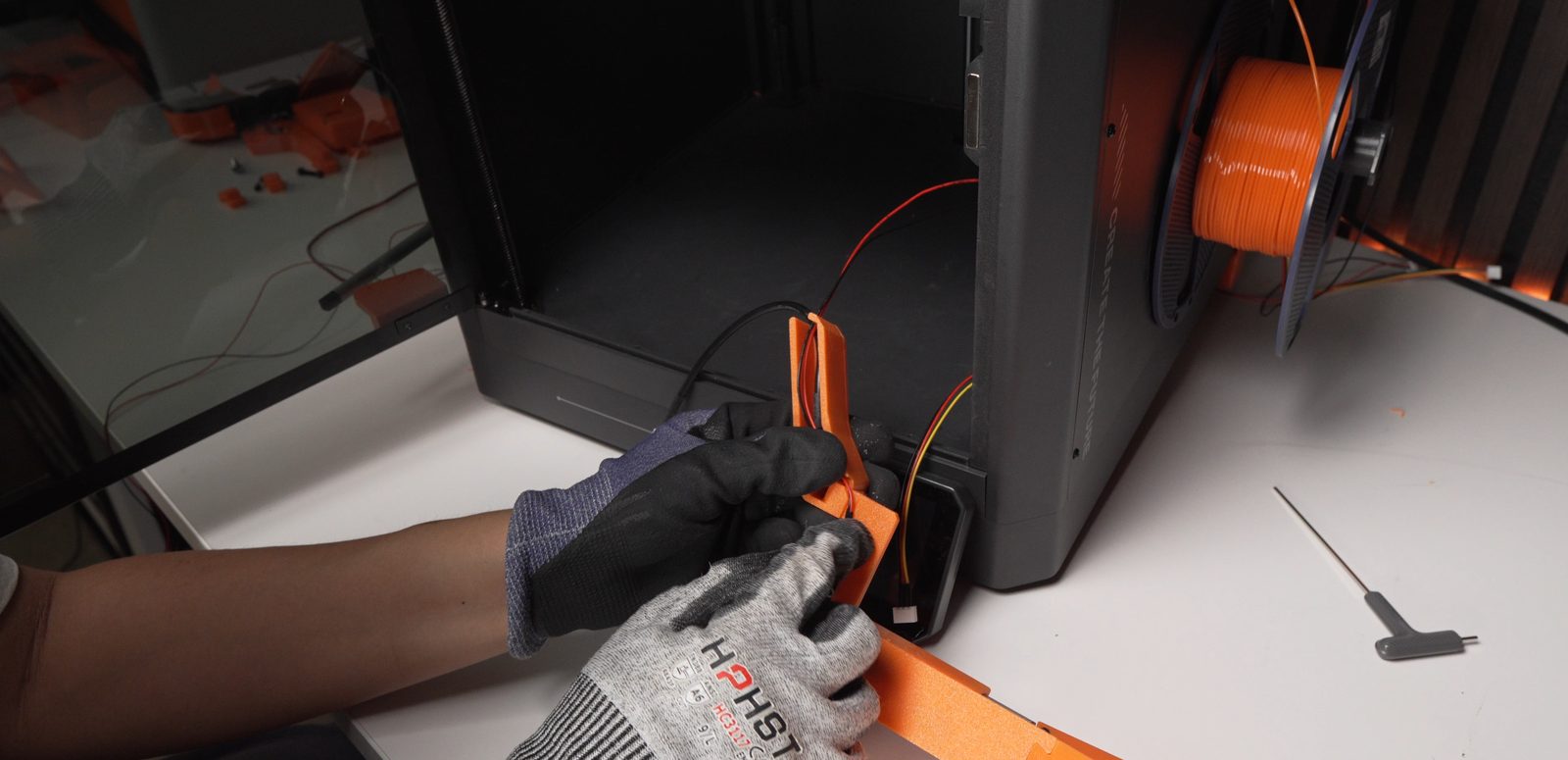
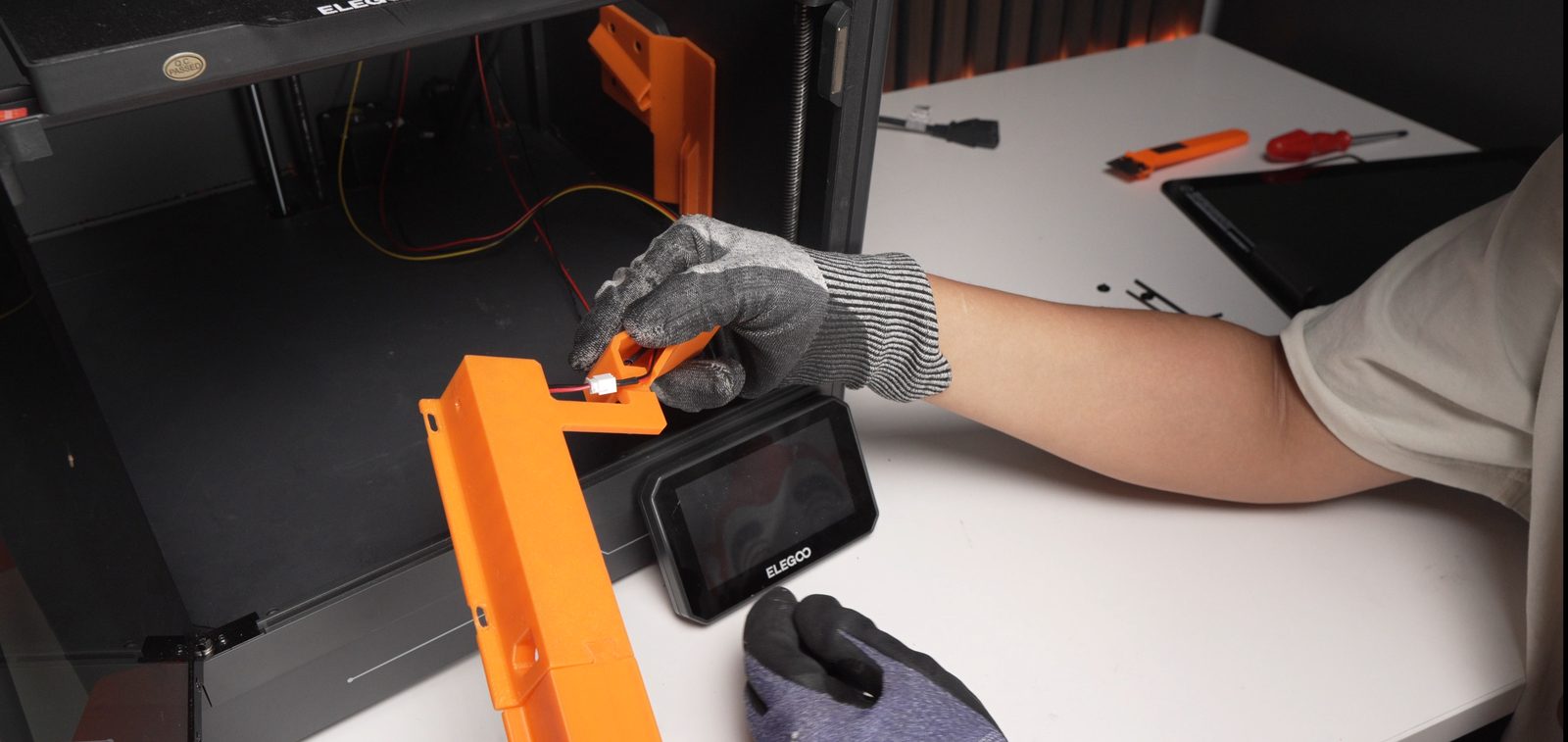
- Wrap the loose part of the wire harness using the side cable bracket.
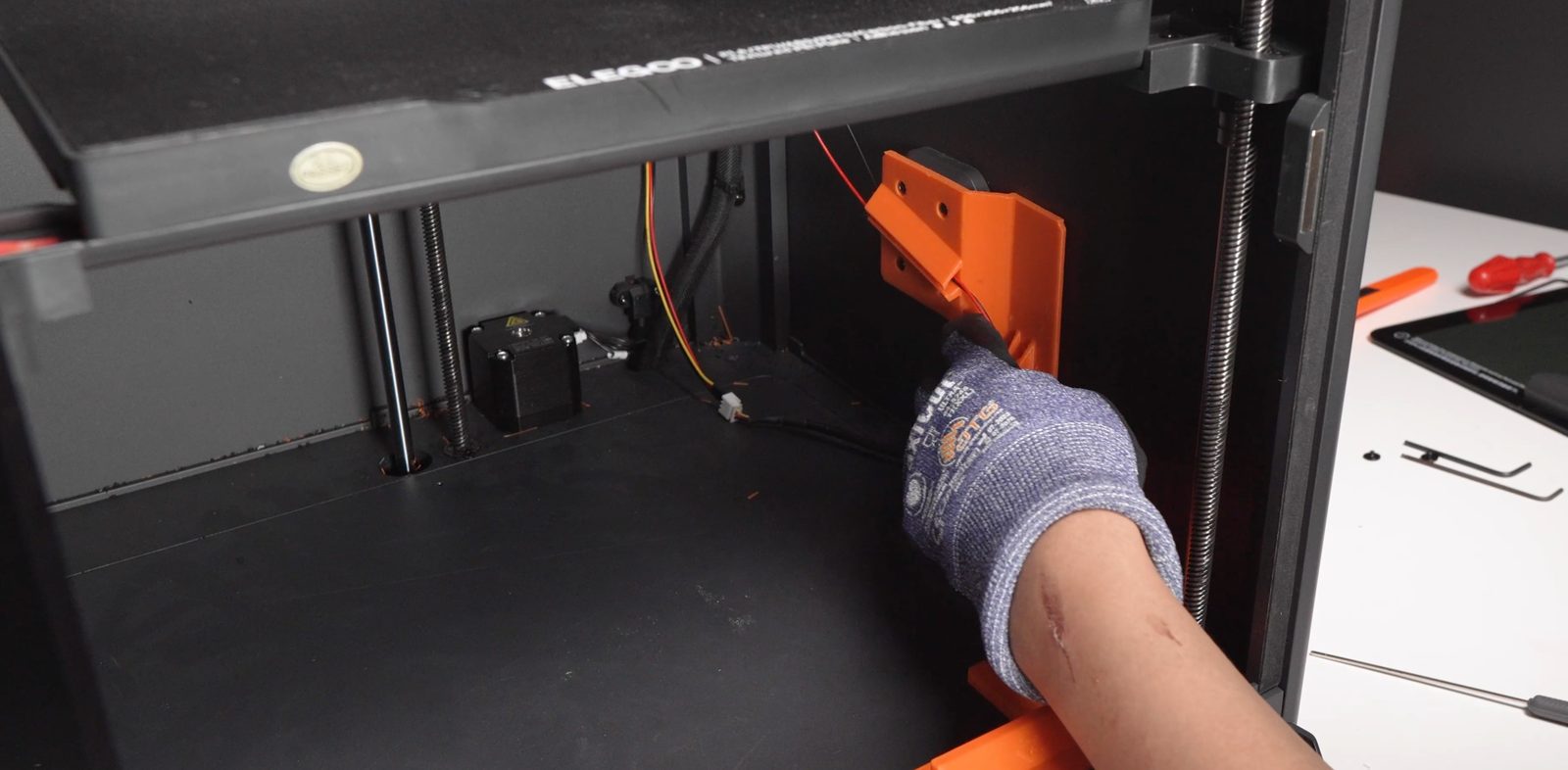

- Secure the bender holder using the 4 original bolts.

- Use M3 bolts to secure the PCB holder at the back.
- Connect all cables.
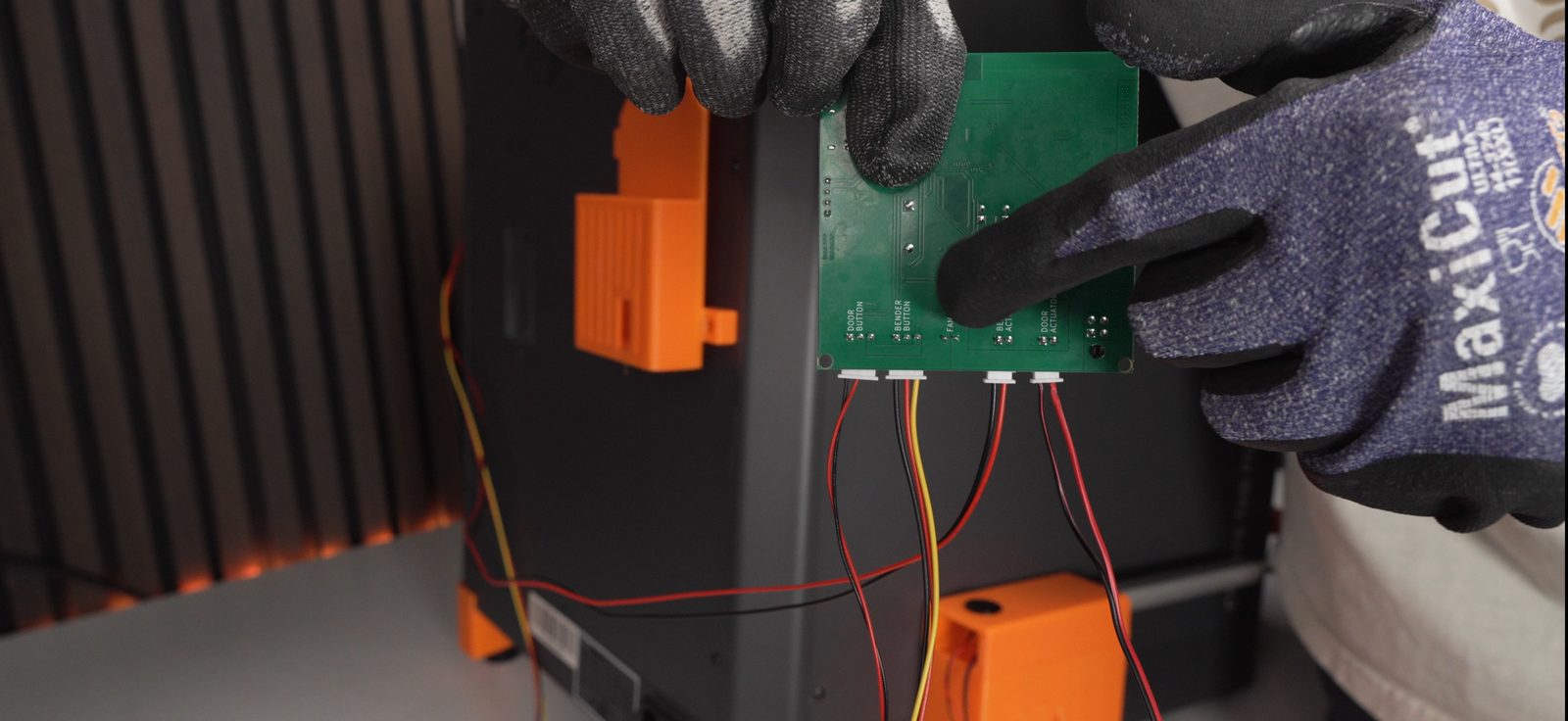

- Attach the pusher head.
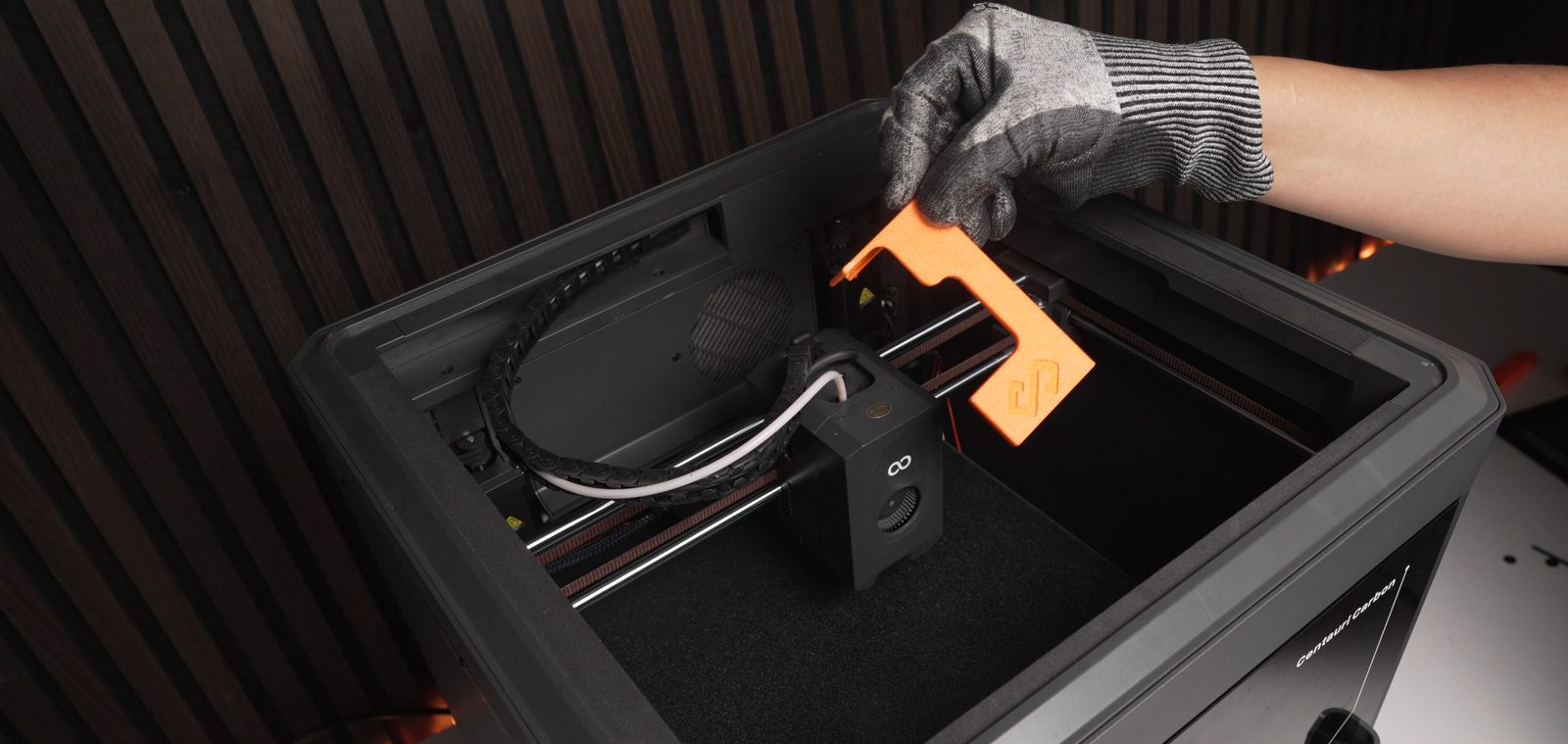
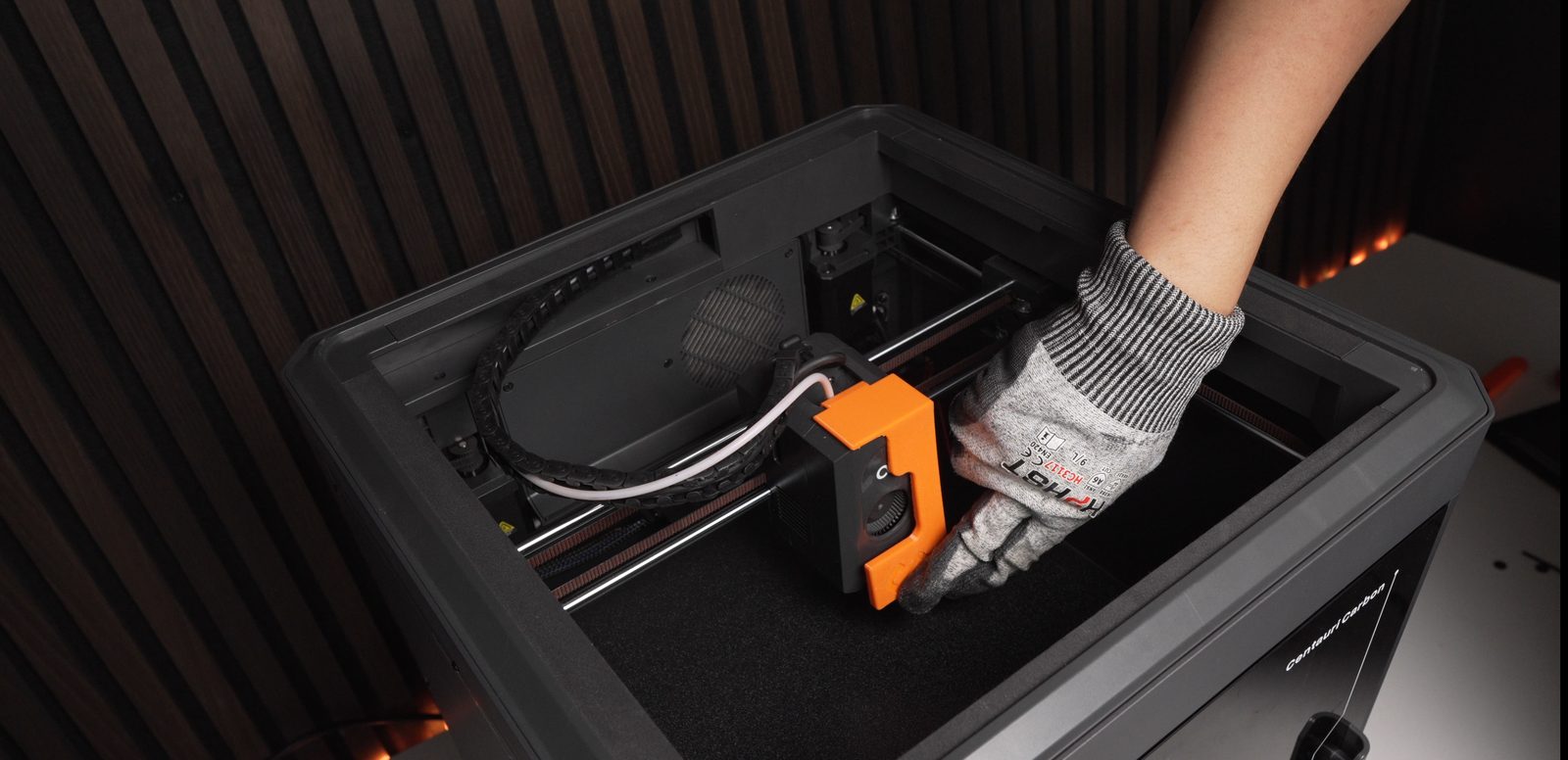

- Place the lid back.
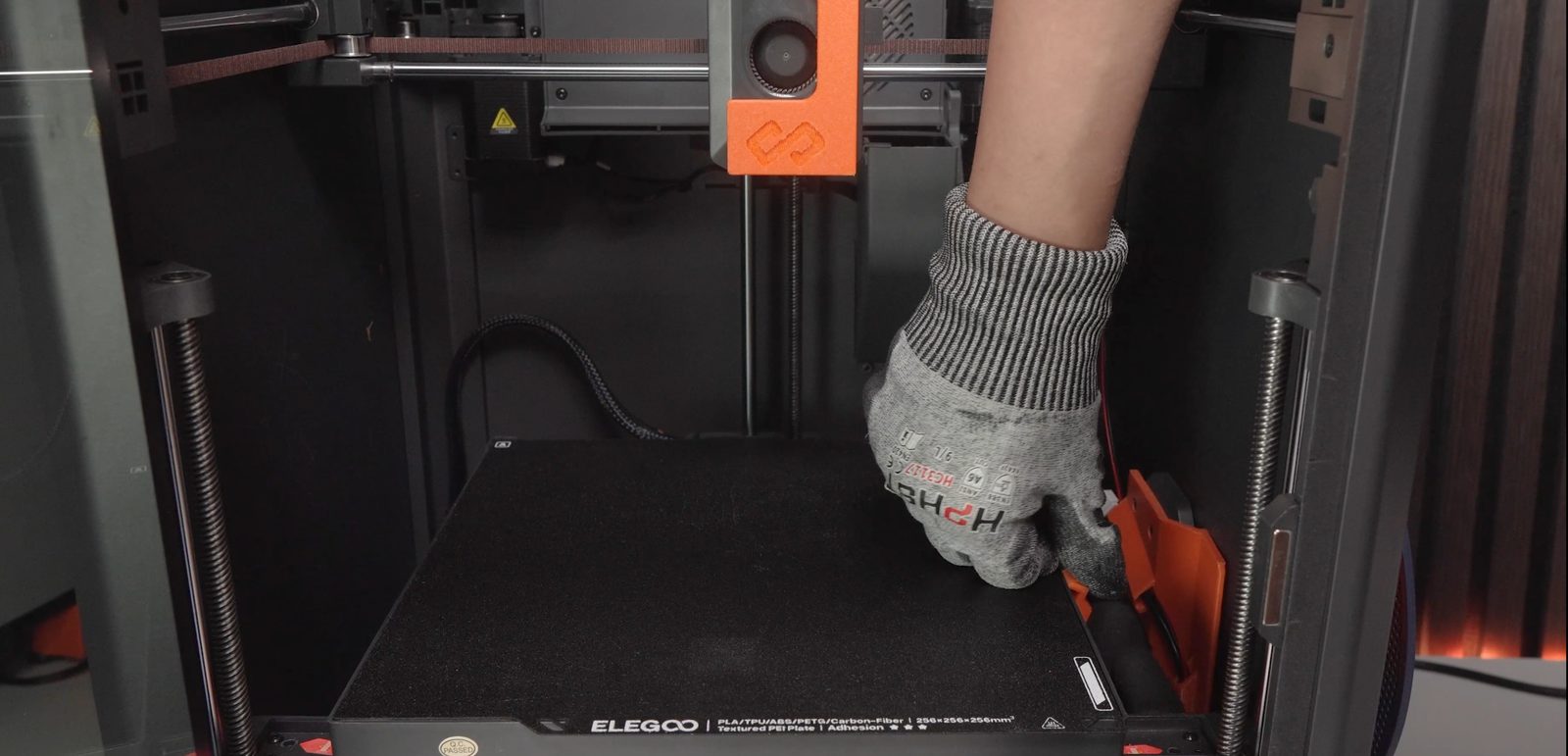
- Clip the bed.
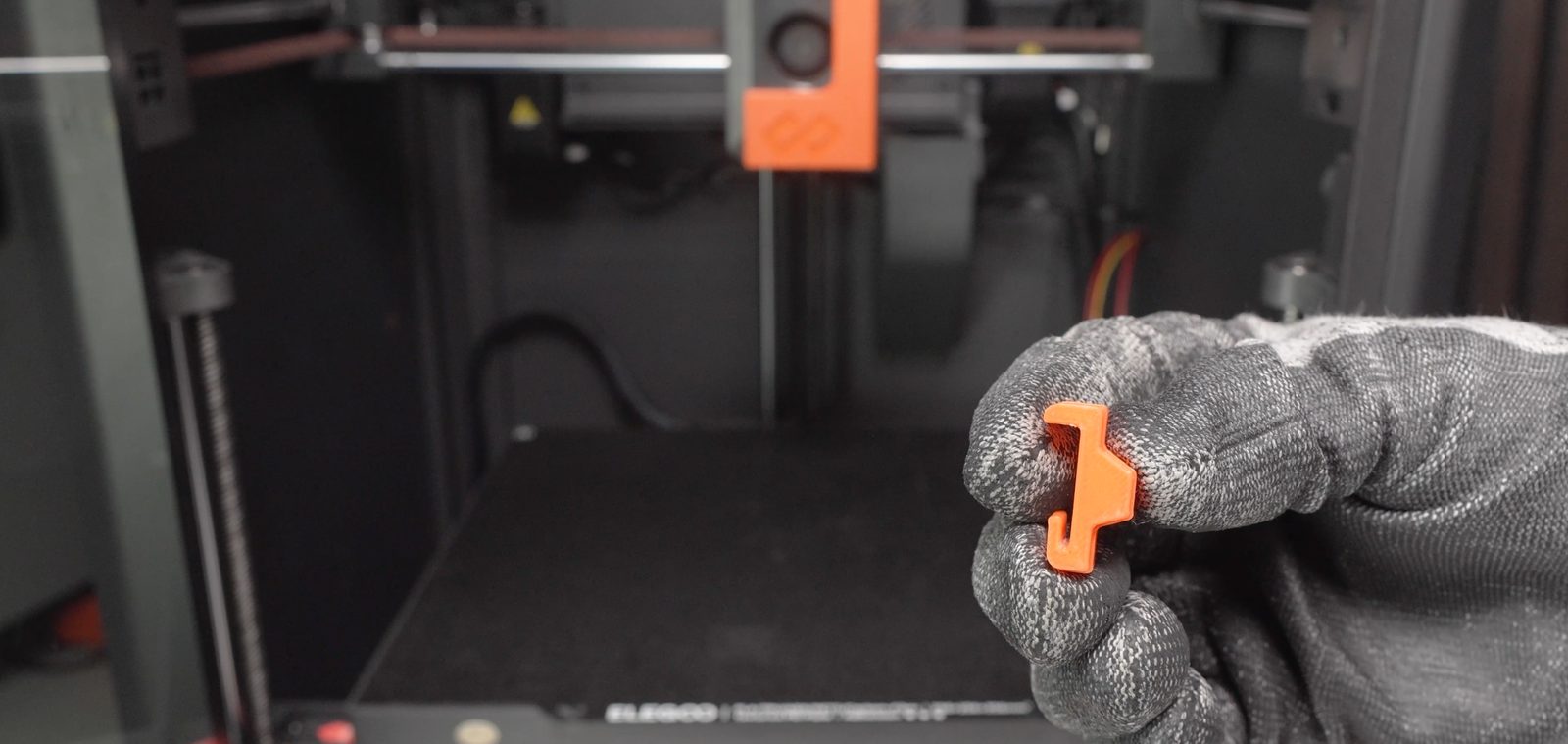
Support
Section titled “Support”- Contact: Open a support ticket
- Discord community: included with every FarmLoop account, Lite too: connect your FarmLoop account on the Dashboard to join; Pro and Business members also get the member channels