
FarmLoop Stage 2 assembly, Bambu P1P, P1S, X1C
Please read through the entire guide before beginning the installation. Ensure you have all prerequisites ready to avoid interruptions during assembly.
This guide covers the Bambu Lab P1P, P1S, and X1C printers. The installation is the same across all three.
Approximate time: 45-60 minutes.
Prefer to watch? Here's the full assembly walkthrough on video. Same install as the steps below - use the video, the text guide, or both side by side.
Prerequisites
Section titled “Prerequisites”- Bambu Lab P1P, P1S, or X1C with latest firmware installed
- Printed parts from Makerworld
- FarmLoop Pro App subscription, sign up at app.3d-farmers.com
- A clean, flat work surface with enough space to lay out all components
- ~45-60 minutes for complete installation
1. Check that all parts are present
Section titled “1. Check that all parts are present”Before starting, lay out every part from the kit and verify you have them all.
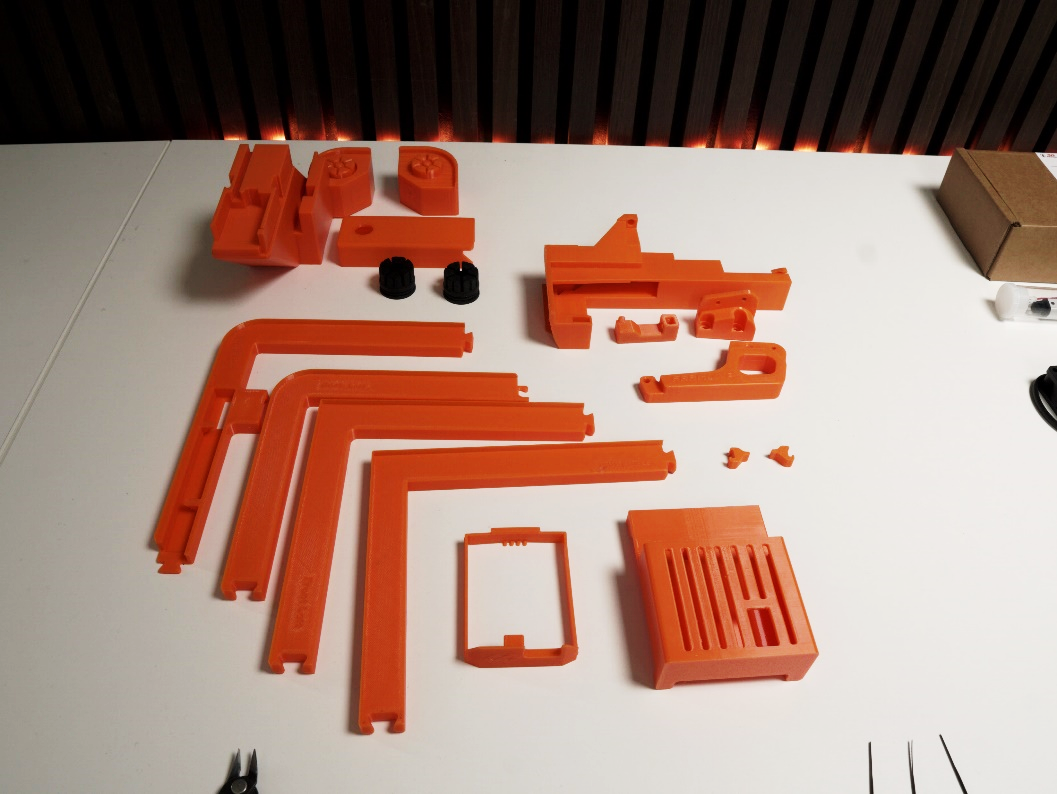
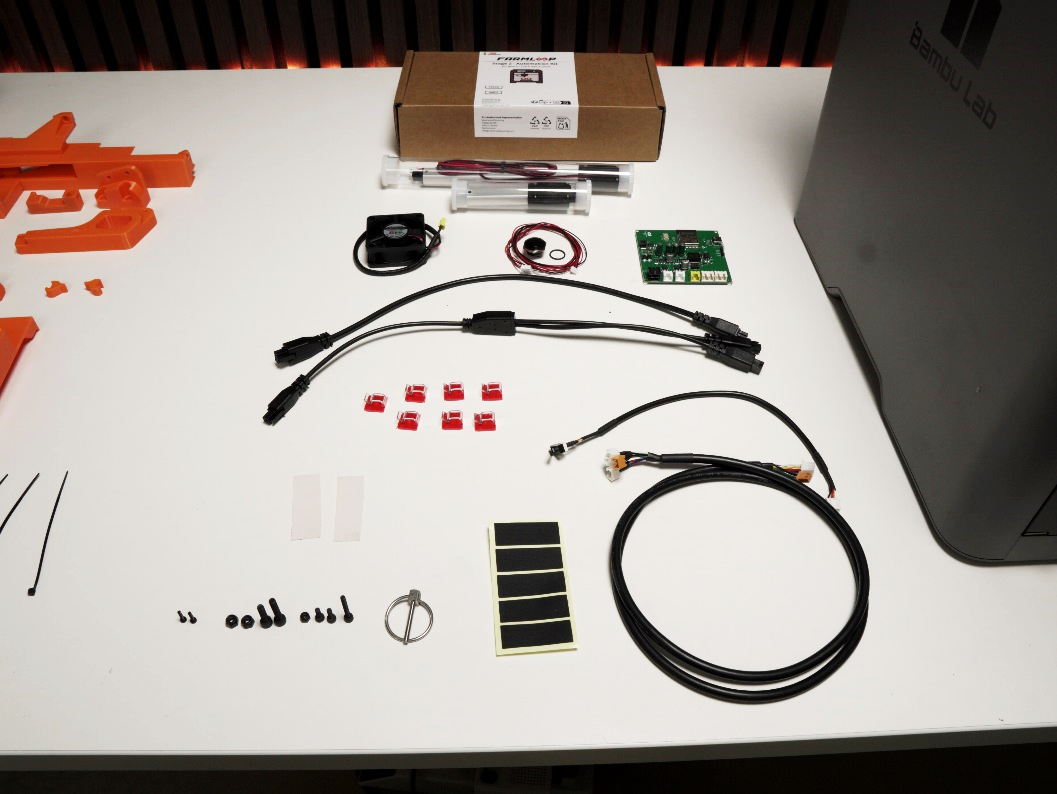
3D-printed parts (orange pieces)
Hardware
- FarmLoop actuators (50 mm & 125 mm)
- ESP32 controller board
- Cooling fan
- Door-opener button & cables
- Limit switch
- Wiring harness (yellow plugs for the fan unit)
- Molex cables
- AMS Y-cable - older kits only, see the note above
- External power supply - new kits, replaces the AMS power cabling above
- Stock rubber damper feet
- Double-sided white tape strips
- Black textured tape strips
- Cable ties & wire cutter
Screws & nuts
- M3 × 8 mm (2 pcs)
- M3 × 20 mm (1 pc)
- M4 × 16 mm (1 pc)
- M4 × 20 mm (1 pc)
- M3 hex nut (1 pc)
- M4 hex nut (2 pcs)
2. Assemble the door opener
Section titled “2. Assemble the door opener”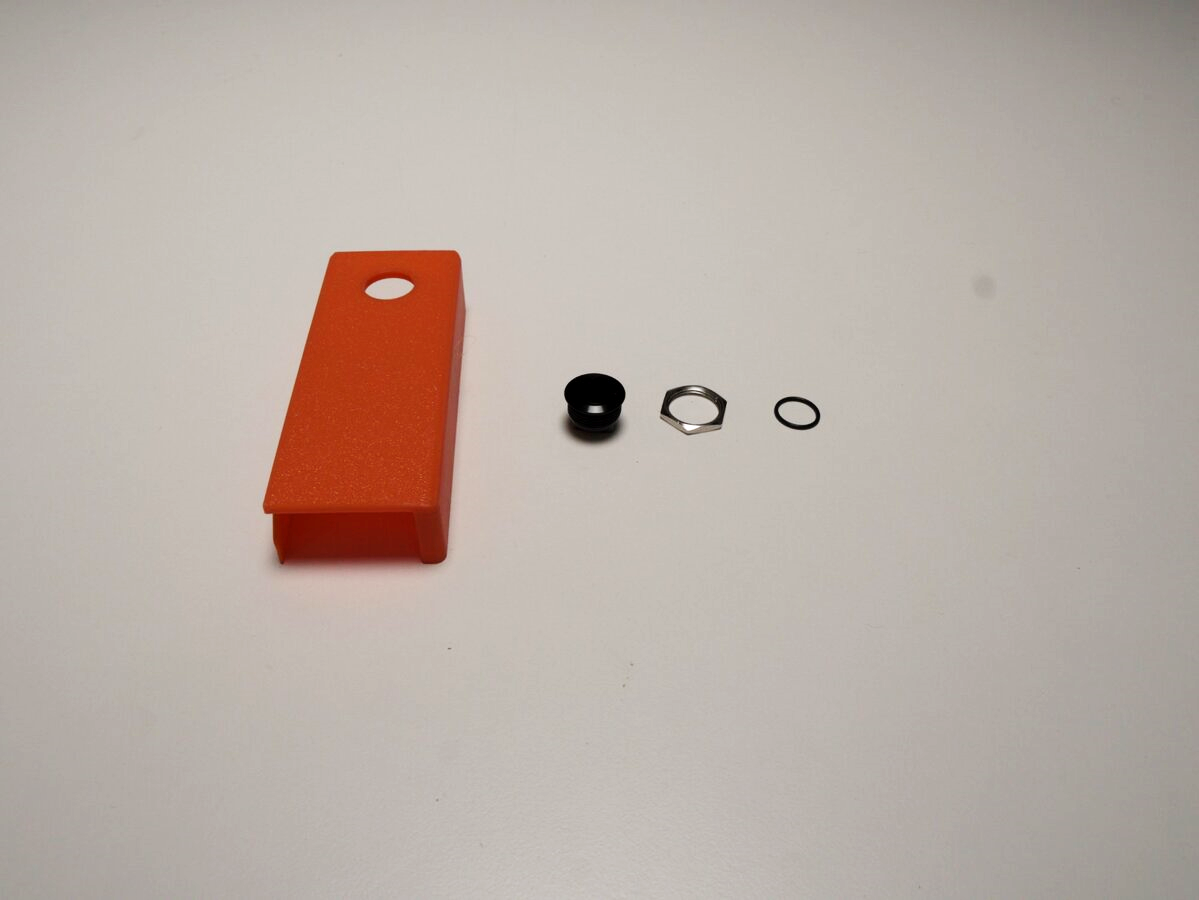
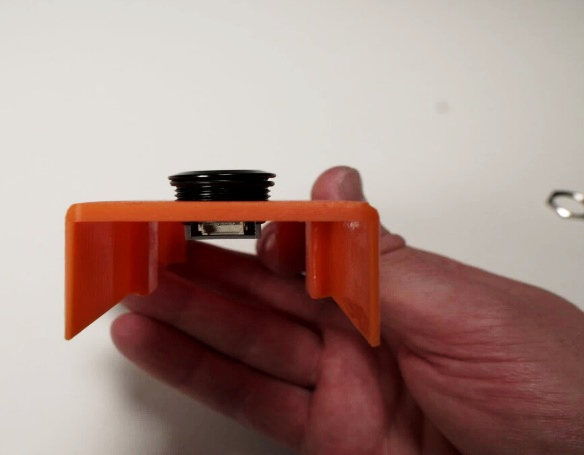
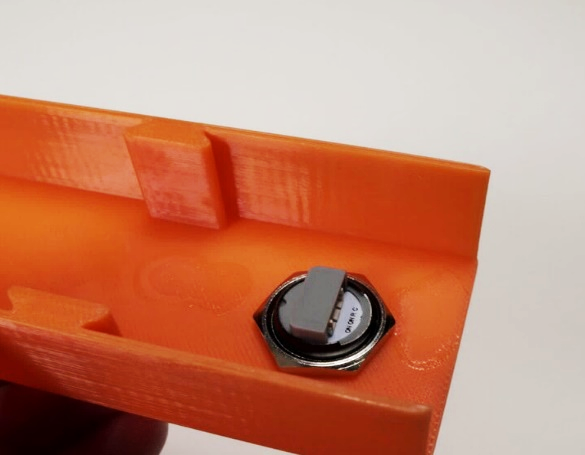
- Push the button through the O-ring.
- Insert the button through the hole in the orange bracket from the top. Secure it underneath with the hex nut.
- Flip the bracket over to verify the button sits flush. The hex nut should be tight, and the O-ring should provide a seal.
3. Prepare the tilted feet
Section titled “3. Prepare the tilted feet”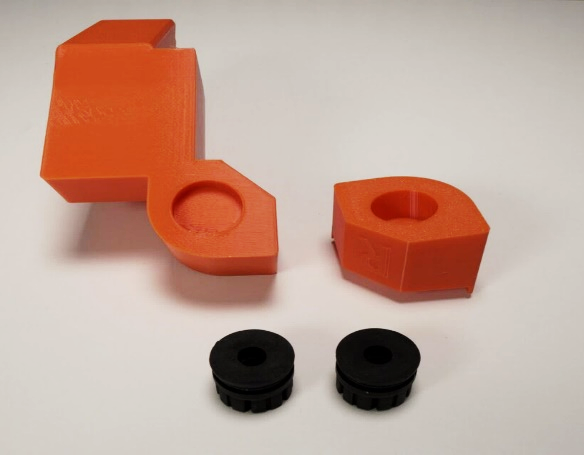
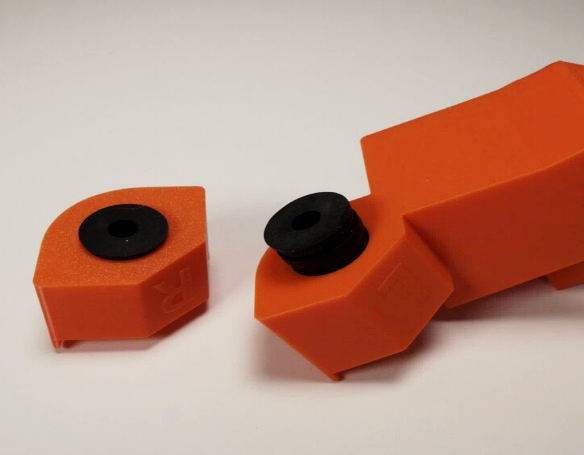
Press the rubber damper feet into the blind holes. These are the original rubber feet from your Bambu printer - unscrew them from the printer’s base and reuse them here. They provide vibration dampening and ensure a secure grip on the table.
The rubber feet should press-fit snugly. Make sure they are fully seated in the recesses.
4. Assemble the bender
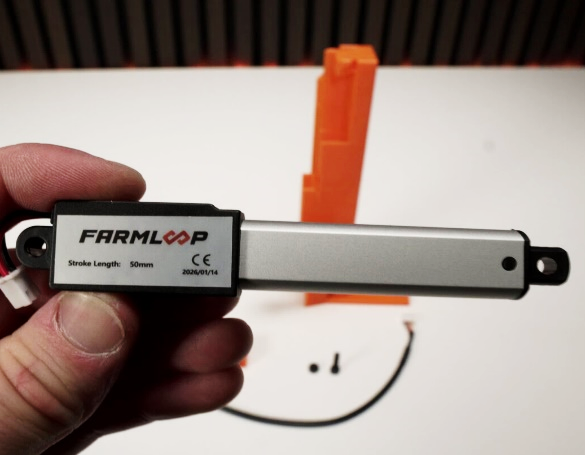
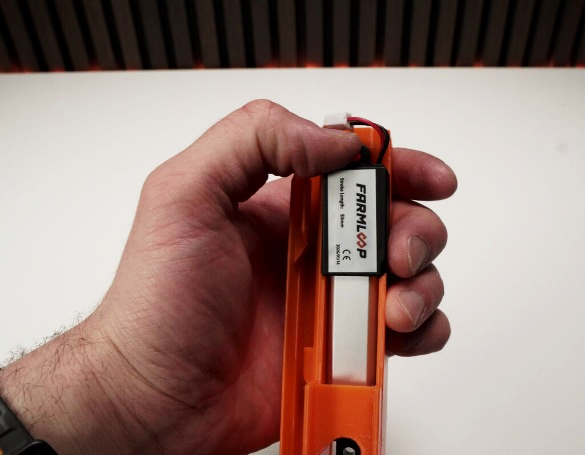
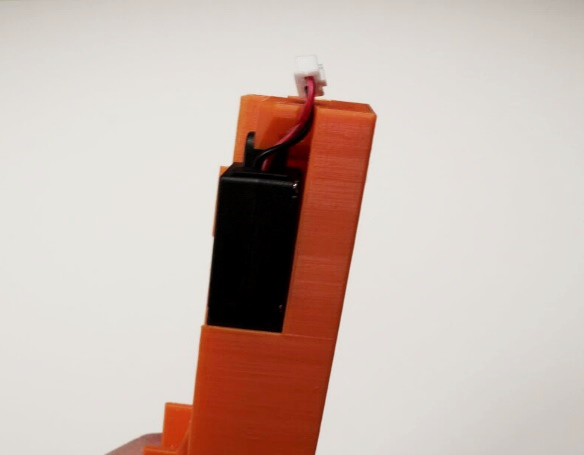
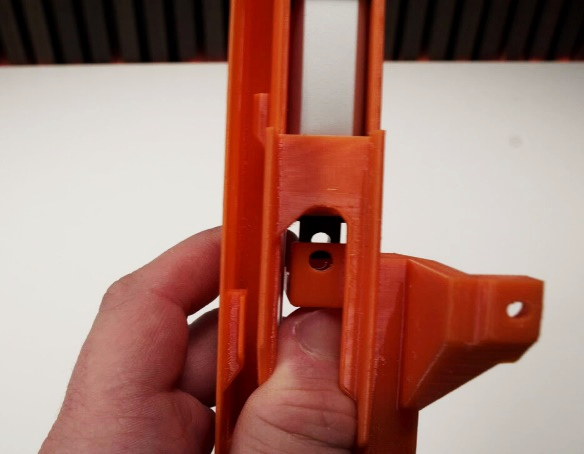
Section titled “4. Assemble the bender”- Slide the FarmLoop 50 mm stroke linear actuator into the vertical rail of the bender holder.
- Route the cable through the channel at the top.
- Mount the lifter and secure with the M4 × 16 mm screw and M4 nut.
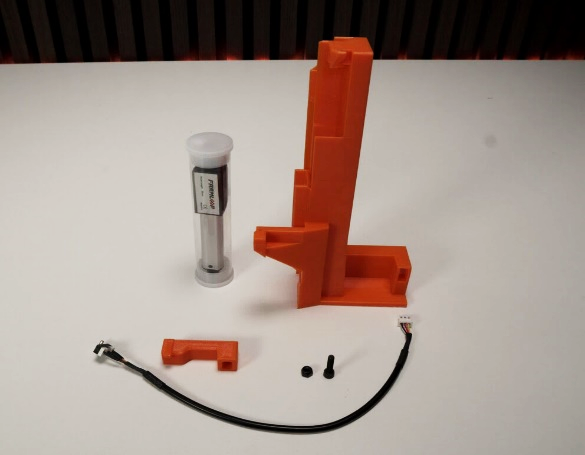
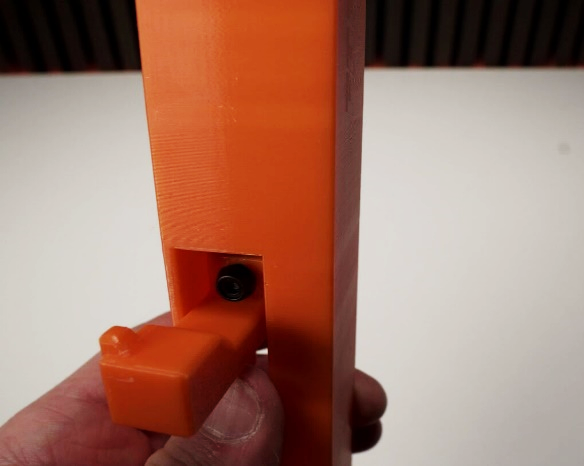
- Connect the limit-switch cable to the sensor.
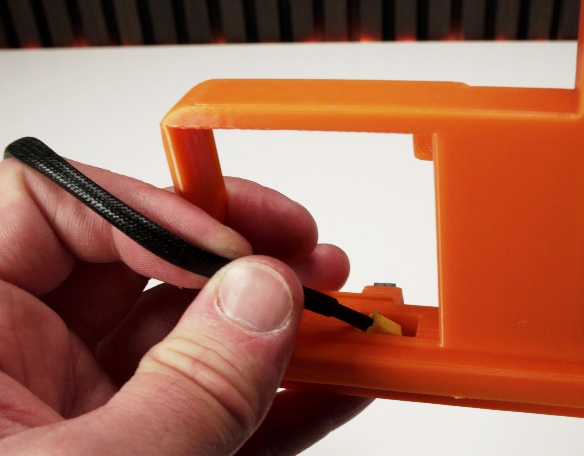
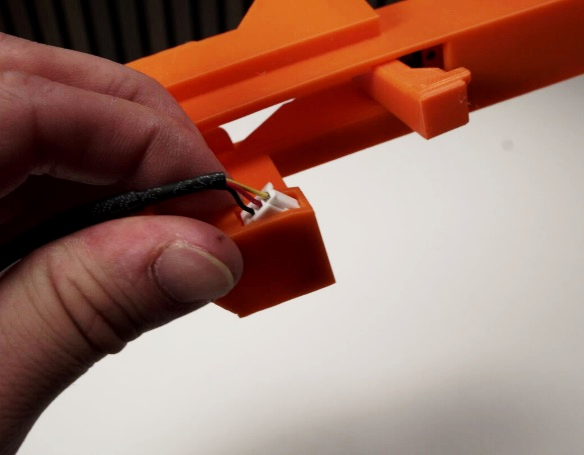
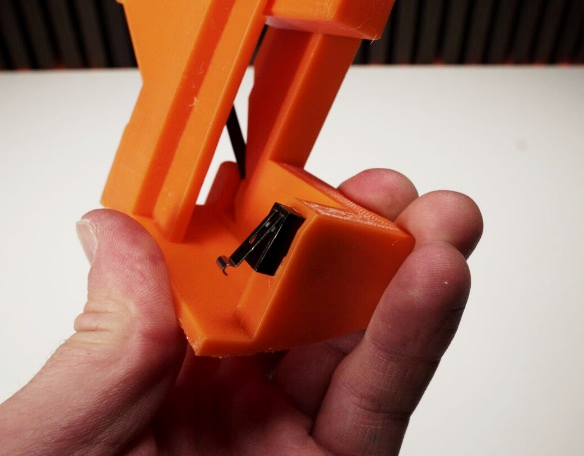
- Route the braided cable through the base channel so it exits cleanly at the top, and verify the end-stop is secured.
- Install the fan module: route the fan cable through the base channel and press the fan into the rectangular cut-out, sticker facing inward toward the printer chamber.
- Verify the bender sits flat on the printer bottom surface - if it doesn’t, check that all cables are correctly stored in the cable groove.
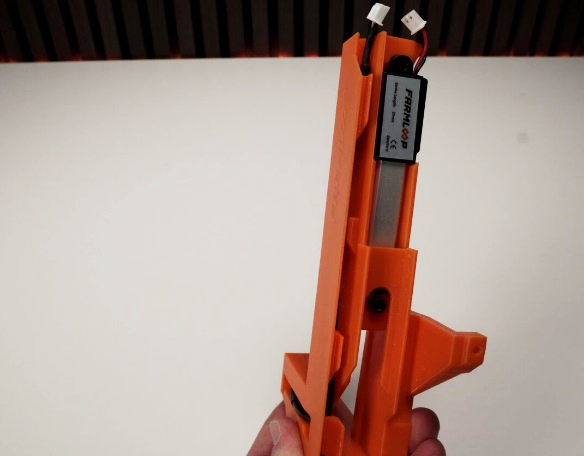
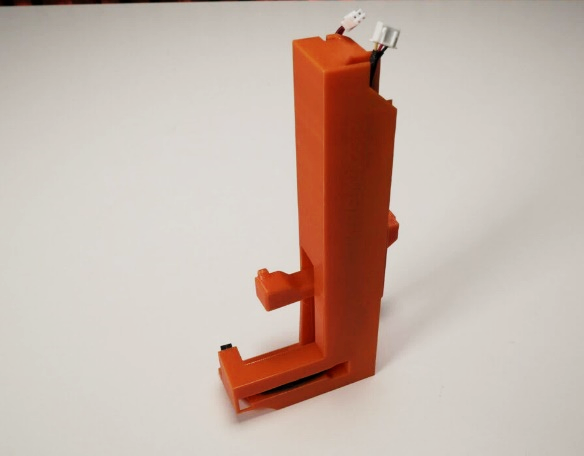
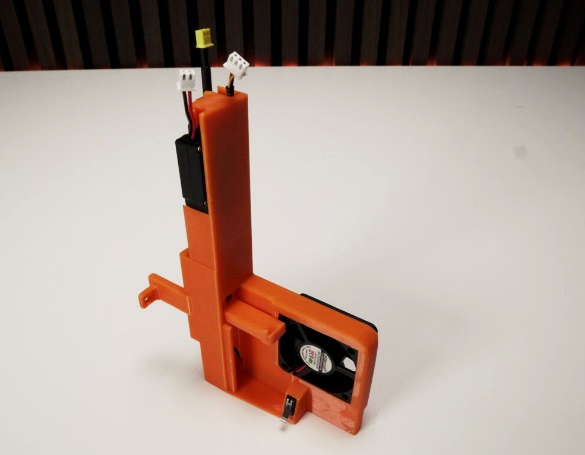
5. Attach the door hinge bracket
Section titled “5. Attach the door hinge bracket”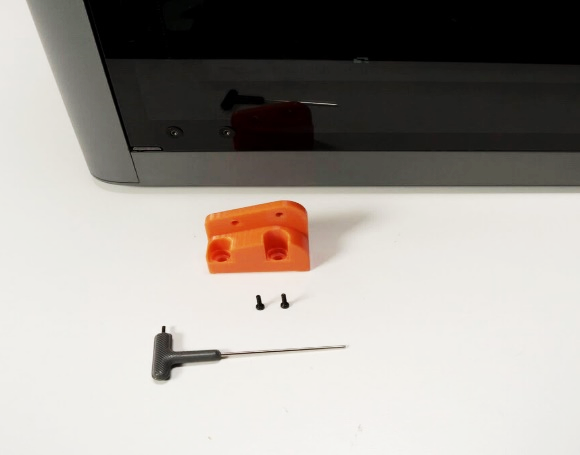
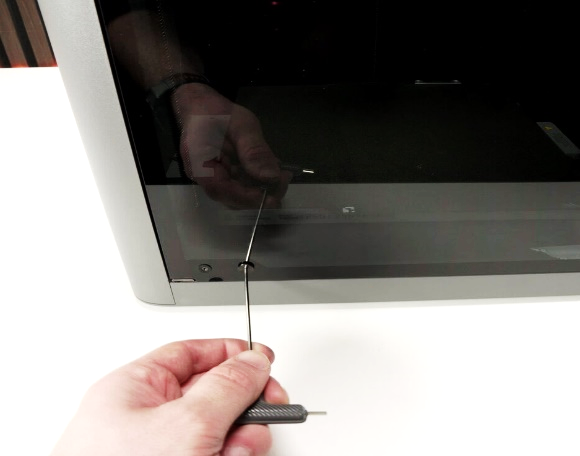
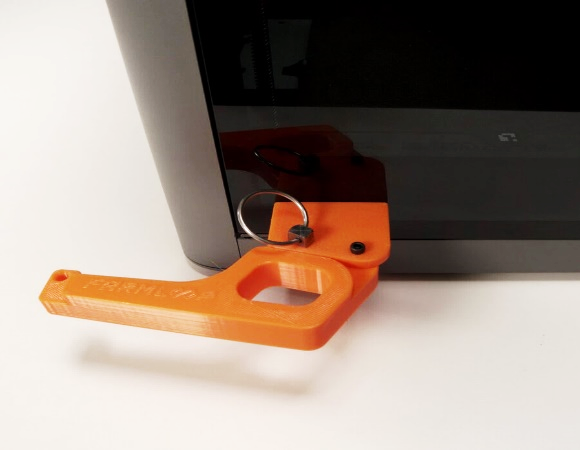
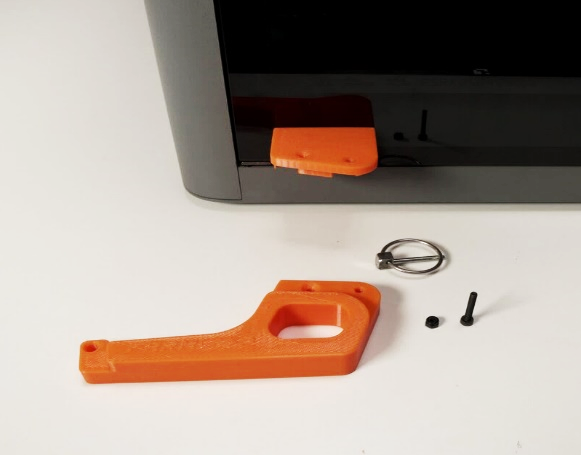
- Remove the two screws on the bottom hinge of the front door.
- Attach the front hinge bracket to the printer with the M3 × 8 mm screws.
- Position the lid arm onto the front bracket. Secure with the M3 × 20 mm bolt and insert the quick-release pin through the left hole.
6. Install the bender on the printer
Section titled “6. Install the bender on the printer”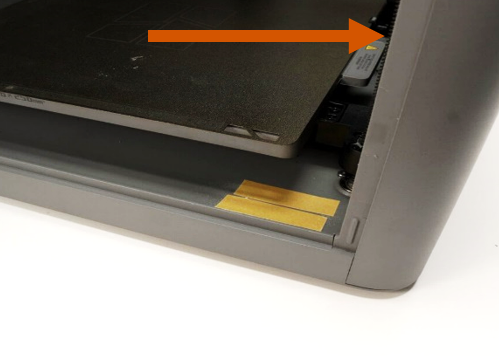
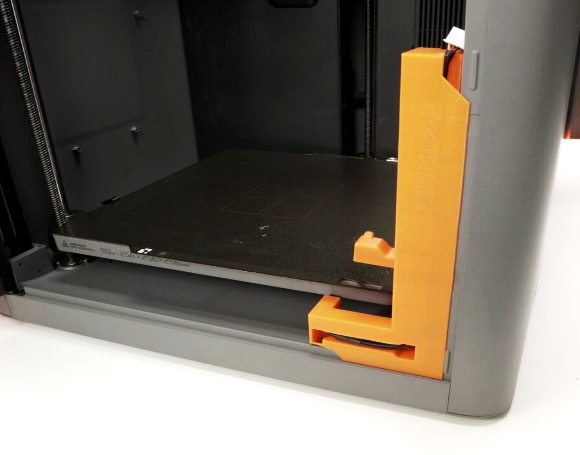
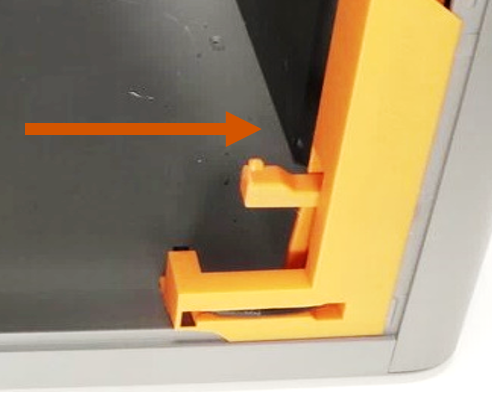
- Remove the lowest screw on the right side of the printer where the bender will be mounted.
- Apply the included white double-sided tape strips to the front edge of the printer frame.
- Insert the bender module. Ensure it does not interfere with Z-axis lead screws or build-plate movement.
- Reinsert the screw behind the bender, easy to forget.
7. Install the PCB
Section titled “7. Install the PCB”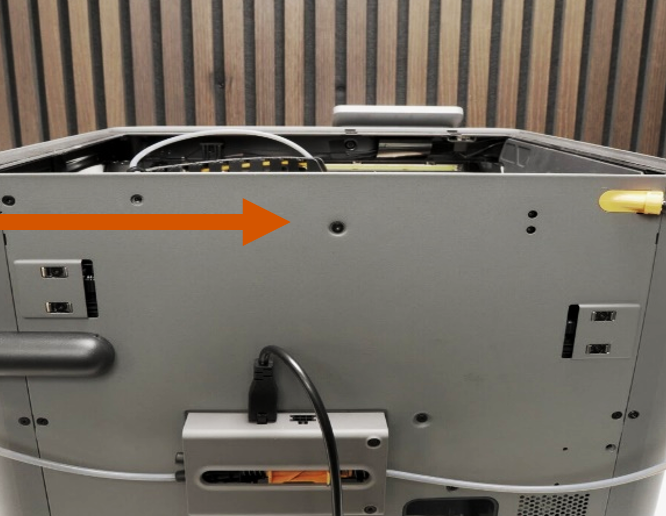
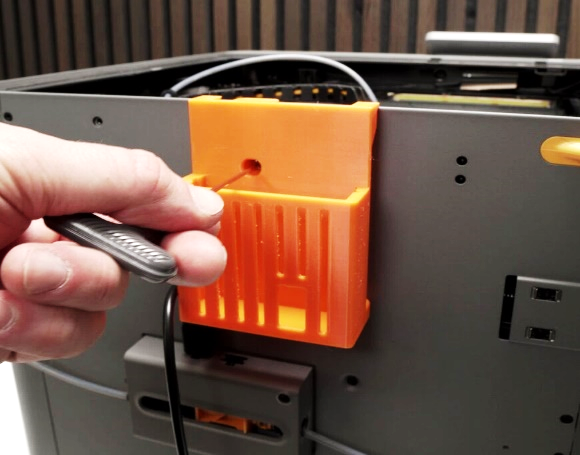
- Remove the marked screw.
- Place the PCB basket as shown and use the same screw to mount it to the printer.
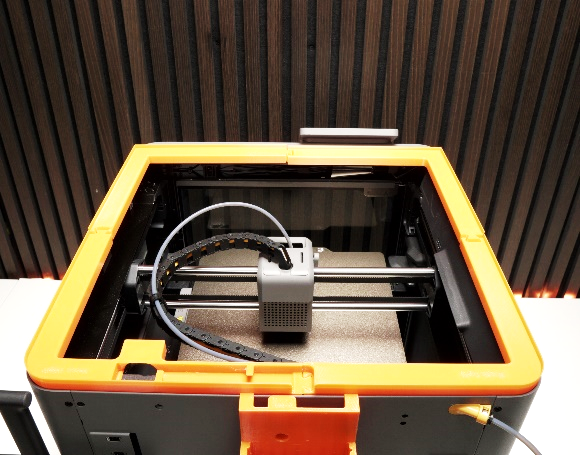
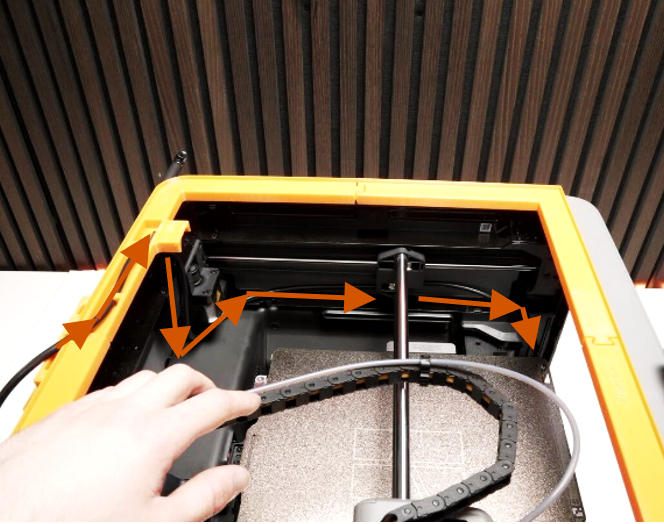
- Assemble and lay the frame on top of the printer.
- Pull the cable through the opening and route it through the printer as shown.
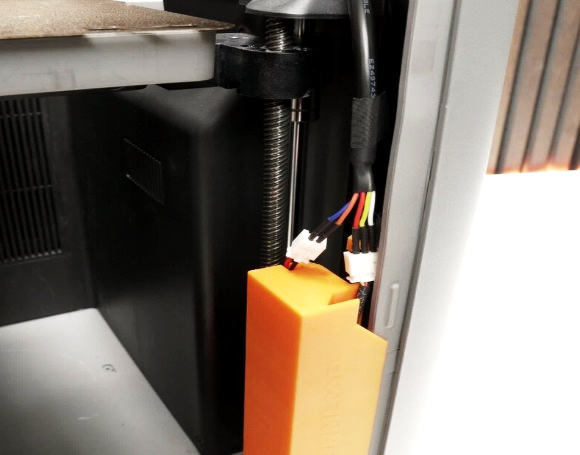
- Connect the cables to the bending assembly.
- Connect the fan to the orange cable plug.
8. Cable management and PCB wiring
Section titled “8. Cable management and PCB wiring”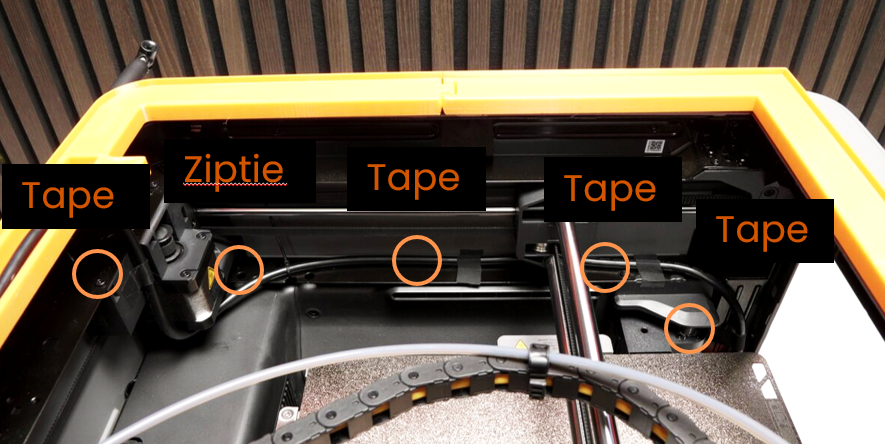
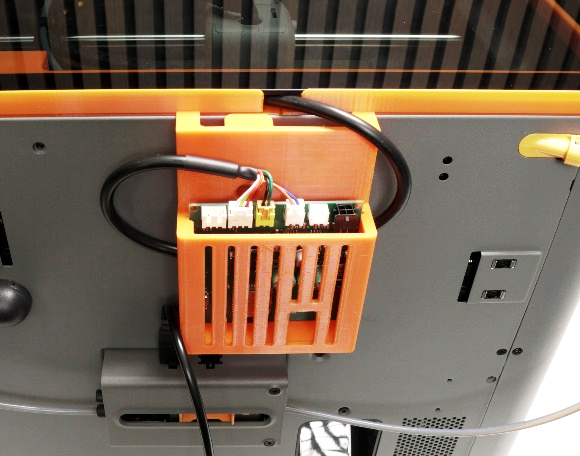
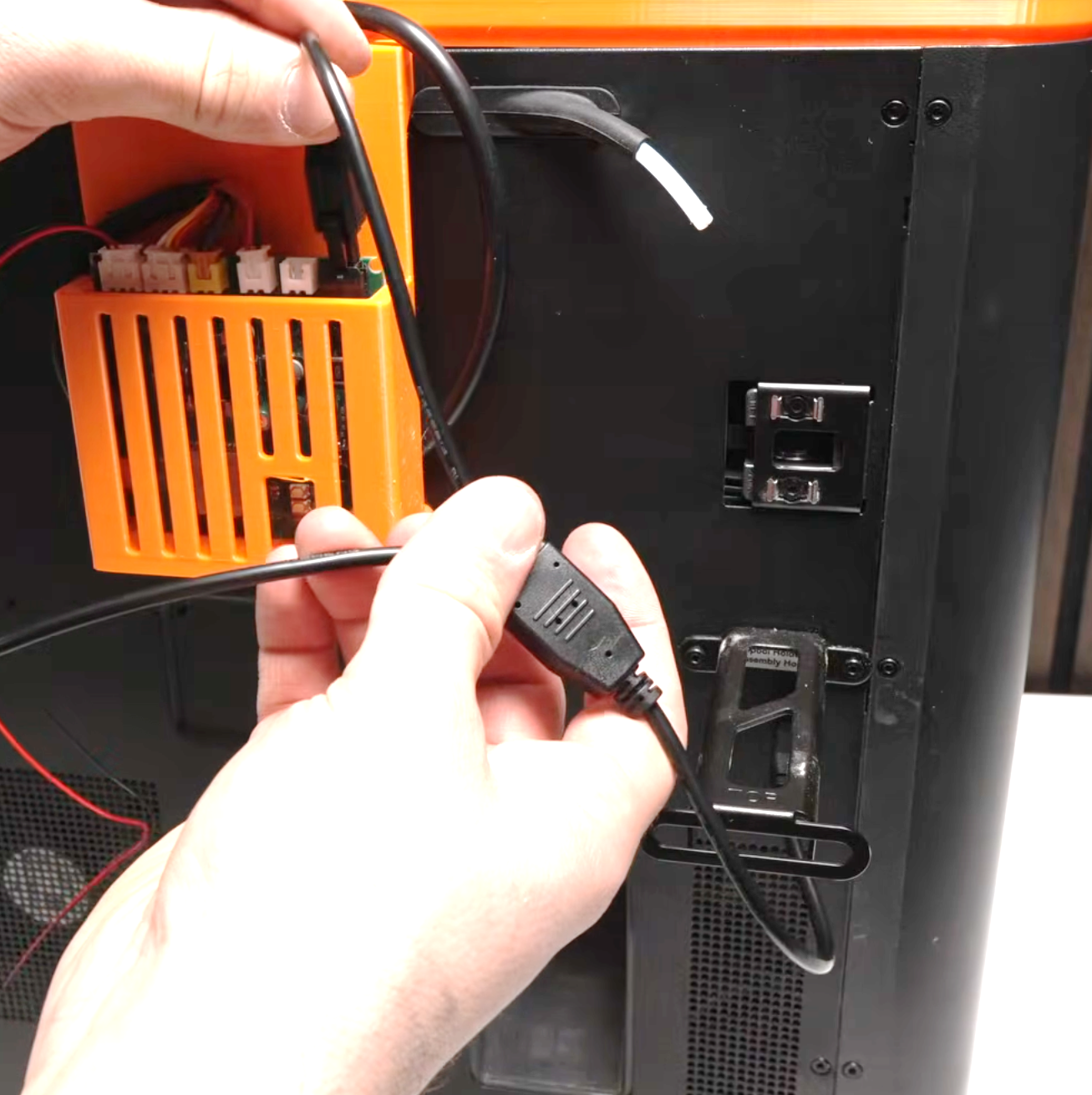
- Make sure the cable is not loose at the front of the printer.
- Secure the cables with cable ties and textured black tape as marked in the pictures.
- Connect the cables to the PCB.
- Connect the door-actuator and door-button to the PCB.
- Connect the power:
- New kits (with external power supply): connect the power supply to the PCB and plug it into a wall socket. The printer’s AMS port is not used at all - skip the AMS cable steps below and leave your AMS wiring untouched.
- Older kits: connect the 4-pin AMS Y-cable (single-cable side) to the printer. On the other side, connect to the PCB and optionally to your AMS.
9. Final assembly
Section titled “9. Final assembly”- Install the door actuator and the door button into the left tilted foot (marked
L). - Add the right tilted foot (marked
R). - Secure loose cables with cable ties and the cable clips.
- Attach the actuator to the door bracket with the M4 × 20 mm screw. Do not over-tighten the screw.
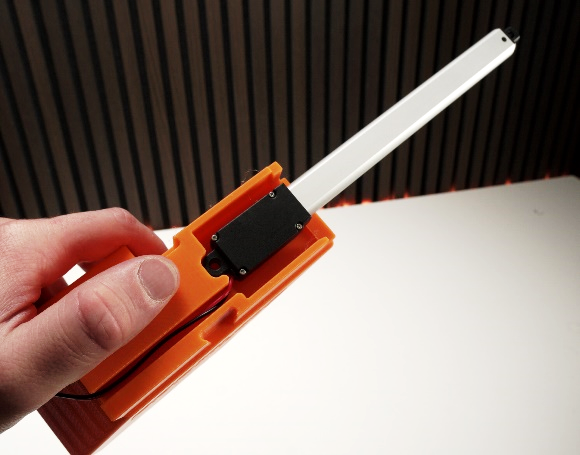
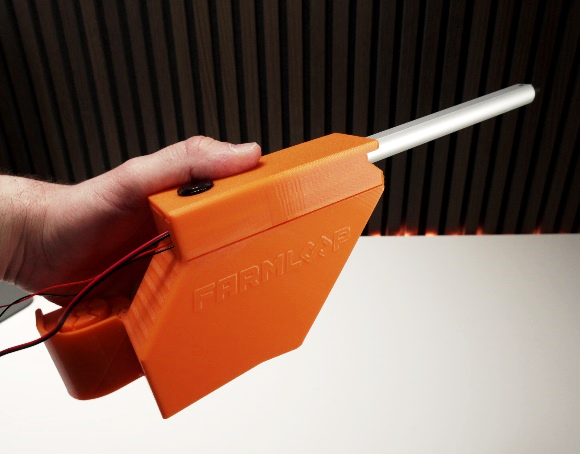
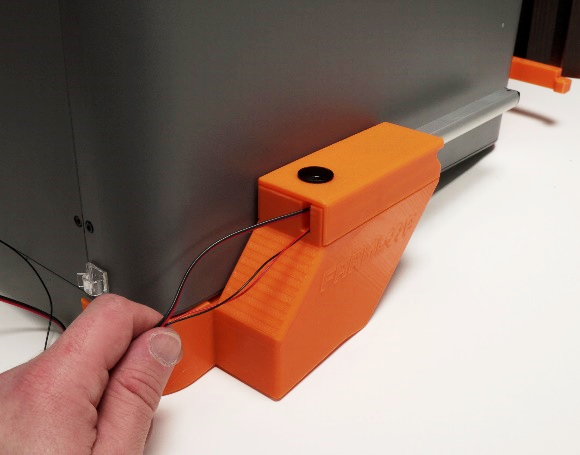
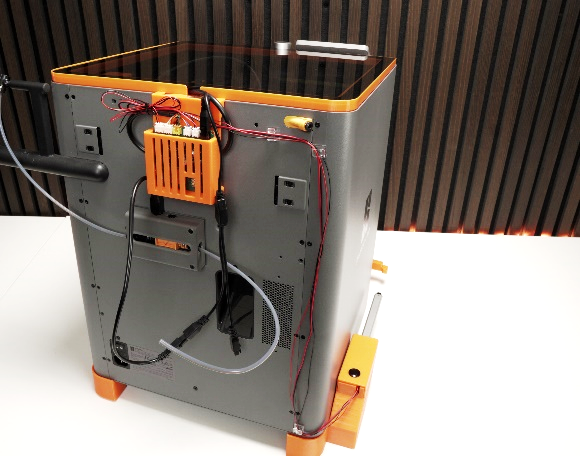
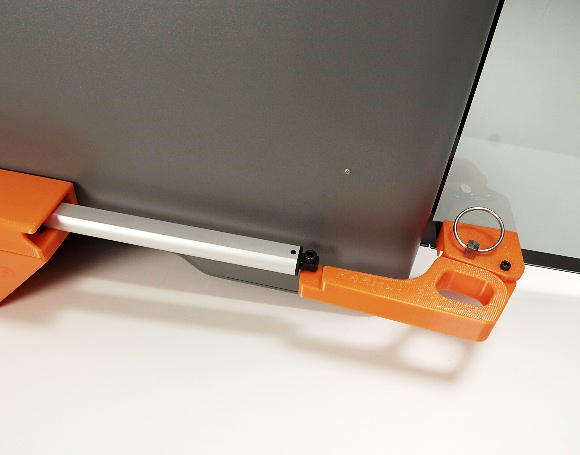
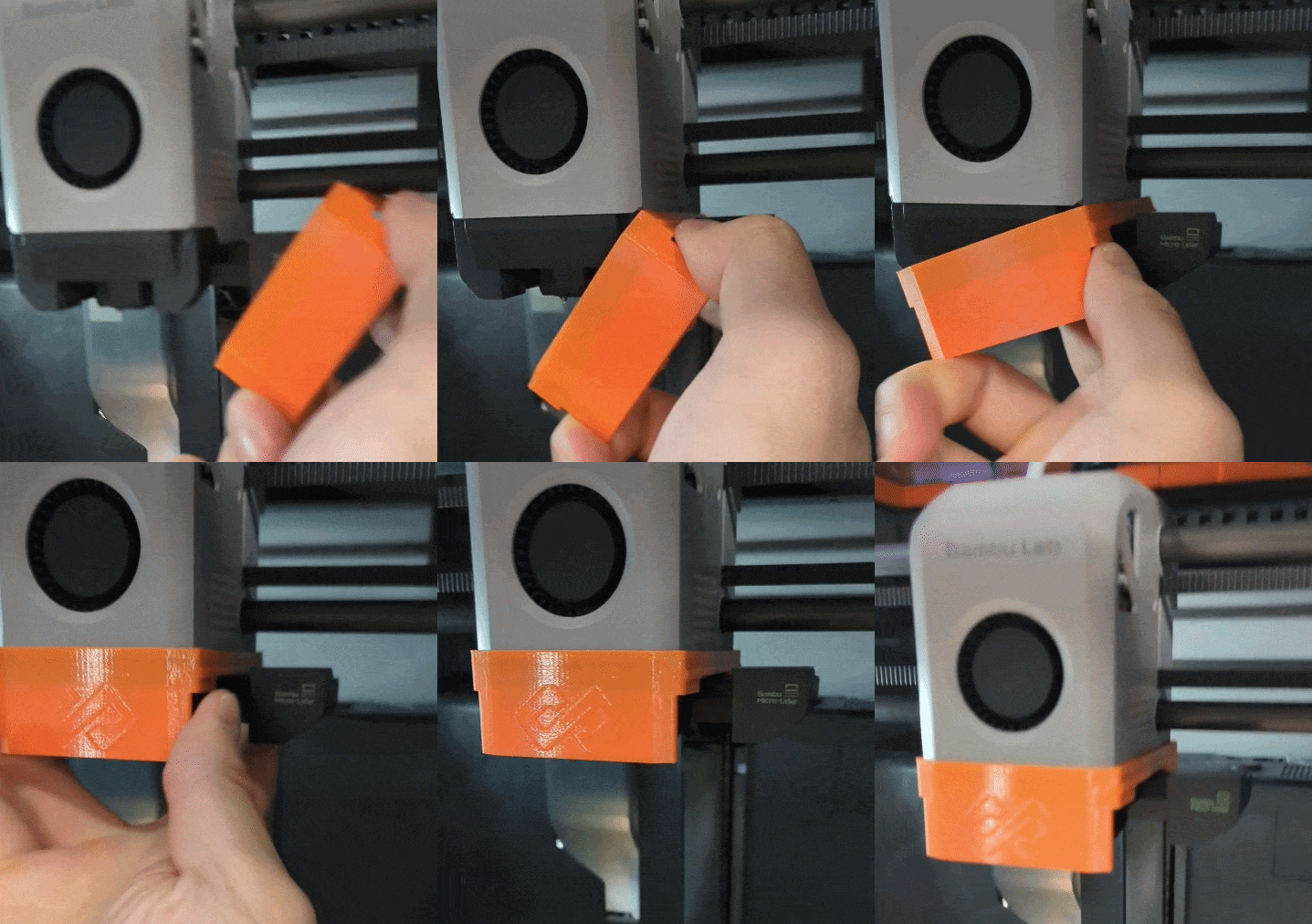
- Finally, put the scraper on the printer head.
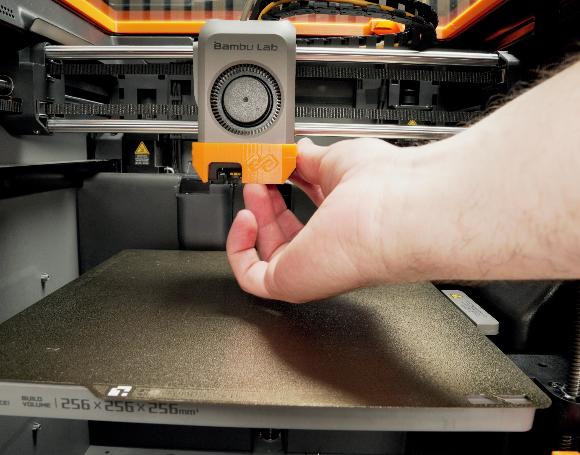
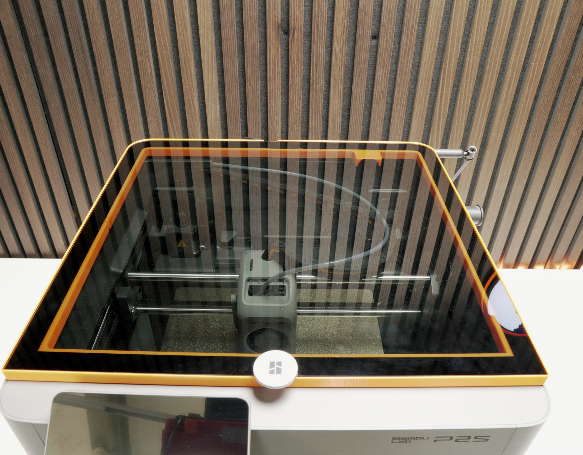
- Insert the top glass into the frame.
Operation
Section titled “Operation”Door-button controls
Section titled “Door-button controls”The DOOR BUTTON is the manual-control button on the automatic door console. Its function depends on the current system state:
| System state | Action | Result |
|---|---|---|
| Idle | Short tap | Door control (open/close toggle) |
| Idle | Long press (3+ seconds) | Enter test mode |
| Any state | 5 quick taps within 3 seconds | Enter OTA configuration mode |
| Reset after safety-check failed | Single tap | Recovers from SAFETY_FAILED state. Homes bender, closes door, returns to initial state. |
OTA mode (firmware updates + trigger-mode setup)
Section titled “OTA mode (firmware updates + trigger-mode setup)”OTA is how you flash new firmware and how you wire up the Digital trigger mode (printer IP + LAN access code). The full walkthrough - entering OTA mode, accessing http://farmloop.local, uploading a .bin file - lives on the Accessing the board (OTA mode). Trigger-mode setup is on the Trigger mode page.
LED signals
Section titled “LED signals”After the board boots, the LED shows a sequence indicating connection status.
Successful startup sequence: 3 quick blinks → 5 slow blinks → 10 fast blinks. If you see all three patterns, the board is fully connected to the printer.
During OTA mode: the LED blinks rapidly at 4 Hz continuously until you exit or the timeout is reached.
| LED pattern | Meaning | Action needed |
|---|---|---|
| 3 quick blinks | Boot successful | None, normal |
| 5 slow blinks | Wi-Fi connected | None, good |
| 10 fast blinks | MQTT printer connected | None, fully operational |
| 2 long blinks | Wi-Fi connection failed | Check SSID and password in OTA |
| 4 long blinks | MQTT connection failed | Check printer IP and access code |
Support
Section titled “Support”Stuck? Reach out:
- Contact: Open a support ticket
- Discord community: included with every FarmLoop account, Lite too: connect your FarmLoop account on the Dashboard to join; Pro and Business members also get the member channels